

ROLO Dispatch Training • Lesson 4
Lesson 4: Dispatch Map — Monitoring Active Deliveries
Learn how to track drivers, view orders, filter the map, and spot problems early.
Dispatch Map is your live visibility tool. Use it to see drivers, see deliveries, and catch problems before they become customer issues.
Open Map → Monitor Drivers → Monitor Orders → Apply Filters → Watch Exceptions → Support Operations
Step 1: Open Dispatch Map
Navigation → Dispatch Map
This is the live map screen used to monitor active deliveries and driver movement.
Step 2: Use the Driver Tab
The Driver tab helps you see where drivers are and whether they are moving.
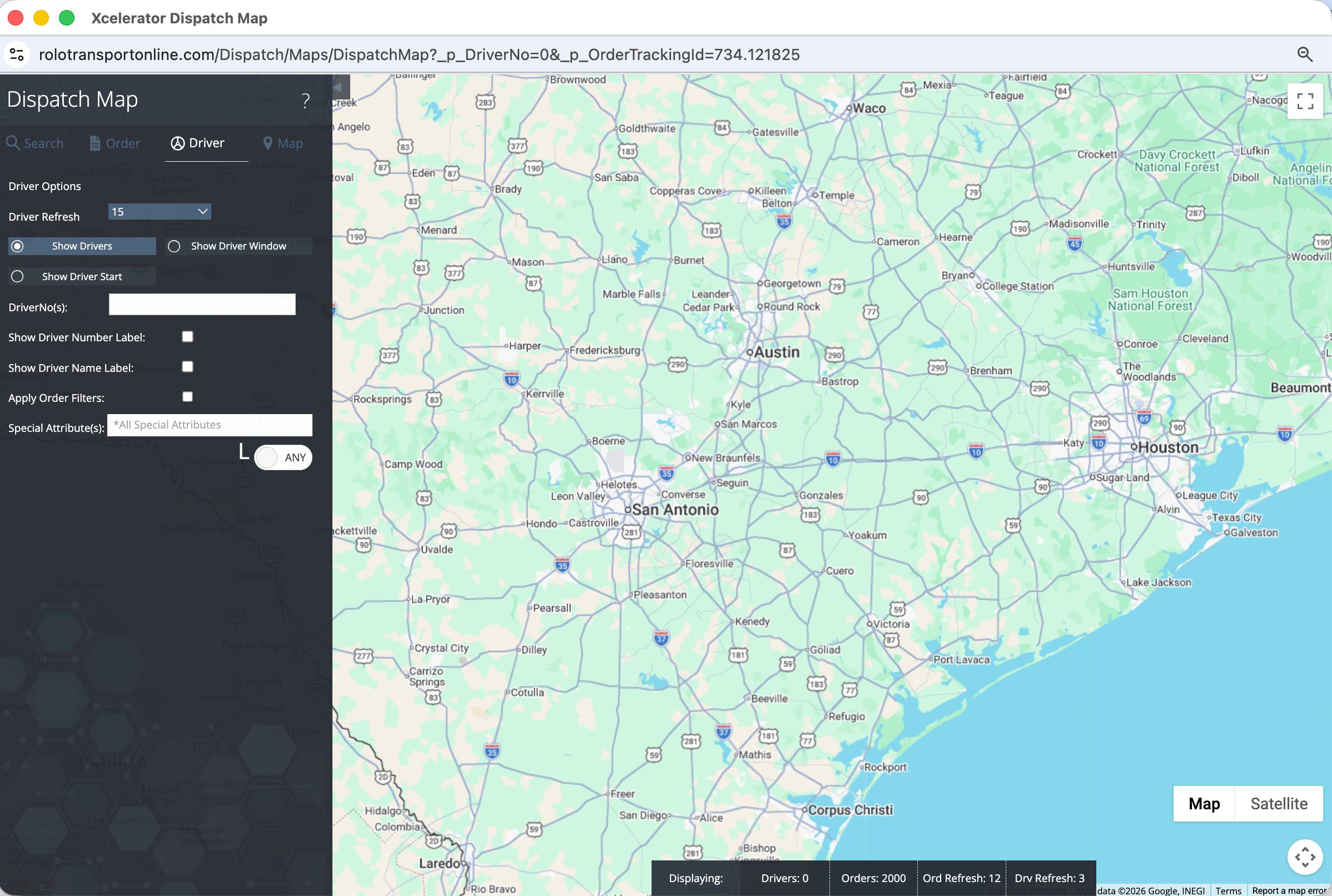
Dispatch Map → Driver tab
- Turn on Show Drivers
- Use driver filters if needed
- Check who is active, where they are, and who may be delayed
Step 3: Use the Order Tab
The Order tab helps you see delivery locations and active work on the map.
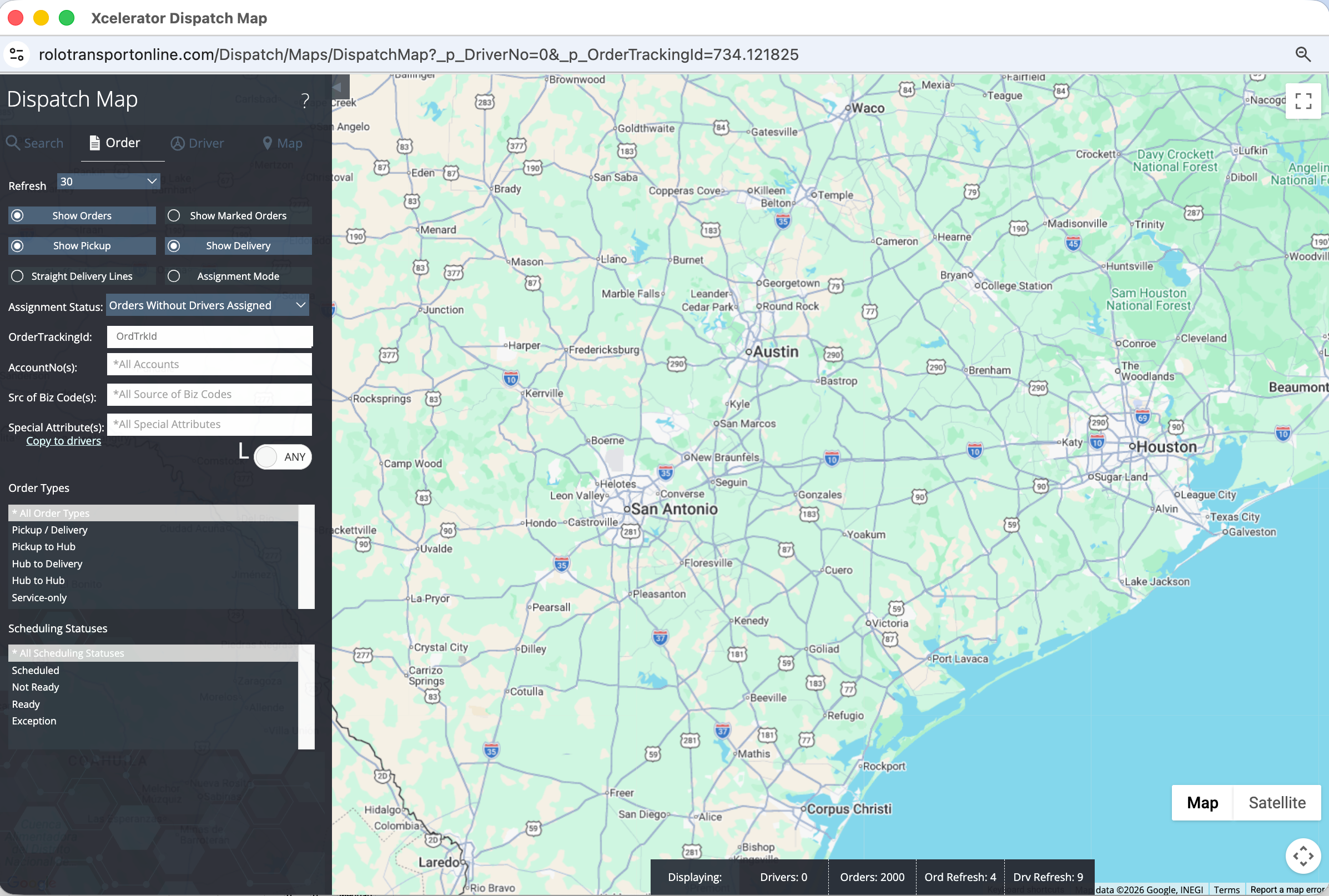
Dispatch Map → Order tab
- Turn on Show Orders
- Use Show Delivery to focus on delivery stops
- Use this view to see where orders are concentrated
Step 4: Use Filters to Control the View
Filters help you focus on the part of the operation you need to manage.
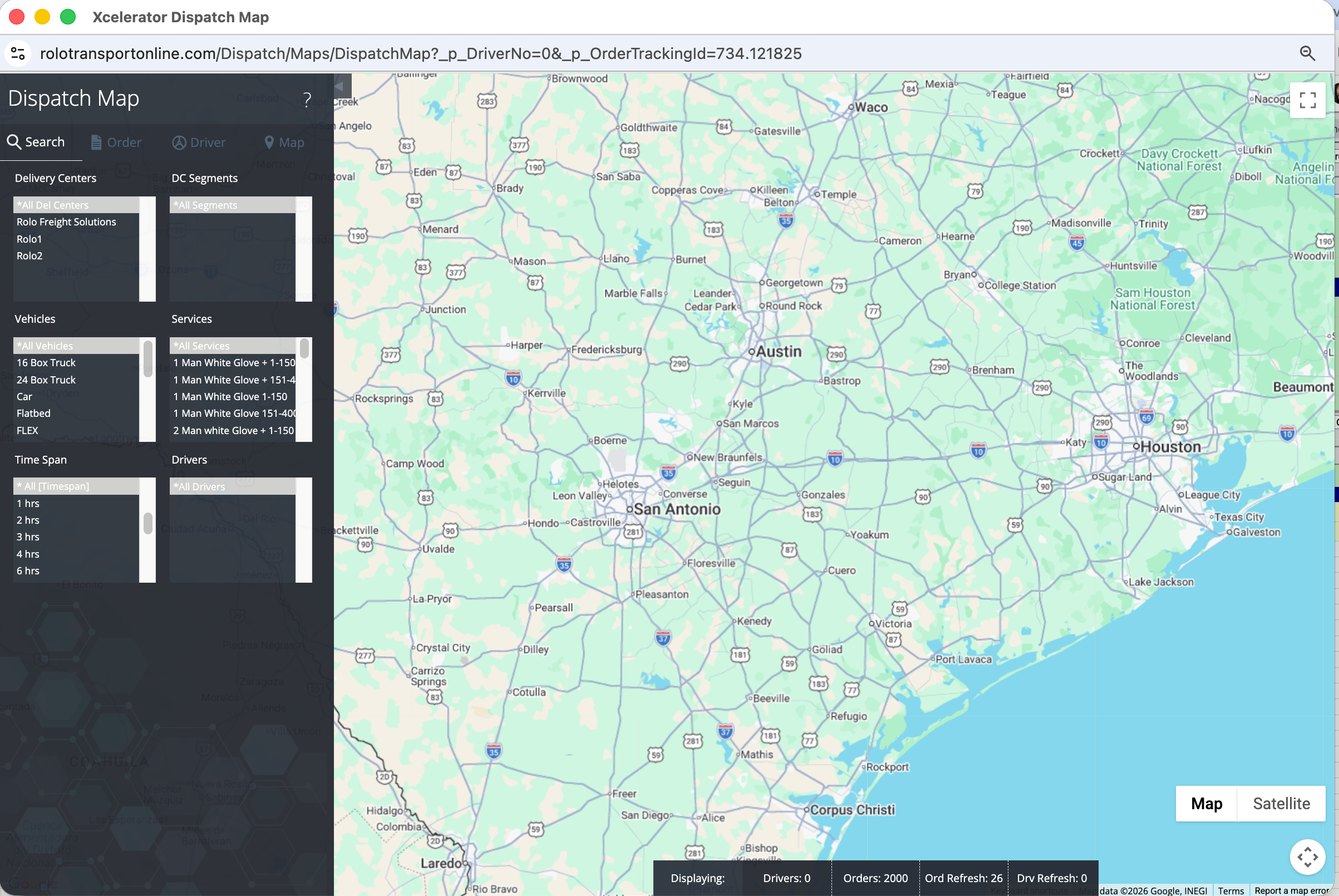
Dispatch Map → Filters
- Filter by Delivery Center
- Filter by Vehicle Type
- Filter by Time Span
- Use filters to reduce clutter and isolate issues faster
Step 5: Learn the Map Icons
The Map tab shows the legend so dispatch can understand what each icon means.
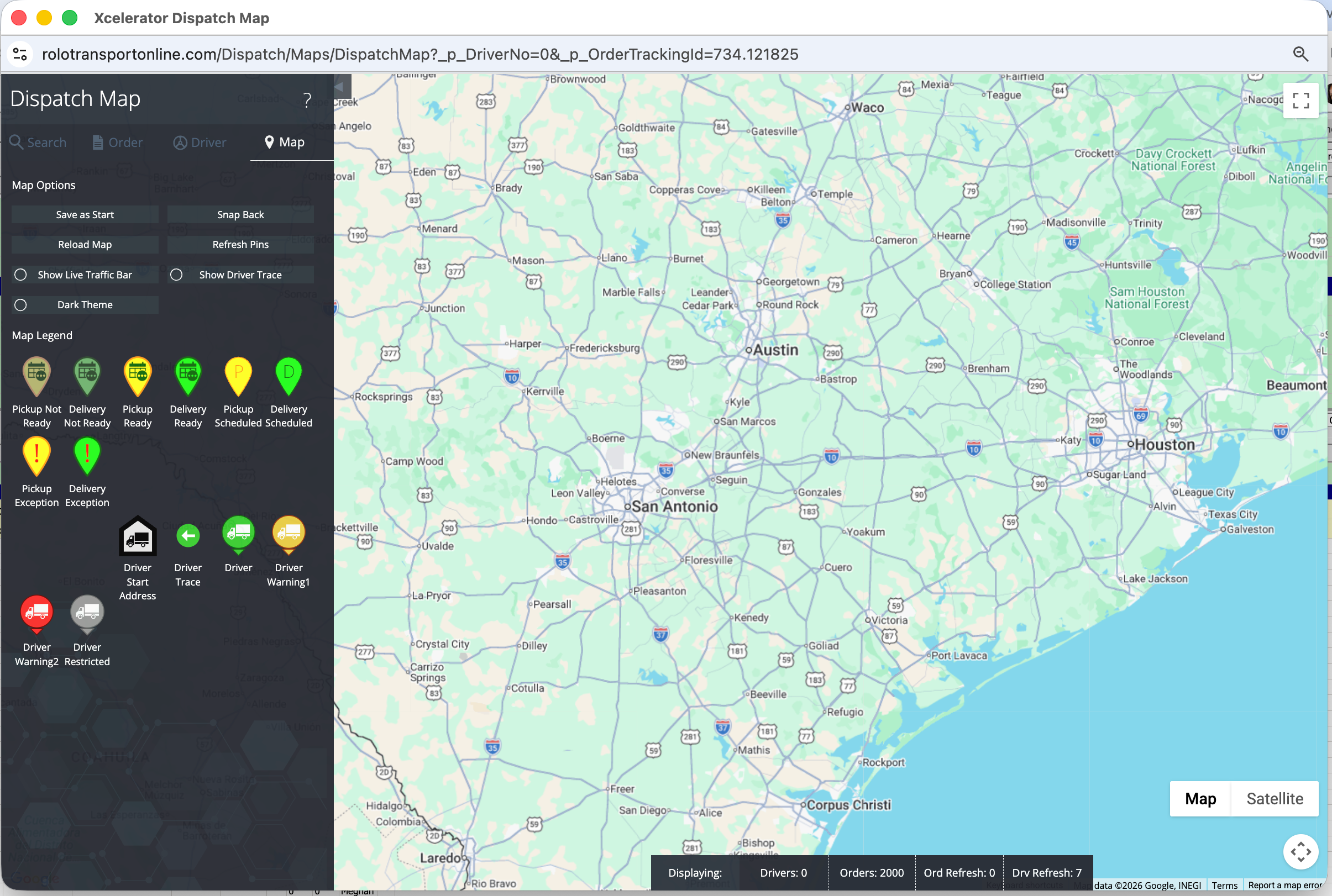
Dispatch Map → Map tab / legend
- Learn which icons mean pickup, delivery, ready, exception, and warning
- Use icon color and type to identify issues quickly
- Do not wait for a phone call if the map already shows a problem
Step 6: Monitor the Day Actively
Strong dispatchers use the map throughout the day, not only when something goes wrong.
- Watch for drivers who are not moving
- Look for route clusters or gaps
- Check for warning or exception icons
- Use the map to decide where dispatch attention is needed first
ROLO Standard:
Do not wait for customer complaints. Dispatch should identify issues before the customer calls.
Do not wait for customer complaints. Dispatch should identify issues before the customer calls.
Common Mistakes
- Only using the map after a problem is reported
- Ignoring filters and trying to watch everything at once
- Not learning the icons
- Waiting for drivers to call instead of monitoring proactively
Do it now: Open Dispatch Map, turn on drivers, turn on orders, apply one filter, and identify one area that may need attention.
Success Check
- Open Dispatch Map without help
- Track active drivers
- Track active orders
- Use filters correctly
- Identify potential delivery problems early
The map helps dispatch stay ahead. Use it early, use it often, and manage problems before they grow.