

ROLO Dispatch Training • Lesson 3.5
Lesson 3.5: Device Setup & MobileTek Connection
Learn how to assign a wireless device so drivers receive routes, scan packages, and send updates back to dispatch.
If the device is not assigned correctly, the driver may not receive routes, MobileTek updates may not sync, and dispatch visibility may fail.
Why This Matters
Device setup connects the driver in the field to Xcelerator and MobileTek. This affects route visibility, scanning, POD, driver location, and dispatch control.
Watch This Example: Creating Driver Profile & Assigning Wireless Device
Watch this walkthrough showing how to create a driver profile and assign a wireless device.
Focus on:
- How the driver profile is located or created
- Where the wireless device is assigned
- How to save the setup correctly
- Why the driver must be connected before route work begins
Step 1: Open Wireless Devices
Navigation → Operations → Wireless Devices
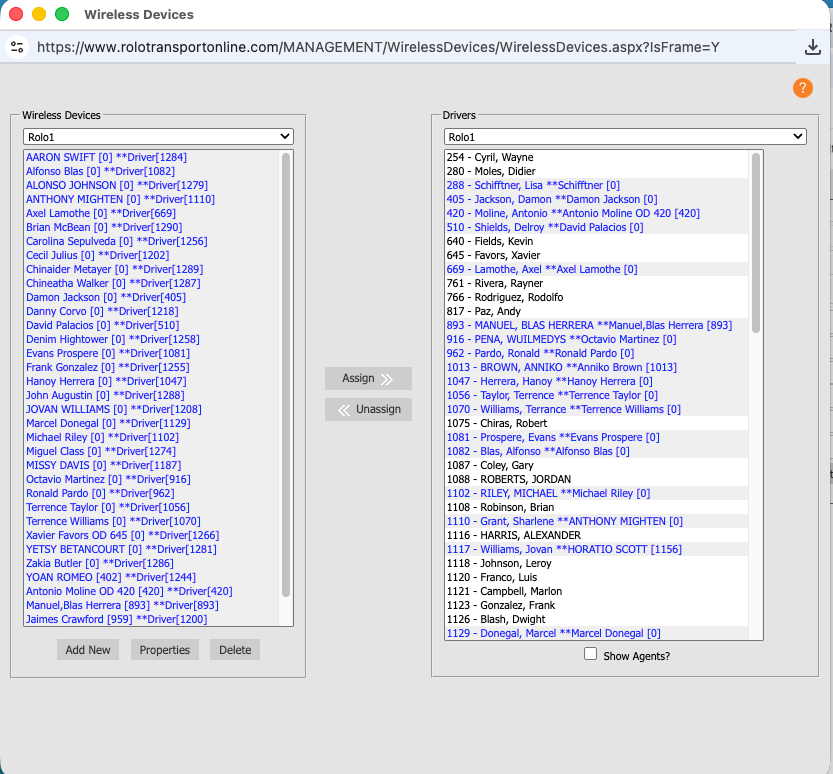
Wireless Devices screen
- Review the list of connected devices
- Confirm the device ID or phone information
- Check whether the device is active
- Confirm the device is not assigned to the wrong driver
Step 2: Select or Add the Device
Locate the driver’s device or add a new one if needed. Always verify the correct device before linking it to a driver profile.
- Verify the correct device ID
- Confirm the device is active
- Confirm the driver name matches the device assignment
- Do not reuse an old device assignment without checking it first
Step 3: Assign Device to Driver
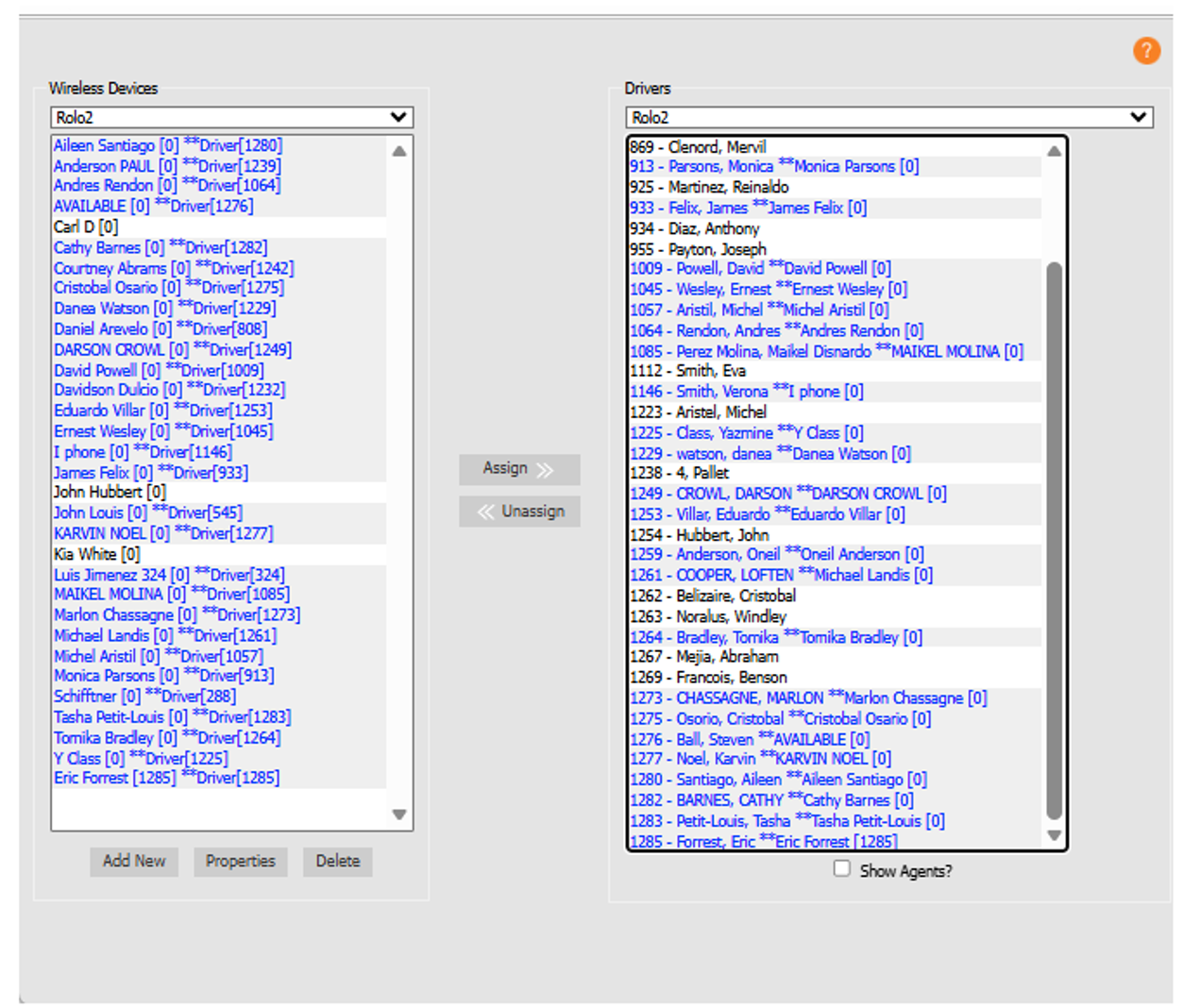
Device assignment / setup
- Select the correct driver.
- Link the wireless device to that driver.
- Save the changes.
- Confirm the assignment remains saved after refresh or review.
Step 4: Driver Logs Into MobileTek
- Driver opens the MobileTek app
- Driver logs in using assigned credentials
- MobileTek connects back to Xcelerator
- Driver confirms the app loads correctly
ROLO Password Standard:
Driver password should remain standardized as Rolo1234@ unless management changes the official process.
Driver password should remain standardized as Rolo1234@ unless management changes the official process.
Step 5: Confirm the Connection
- Route appears on the driver device
- Driver can open assigned orders
- Status updates sync back to Xcelerator
- Driver location appears on Dispatch Map when applicable
- Driver can scan and complete workflow steps inside MobileTek
Do It Now: Assign a device to a test driver and confirm the route appears in MobileTek before the driver leaves.
Troubleshooting
- No route on device: Check device assignment and driver login
- No updates syncing: Check MobileTek connection, data, and login status
- Driver not showing on map: Check location settings, device sync, and app permissions
- Wrong driver receiving work: Check wireless device assignment immediately
- App not loading: Have driver reinitialize MobileTek or escalate to supervisor/admin lead
Common Mistakes
- Assigning the wrong device to a driver
- Skipping the connection check
- Driver not logged into MobileTek
- Assuming the system is working without verifying
- Not checking whether the route appears on the driver device
- Letting a driver leave before confirming MobileTek is working
What Happens If You Don’t:
Incorrect device setup can cause missing routes, failed scans, lost visibility, incomplete POD, dispatch confusion, and customer service problems.
Incorrect device setup can cause missing routes, failed scans, lost visibility, incomplete POD, dispatch confusion, and customer service problems.
Success Check
You should now be able to:
- Open Wireless Devices
- Identify the correct device
- Assign the device to the correct driver
- Confirm the driver can log into MobileTek
- Verify route visibility and sync before departure
Need Help?
If the driver cannot see routes, cannot sync updates, or appears disconnected, stop the route launch and escalate before the driver leaves.
If the driver cannot see routes, cannot sync updates, or appears disconnected, stop the route launch and escalate before the driver leaves.
Device setup connects the field to dispatch. If this step is wrong, nothing else works correctly.
Continue to Next Lesson →