

Lesson 1: Xcelerator Login, Dashboard, and Main Dispatch Screens
Learn how to enter Xcelerator and navigate the main dispatch screens used every day at ROLO.
Why This Matters
Xcelerator is the main operations system used by ROLO dispatch and admin teams to manage drivers, orders, dispatch movement, route visibility, and operational support.
If dispatch cannot navigate Xcelerator confidently, operations slow down, communication suffers, and delivery visibility becomes harder to manage.
Step 1: Log Into Xcelerator
Start by opening Xcelerator and logging in using your assigned credentials.
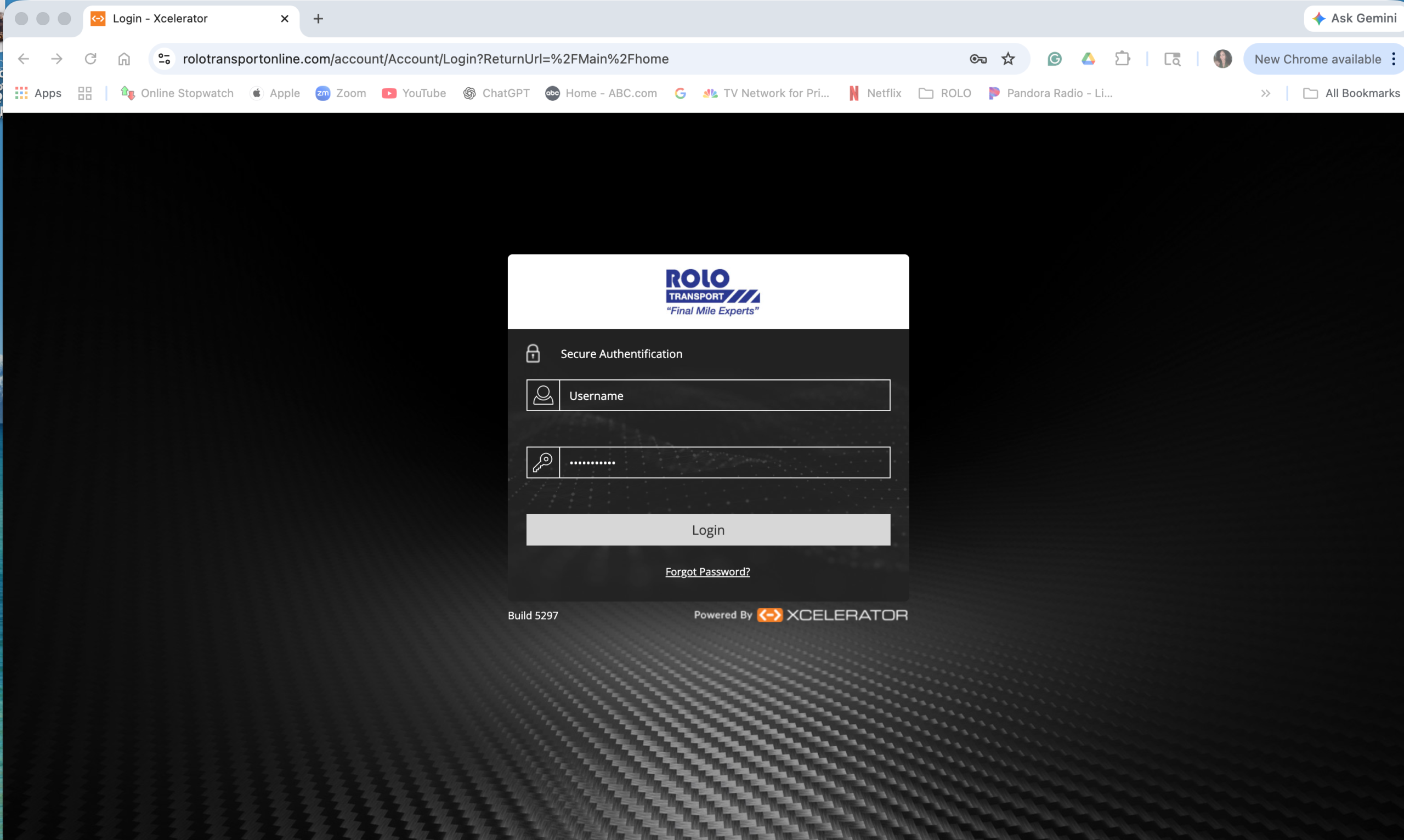
- Use your assigned login only
- Do not share passwords
- Make sure caps lock is off
- If login fails, stop and contact a supervisor or admin lead
Step 2: Open the Main Dashboard
After login, go to the main dashboard. This is your operational starting point.
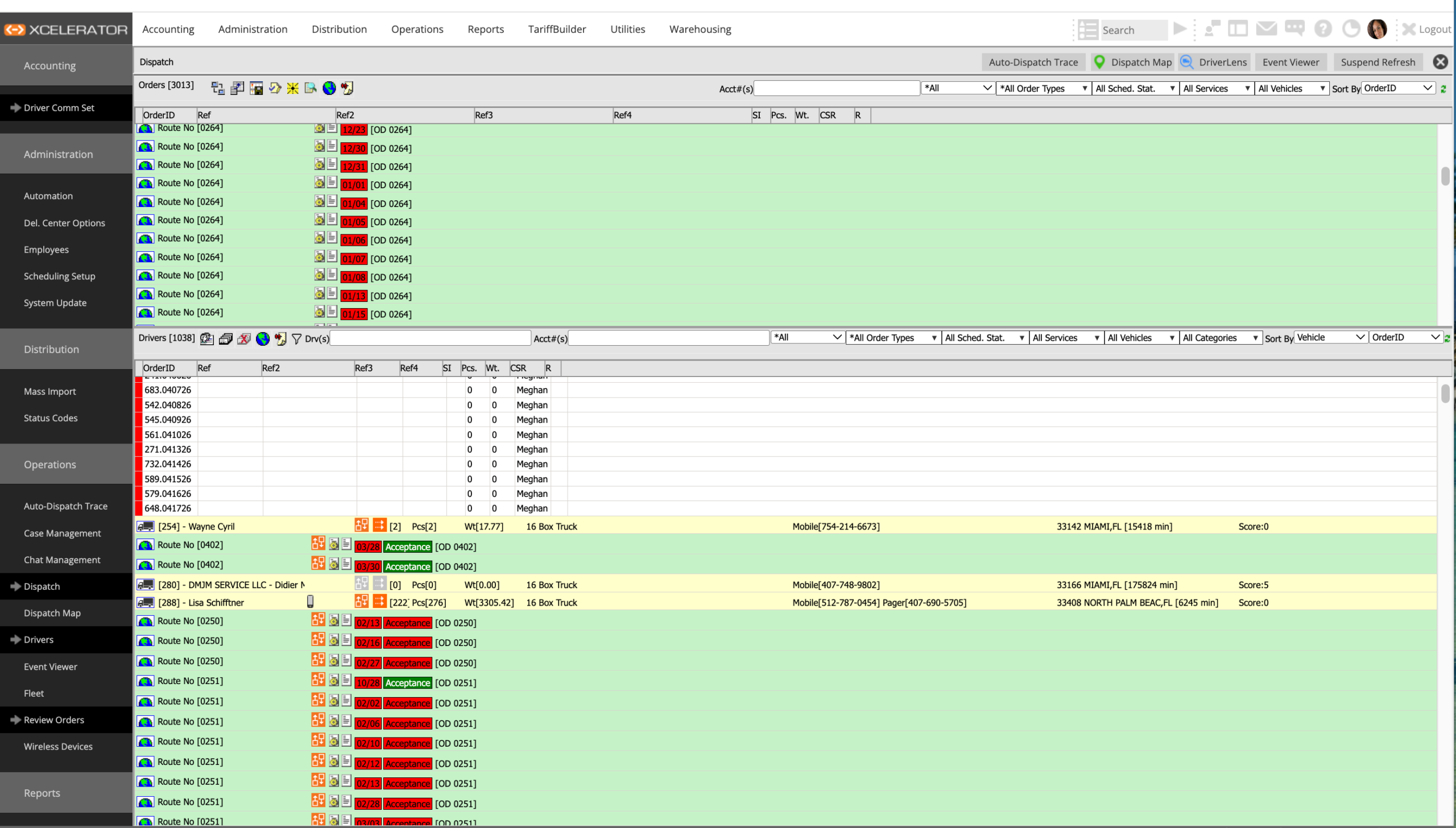
The dashboard gives dispatch quick access to the live work areas used during daily operations.
Watch This Example: Logging Into Xcelerator & Navigating Main Screens
Watch this walkthrough showing how dispatch enters Xcelerator and navigates the main operational screens.
- Where dispatch work happens
- How navigation works
- How to move between screens quickly
- How operational visibility is managed
Step 3: Use the Navigation Pane
The navigation pane is how dispatch moves between operational screens.
- Dispatch → live order assignment and route control
- Dispatch Map → visual view of active operations
- Drivers → driver records and support
- Review Orders → order search and order activity
Step 4: Open the Dispatch Screen
This is one of the main live operational screens used by dispatchers.
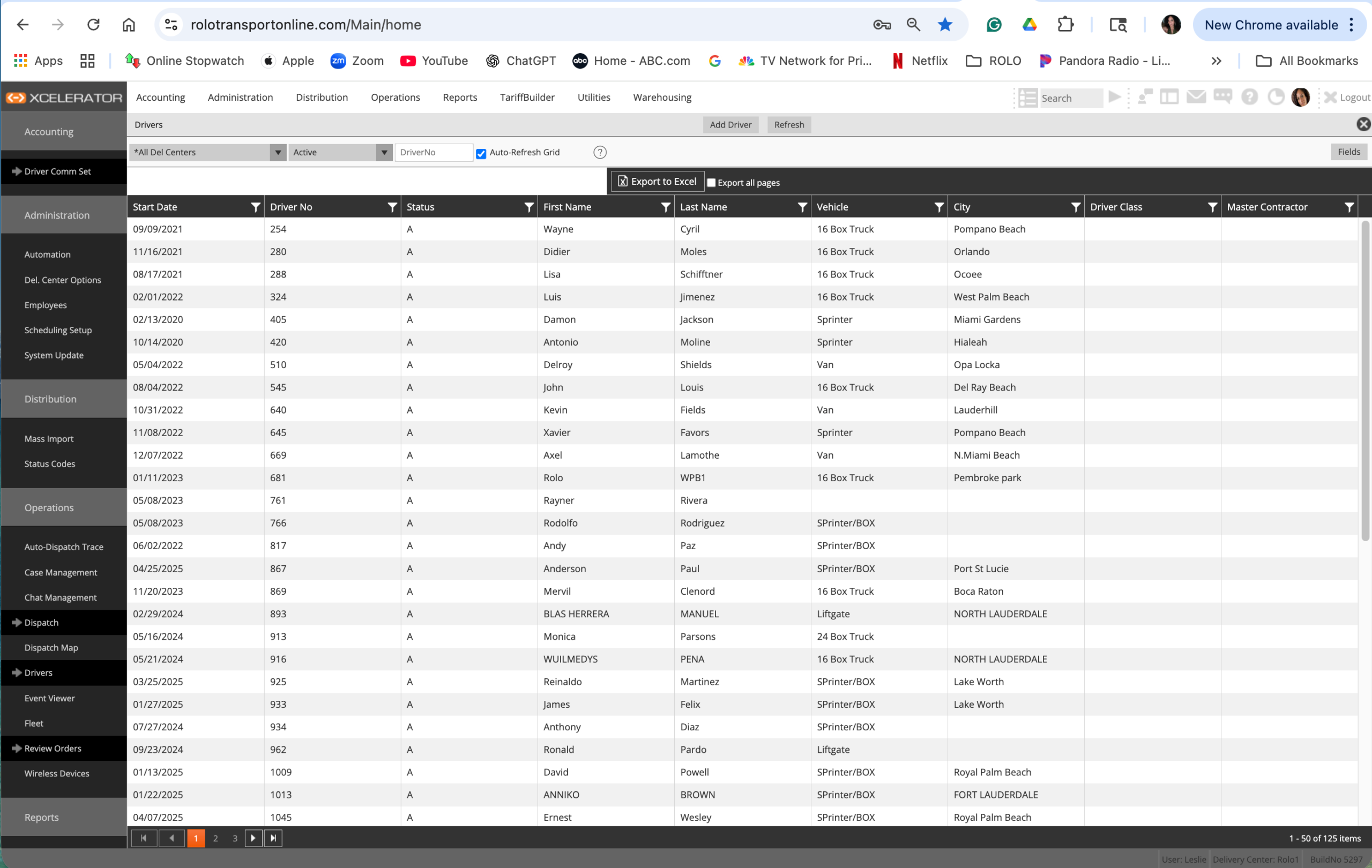
Use this screen to manage active work, assignments, route movement, and delivery visibility.
Step 5: Open the Dispatch Map
The dispatch map provides a visual view of operations happening in real time.
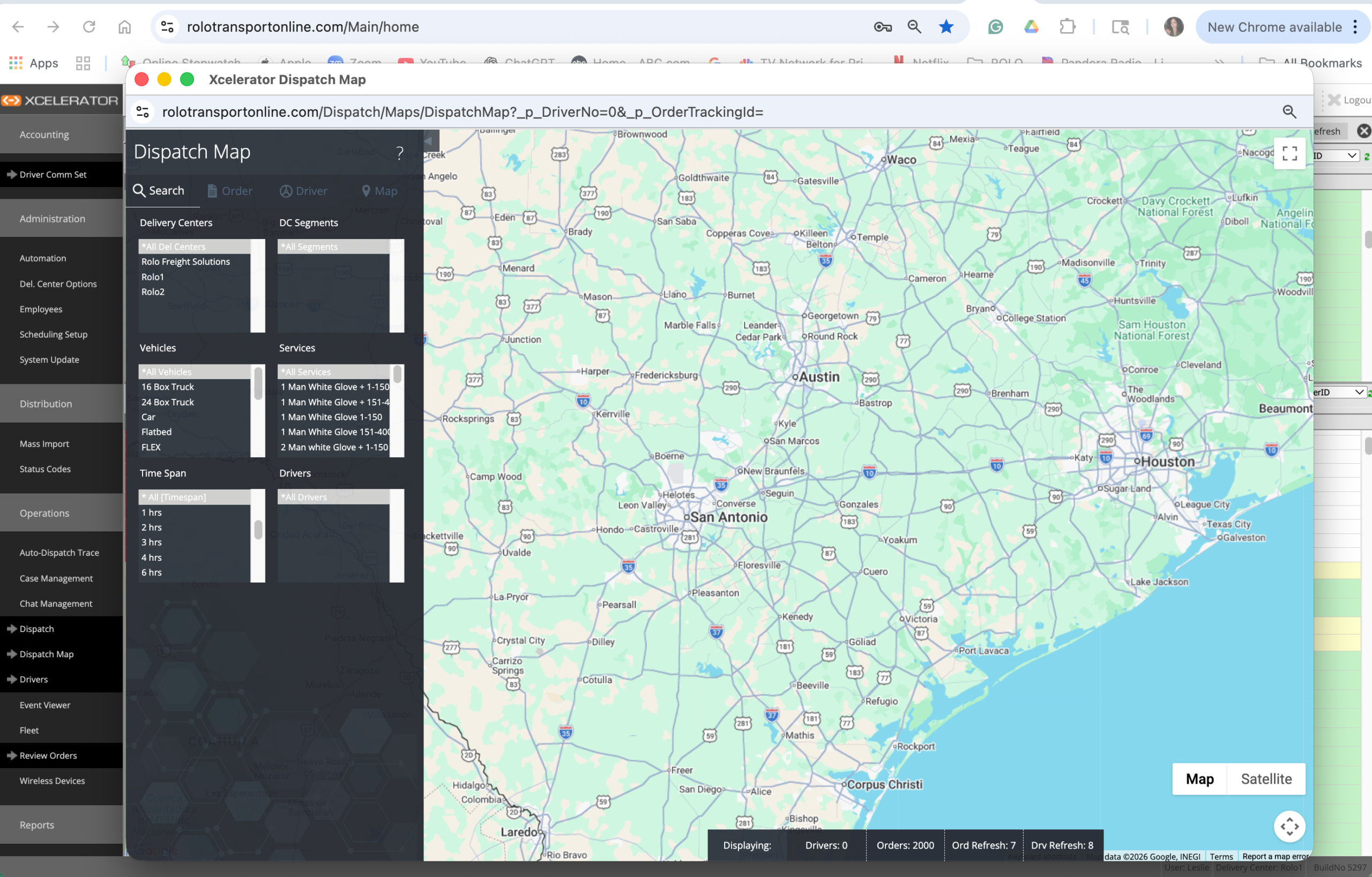
Use the map to monitor route activity, support drivers, and identify operational issues quickly.
Step 6: Open the Drivers Screen
This screen is used for driver records, setup, and support.
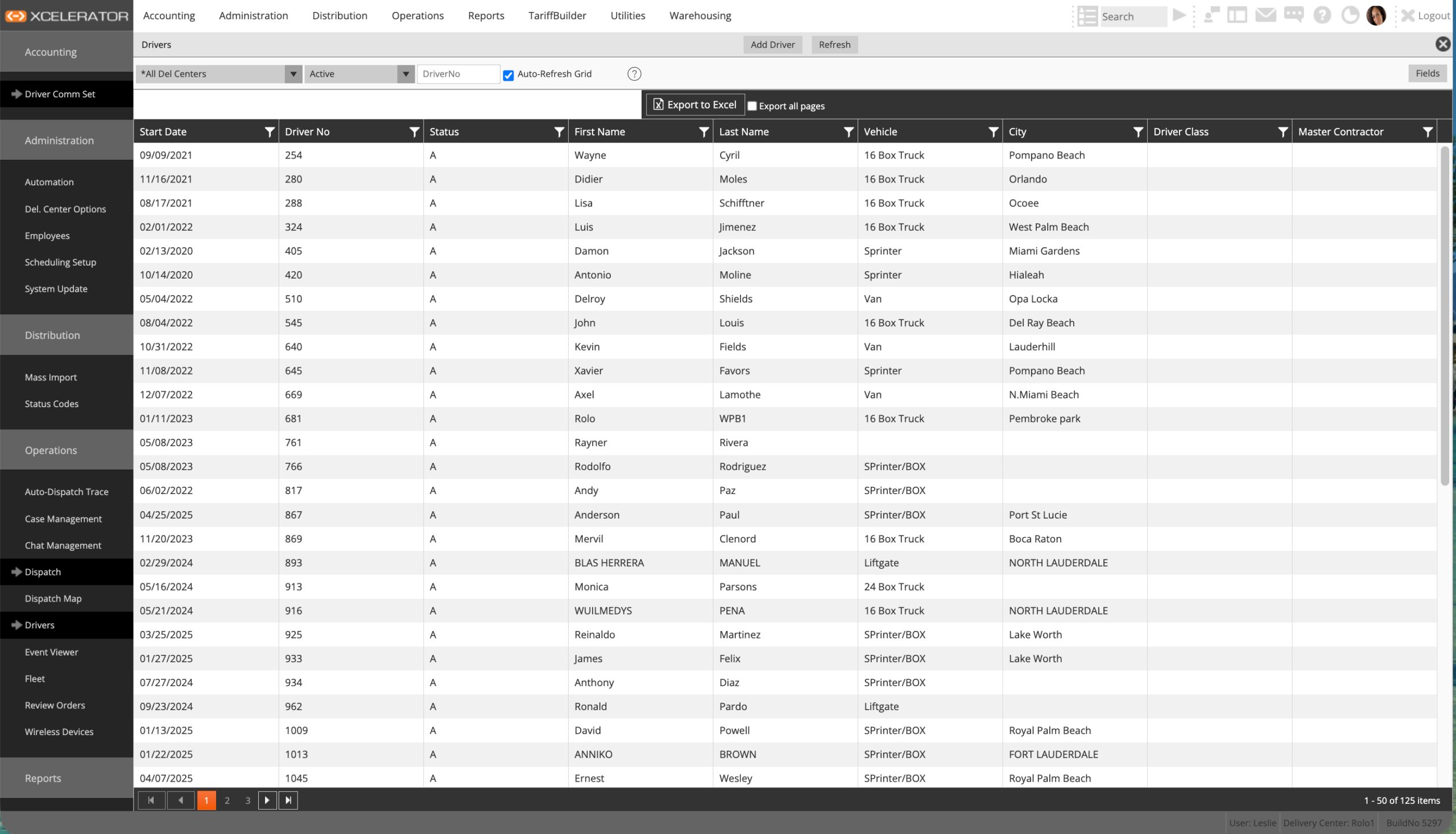
Use this screen when reviewing driver information, device setup, and operational support needs.
Step 7: Open Review Orders
This screen is used to search, review, and verify order information.
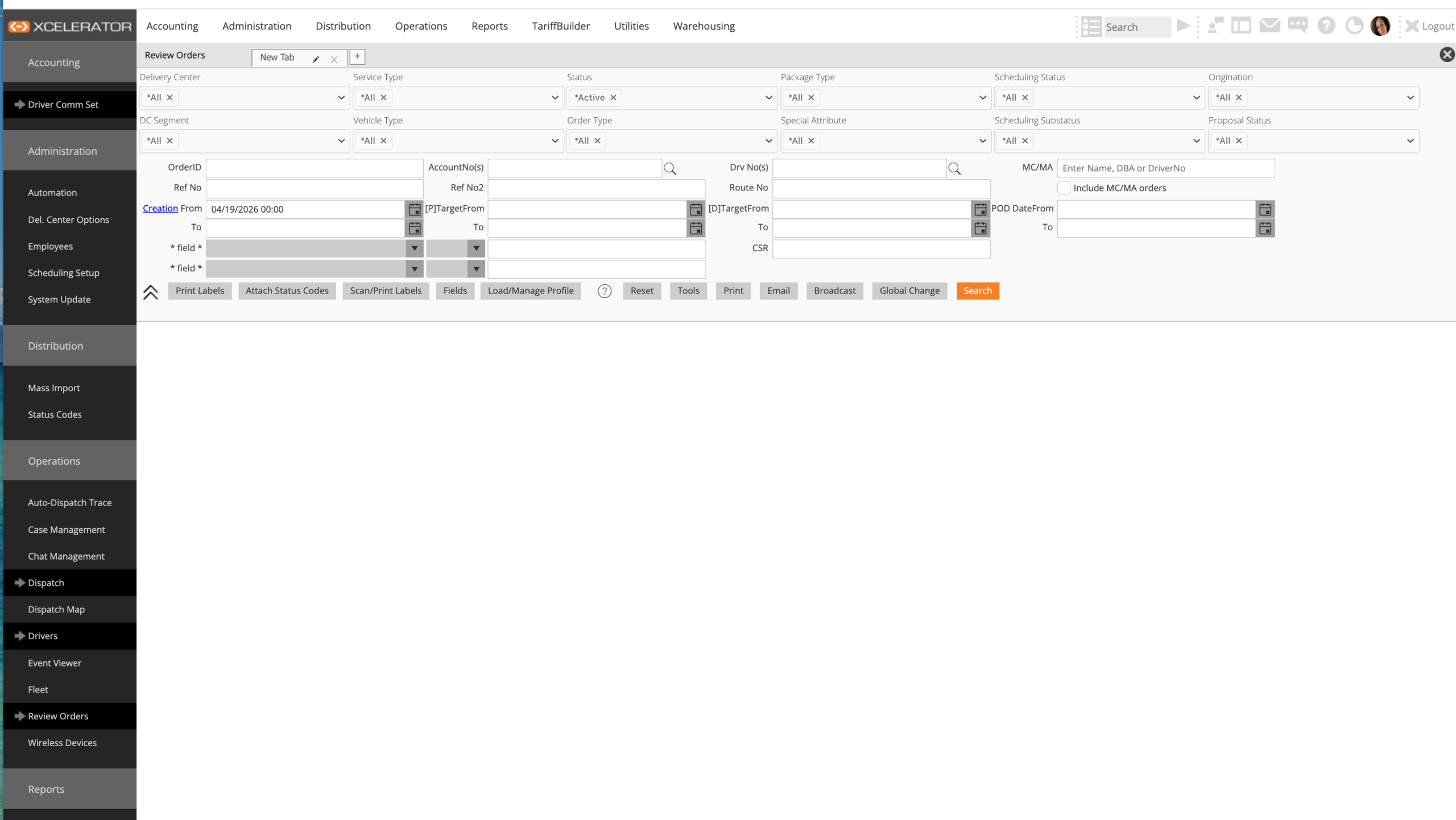
Use this screen to confirm order details, review jobs, and monitor order activity.
Common Mistakes
- Clicking through menus without understanding the main work screens
- Trying to learn every menu at once
- Ignoring Dispatch, Drivers, Review Orders, and Dispatch Map
- Not understanding where live operational work happens
Success Check
You should now be able to:
- Log into Xcelerator without help
- Open the dashboard
- Find Dispatch, Dispatch Map, Drivers, and Review Orders
- Explain what each screen is used for
- Navigate between the main operational areas confidently
If you cannot access Xcelerator, cannot find the correct screens, or experience login issues, contact your supervisor or admin lead immediately.