

Lesson 8: Case Management — Tracking Issues & Follow-Up
Learn how to document issues, assign responsibility, and manage operational follow-up correctly.
Why Case Management Matters
Dispatch operations involve constant exceptions, delivery issues, customer concerns, and driver follow-ups. Case Management creates accountability, visibility, and operational consistency across the organization.
Step 1: Open Case Management
This screen is used to track customer issues, delivery problems, driver concerns, and operational follow-up items.
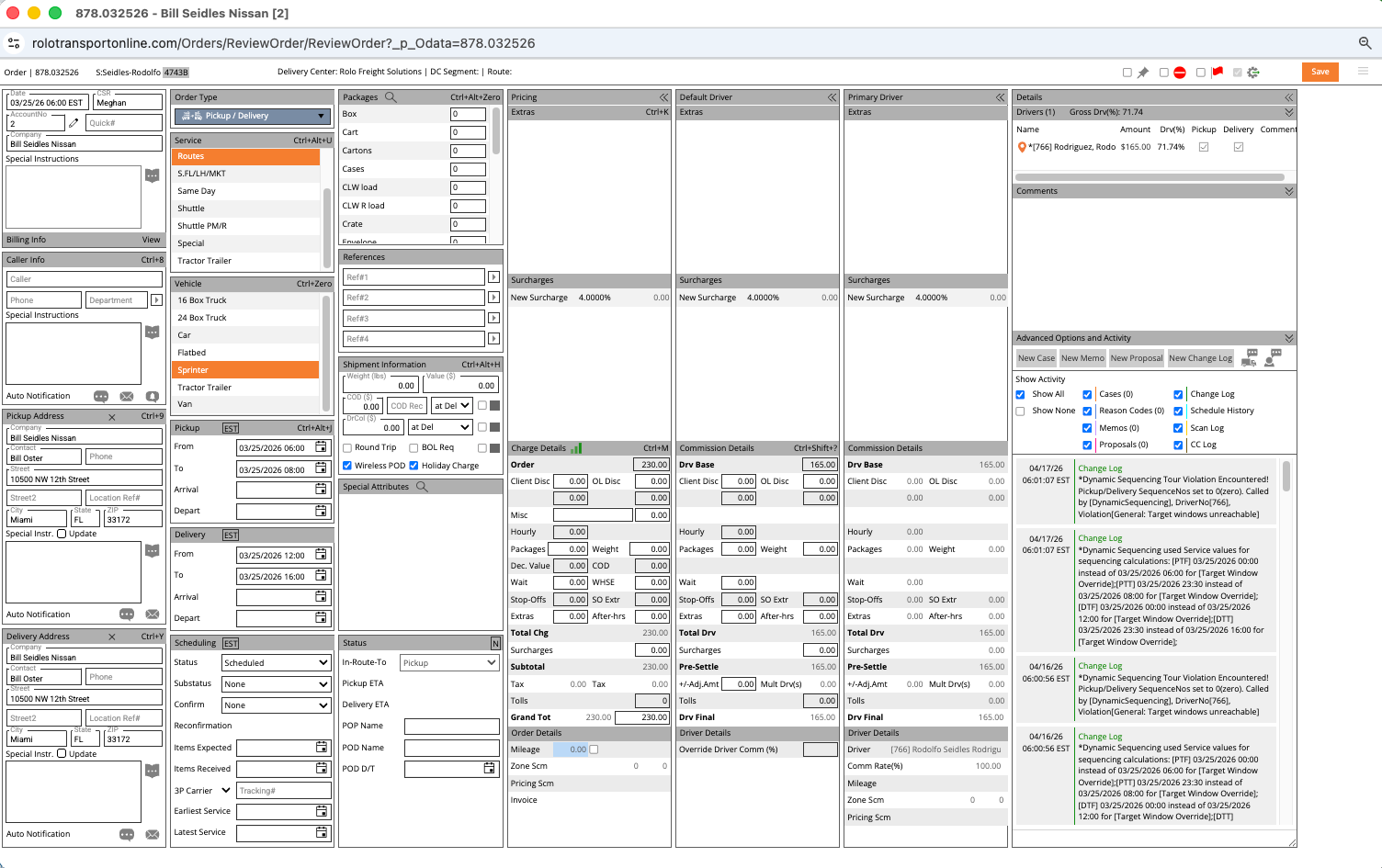
Step 2: Search Existing Cases First
Before creating a new case, check whether the issue already exists in the system.
- Search using OrderTrackingId
- Filter by Driver, Account, or Status
- Review existing notes and activity
- Avoid creating duplicate cases
Step 3: Create a New Case
If no existing case is found, create a new operational case.
- Click Add New
- Select the appropriate case type
- Choose Client Case or Driver Case
Use Driver Case: driver incidents, compliance concerns, operational coaching
Step 4: Enter Accurate Case Details
Every case should contain enough information for another team member to understand the issue immediately.
- Enter OrderTrackingId
- Select the correct case type
- Add detailed operational notes
- Set urgency level
- Add follow-up date if needed
Customer reported damaged item upon delivery. Driver submitted POD photo. Follow-up scheduled with account manager tomorrow morning.
Step 5: Assign Responsibility
Every case must have an owner.
- Assign dispatcher, manager, or operations lead
- Ensure accountability is clear
- Avoid unassigned operational issues
- Track who is responsible for resolution
Step 6: Manage Follow-Up Properly
Case Management is not complete until the issue is fully resolved.
- Review open cases daily
- Monitor follow-up dates
- Update notes as progress happens
- Communicate clearly with customers and drivers
- Close cases only after resolution is confirmed
Do not rely on memory, phone calls, or text messages. If follow-up is required, it must exist in Case Management.
Operational Best Practices
- Keep notes clear and professional
- Always include order references
- Use consistent case types
- Set realistic follow-up dates
- Close resolved cases promptly
Common Mistakes
- Handling issues without creating a case
- Leaving cases unassigned
- Using vague notes
- Forgetting follow-up dates
- Closing cases too early
Success Check
You should now be able to:
- Open and navigate Case Management
- Search existing operational cases
- Create new client and driver cases
- Add detailed operational notes
- Assign ownership and accountability
- Manage follow-up and resolution properly