
ROLO Dispatch Operations Training • Lesson 6
Lesson 6: Route Builder — Creating & Managing Routes
Learn how to create routes, organize deliveries, and prepare clean route structures before dispatching drivers.
Routes organize operational flow before drivers ever leave the warehouse. Clean routes reduce delays, improve driver efficiency, and create stronger customer service.
Why Route Structure Matters
Route Builder helps operations organize work logically before dispatch. Poor route structure creates unnecessary driving, missed delivery windows, operational confusion, and driver frustration.
Clean Routes → Better Dispatch → Faster Deliveries → Better Customer Experience
Step 1: Open Route Builder
Navigation → Distribution → Route Builder (Routes)
This screen displays all active and available routes in the system.
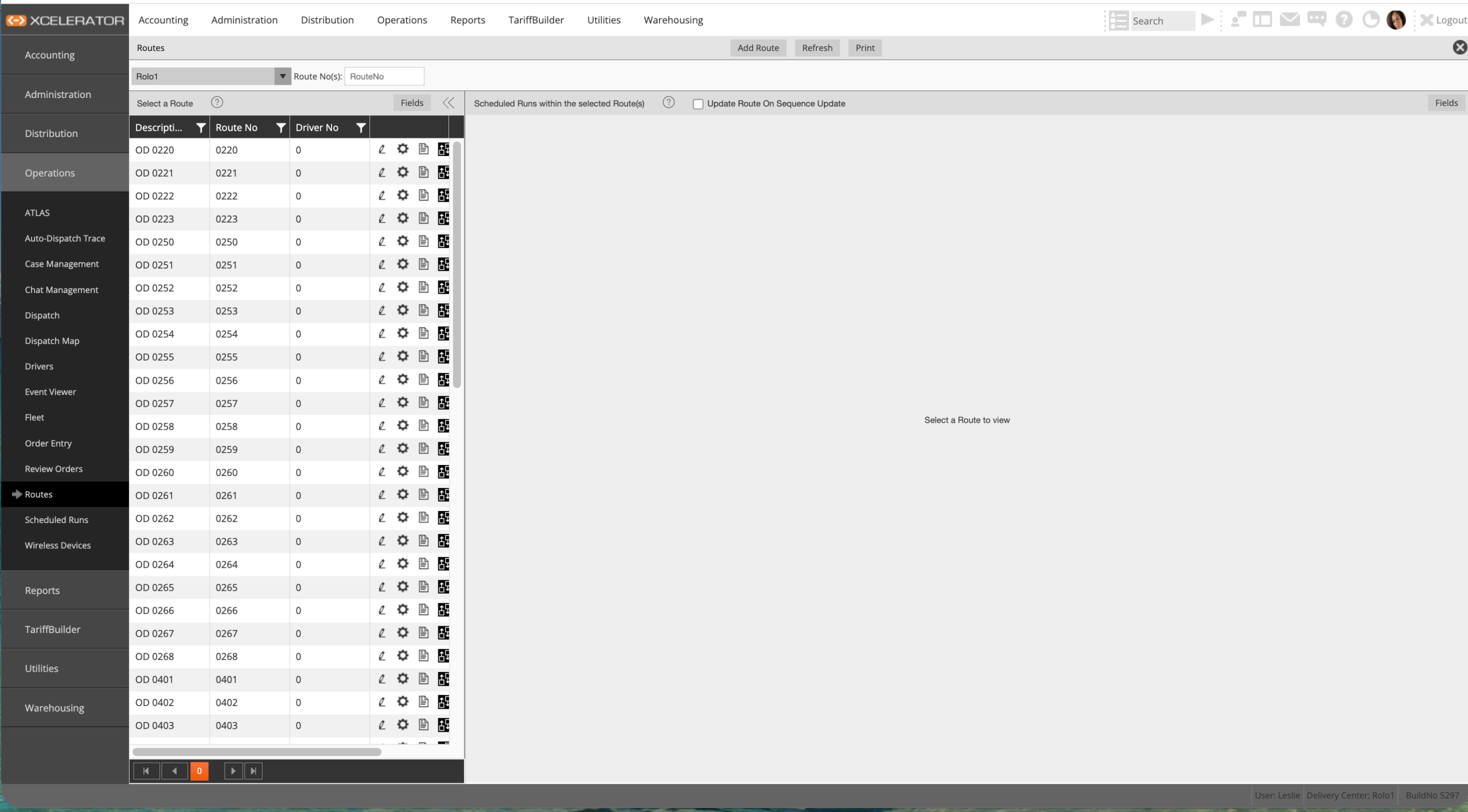
Route Builder — Routes screen
- Each row represents one route
- Routes can be reused daily
- Routes may already have assigned drivers
- Routes should reflect geographic logic
Step 2: Understand the Route List
Before creating new routes, understand the core route fields.
- Route No → unique route identifier
- Description → route name or delivery area
- Driver No → assigned driver
- Actions → edit, configure, or open route
Step 3: Create a New Route
Click Add Route to create a new operational route.
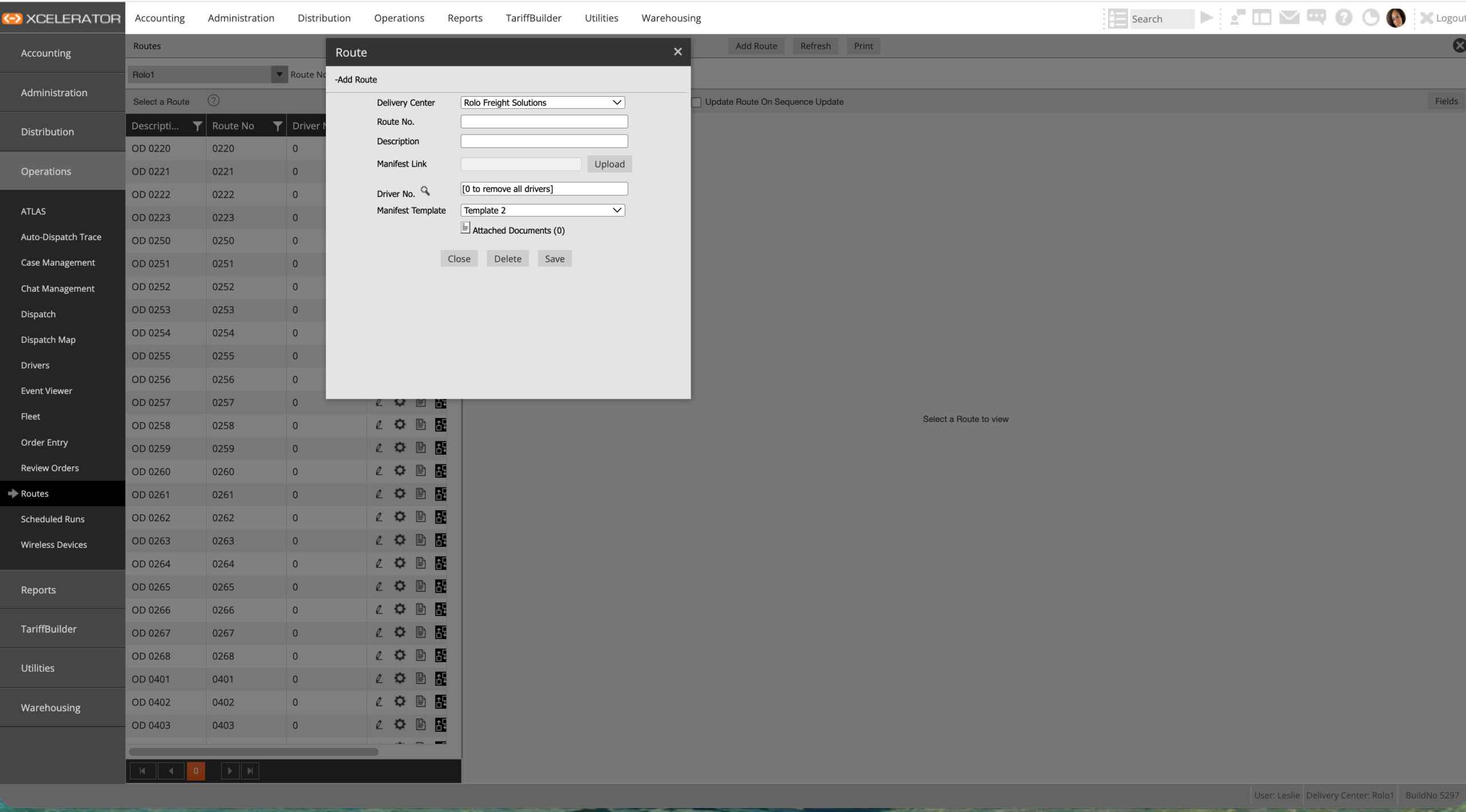
Add Route screen
- Select the correct Delivery Center
- Enter Route Number
- Add a clear route description
- Optionally assign a primary driver
Example Route Names:
West Palm Beach Route
Miami Medical Route
Broward Final Mile Route
West Palm Beach Route
Miami Medical Route
Broward Final Mile Route
Step 4: Save & Prepare the Route
Once the route details are entered:
- Click Save
- Verify route appears in Route Builder
- Confirm route is available for dispatch assignment
- Ensure naming follows company standards
Step 5: Build Routes Using Geographic Logic
Routes should follow real-world delivery flow and minimize wasted movement.
- Group deliveries by area
- Keep routes geographically tight
- Avoid mixing distant cities
- Reduce unnecessary crossing between zones
- Assign consistent areas to drivers when possible
Important:
Random routes create operational chaos. Route structure directly affects fuel costs, delivery times, customer experience, and driver productivity.
Random routes create operational chaos. Route structure directly affects fuel costs, delivery times, customer experience, and driver productivity.
Operational Best Practices
- Keep route naming consistent
- Review routes regularly for overlap
- Build routes around service areas
- Balance workload between drivers
- Design routes for repeatability and scale
Common Mistakes
- Creating random routes without geographic structure
- Assigning too many distant stops together
- Using unclear route names
- Changing route structure daily without reason
- Ignoring operational efficiency
Do It Now: Create one test route using a real delivery area and confirm the route appears correctly in Route Builder.
Success Check
You should now be able to:
- Open Route Builder
- Understand route fields and structure
- Create a new operational route
- Use proper route naming standards
- Build routes using geographic logic
- Prepare routes for clean dispatch operations
Strong routes create faster deliveries, cleaner operations, and a more scalable dispatch system.
Continue to Lesson 7 →