

Lesson 4: Dispatch Map — Monitoring Active Deliveries
Learn how to track drivers, monitor deliveries, filter the map, and identify operational problems early.
Why This Matters
The Dispatch Map gives dispatch real-time operational visibility. It helps ROLO monitor drivers, active deliveries, delays, route gaps, and delivery exceptions throughout the day.
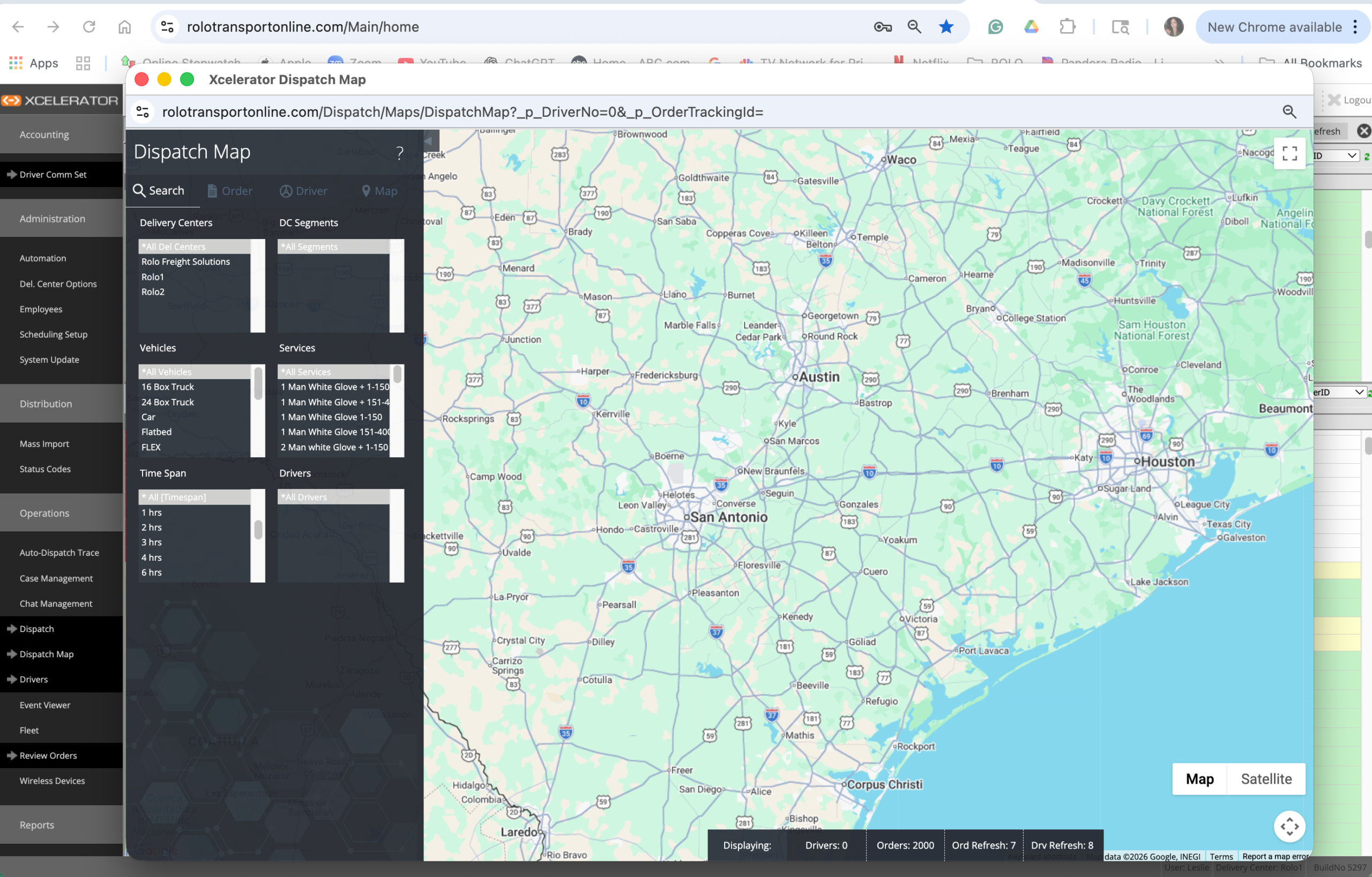
Step 1: Open Dispatch Map
This is the live operations map used to monitor driver movement and delivery activity.
Step 2: Use the Driver Tab
The Driver tab helps dispatch monitor where drivers are and whether they are moving properly throughout the route.
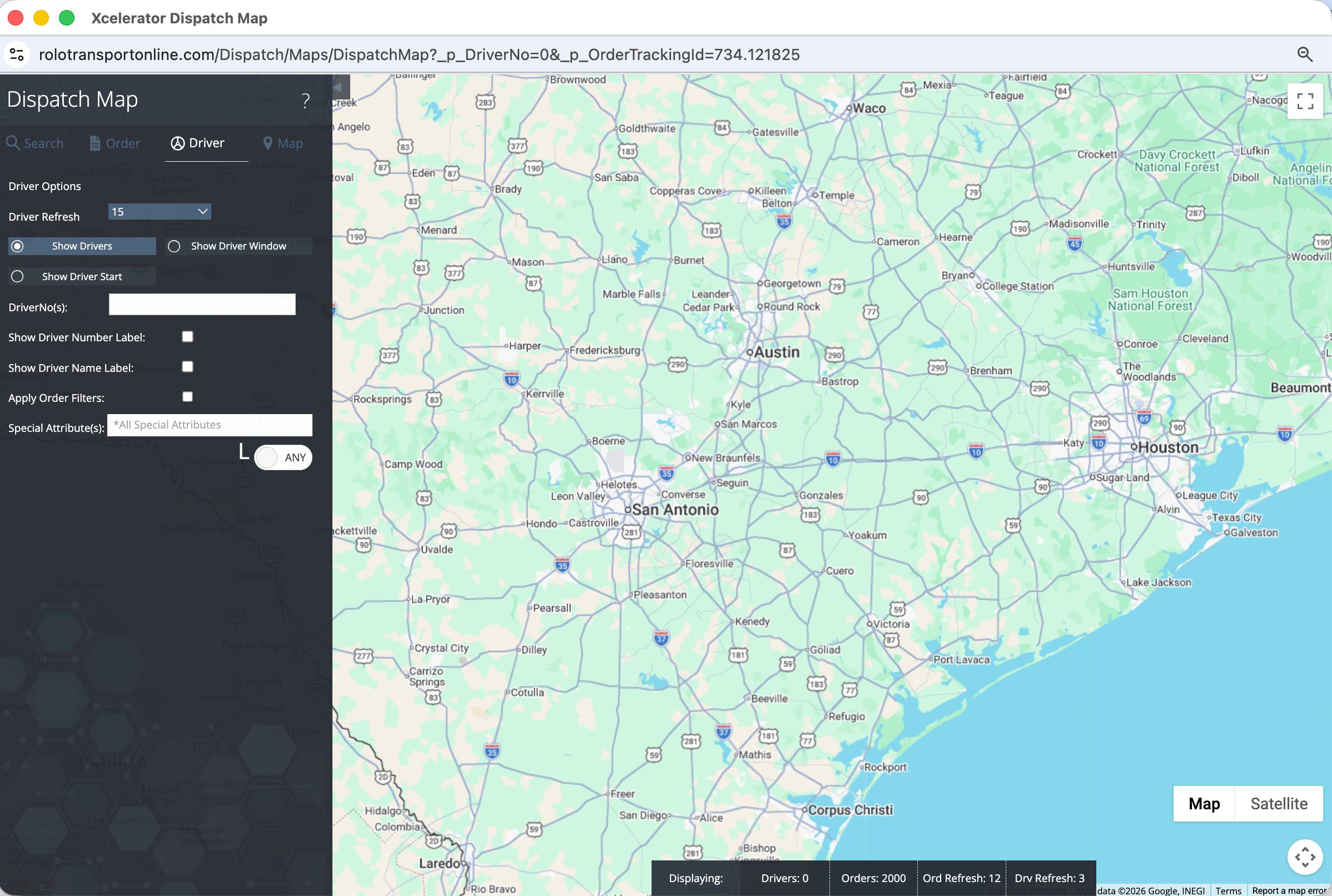
- Turn on Show Drivers
- Use driver filters if needed
- Monitor active drivers throughout the day
- Watch for drivers who stop moving unexpectedly
- Look for delays or route gaps
Step 3: Use the Order Tab
The Order tab helps dispatch see active delivery locations and route concentration.
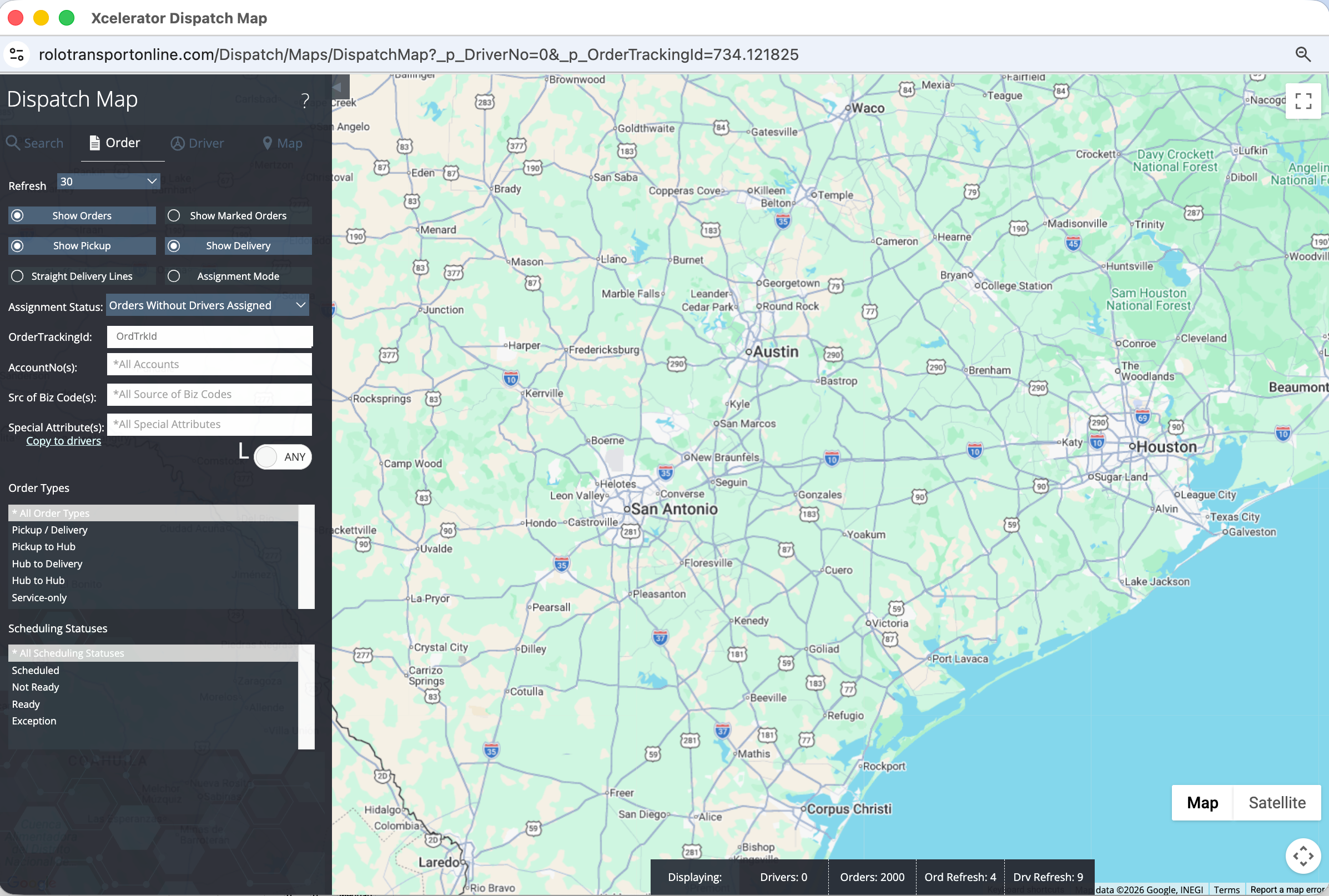
- Turn on Show Orders
- Use Show Delivery to focus on delivery stops
- Review delivery clusters
- Watch for overloaded areas or route concentration
Step 4: Apply Filters
Filters help dispatch isolate parts of the operation quickly.
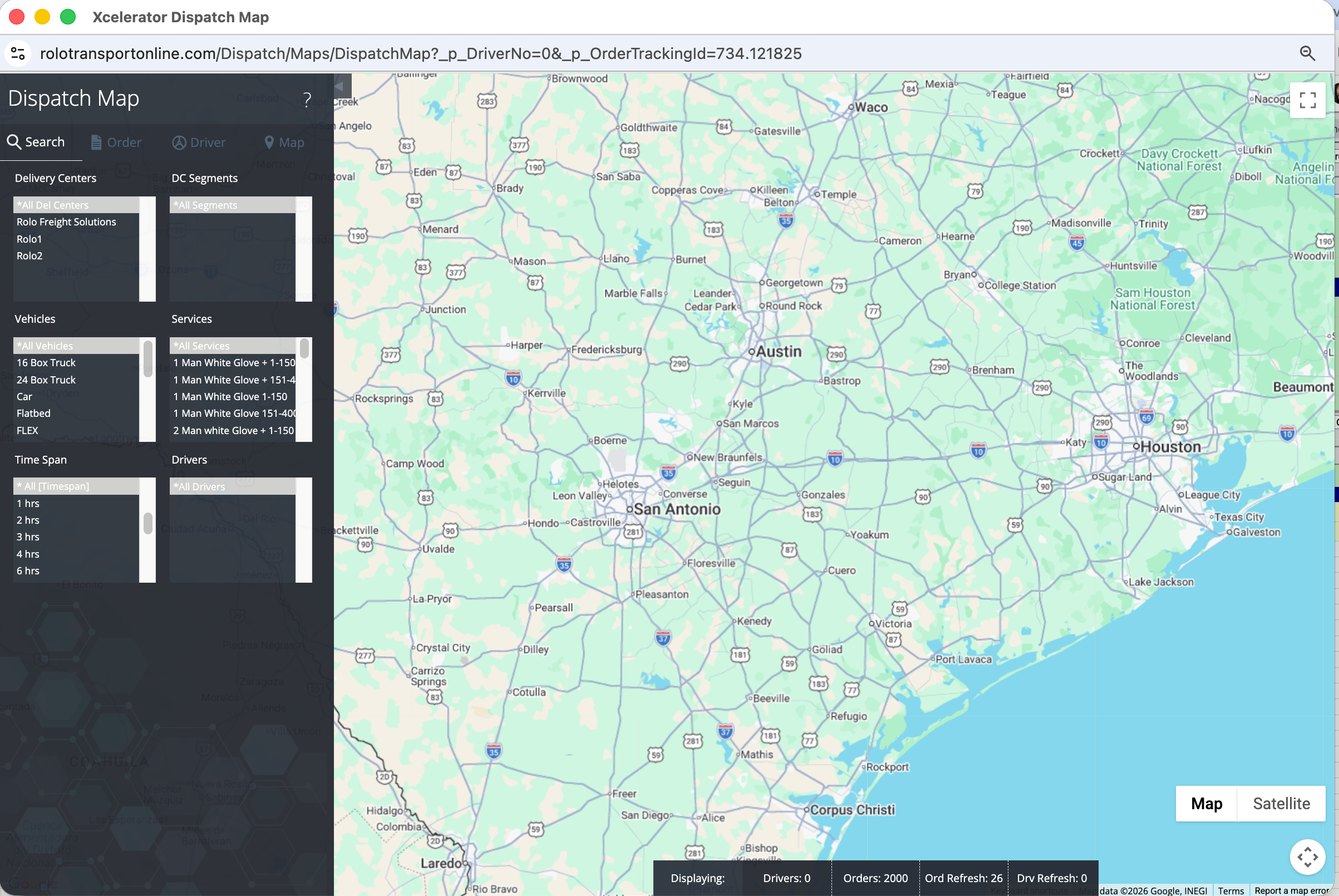
- Filter by Delivery Center
- Filter by Vehicle Type
- Filter by Time Span
- Reduce map clutter to isolate issues faster
- Focus on the area needing attention
Step 5: Learn the Map Icons
The map legend helps dispatch understand what each icon represents.
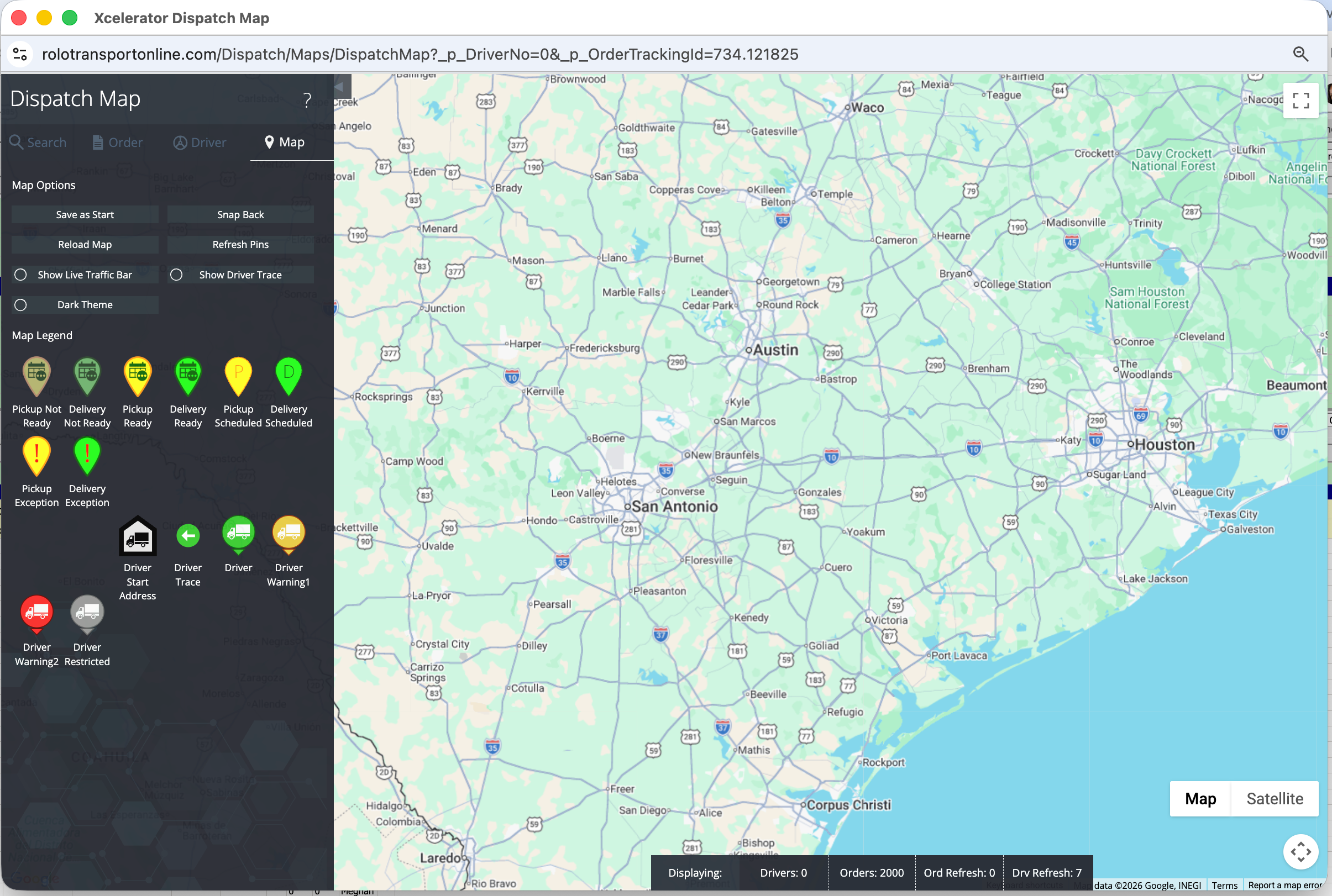
- Learn pickup icons
- Learn delivery icons
- Learn warning and exception icons
- Use colors and icons to identify problems quickly
- Do not wait for drivers to call before reacting
Step 6: Monitor Operations Actively
Strong dispatchers monitor the map throughout the day — not only after problems happen.
- Watch for delayed drivers
- Identify stalled routes
- Check exception indicators
- Look for overloaded delivery zones
- Support drivers before customer complaints happen
The Dispatch Map is not passive. Dispatch should actively monitor operations throughout the day to maintain service quality and delivery visibility.
Common Mistakes
- Only opening the map after a problem is reported
- Ignoring filters
- Trying to monitor everything at once
- Not learning map icons
- Waiting for drivers to report issues instead of monitoring proactively
Success Check
You should now be able to:
- Open Dispatch Map
- Monitor active drivers
- View active deliveries
- Apply filters correctly
- Identify delivery exceptions and delays
- Use the map proactively during operations