

ROLO Dispatch Operations Training • Lesson 3.5
Lesson 3.5: Device Setup & MobileTek Connection
Learn how to connect drivers and devices so routes, tracking, and delivery updates work correctly.
If the device is not assigned correctly, the driver will not receive routes, tracking will fail, and dispatch visibility will break.
Why This Matters
Device setup connects the field to dispatch. MobileTek depends on the correct device assignment for routing, GPS tracking, delivery updates, and status visibility.
Assign Device → Connect Driver → Login to MobileTek → Confirm Route Sync → Verify Tracking
Step 1: Open Wireless Devices
Navigation → Operations → Wireless Devices
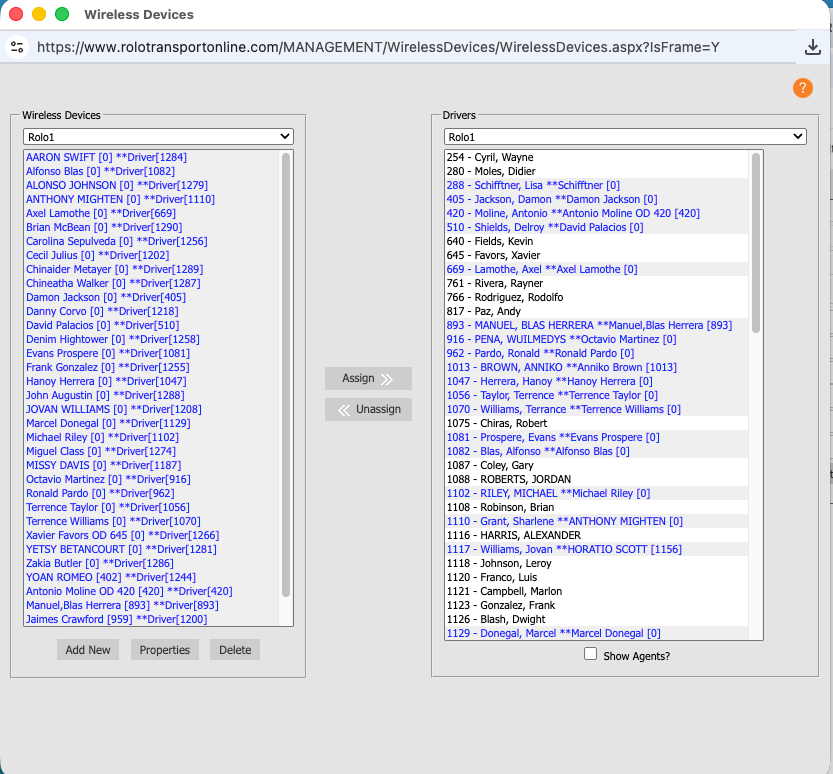
Wireless Devices screen
This screen shows all devices connected to the system.
- Each row represents one device
- Device ID or phone information is listed
- Status shows if the device is active
- Drivers must be connected to the correct device
Step 2: Locate or Add the Device
Find the driver’s device or create a new device record if necessary.
- Verify the correct device ID
- Confirm the device is active
- Make sure the device belongs to the correct driver
- Do not reuse another driver’s device setup
Step 3: Assign the Device to the Driver
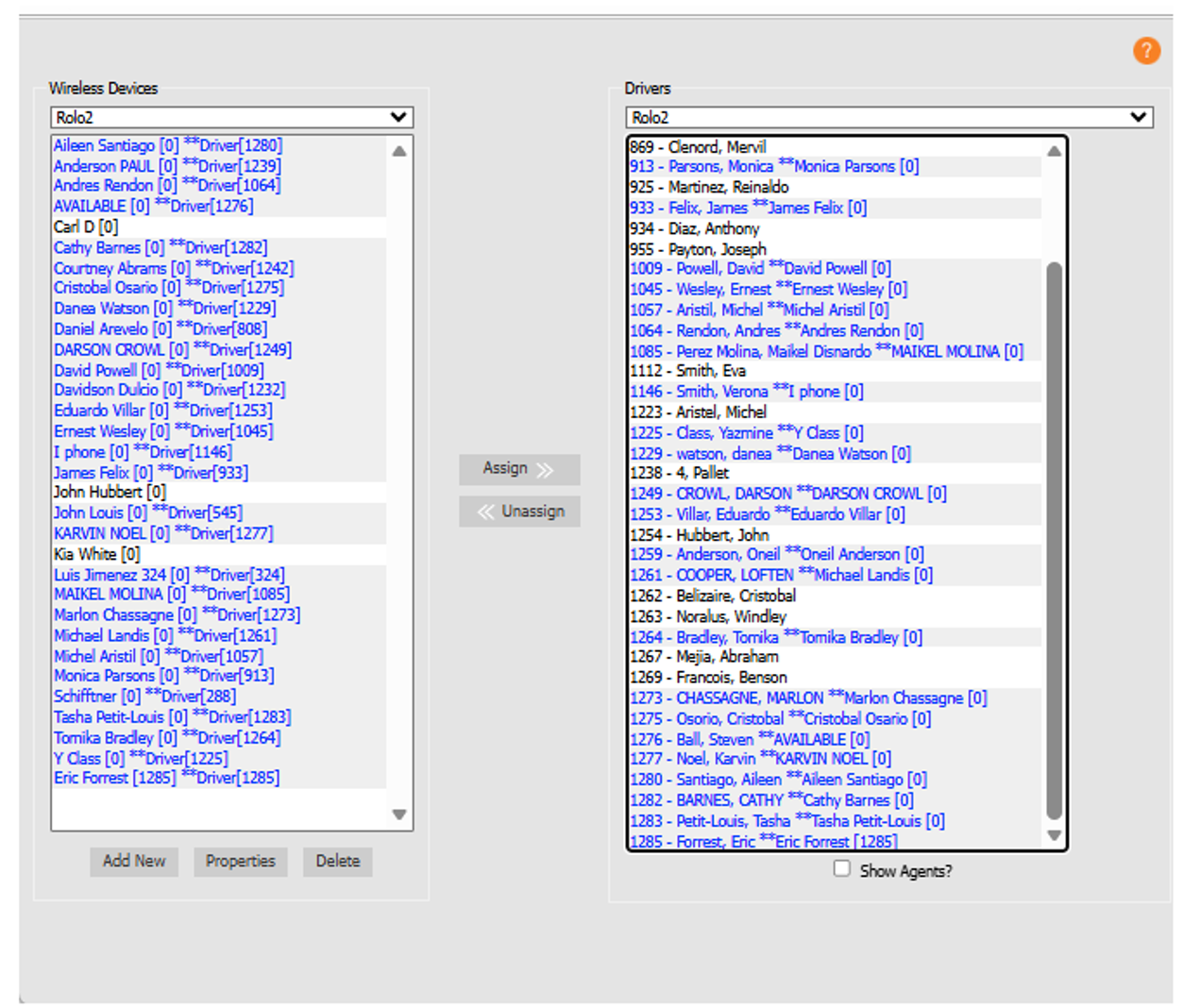
Device assignment and setup
- Select the correct driver
- Link the device to the driver profile
- Save the assignment
- Verify the connection was accepted
Watch This Example: Creating a Driver Profile & Assigning a Wireless Device
Watch this walkthrough showing how to create a driver setup and assign the correct wireless device inside Xcelerator.
Step 4: Driver Logs Into MobileTek
- Driver opens MobileTek
- Driver logs in using assigned credentials
- MobileTek connects to Xcelerator
- Dispatch should confirm the login succeeds
Step 5: Confirm Route & Tracking Sync
- Verify the route appears on the driver device
- Verify delivery updates sync back to dispatch
- Verify the driver appears on Dispatch Map
- Verify GPS tracking is active
Important:
Always confirm the device works BEFORE the driver leaves for the route.
Always confirm the device works BEFORE the driver leaves for the route.
Troubleshooting
- No route on device → Check assignment
- No delivery updates → Check login and sync
- Driver missing from Dispatch Map → Check GPS and connection
- Login issues → Verify credentials and device assignment
Common Mistakes
- Assigning the wrong device to the wrong driver
- Skipping route sync verification
- Sending drivers out before testing MobileTek
- Assuming the system is working without checking
- Ignoring tracking failures
Do It Now: Assign a device to a test driver and confirm the route appears correctly in MobileTek.
Success Check
You should now be able to:
- Open Wireless Devices
- Assign a device to a driver
- Confirm MobileTek login success
- Verify route sync
- Confirm GPS visibility on Dispatch Map
Device setup connects the field to dispatch. If this step is wrong, operations lose visibility immediately.
Continue to Lesson 4 →