

ROLO Dispatch Operations Training • Lesson 3
Lesson 3: Assigning Orders to Drivers
Learn how to correctly assign deliveries to drivers inside Xcelerator.
This is one of the most important dispatcher tasks. Every delivery starts with a correct assignment.
Why This Matters
Every assignment affects delivery speed, route efficiency, customer experience, and driver workload. Poor assignments create delays, route confusion, and operational problems.
Review Orders → Select Driver → Send Dispatch → Confirm Route Assignment
Step 1: Open the Dispatch Screen
Navigation → Dispatch
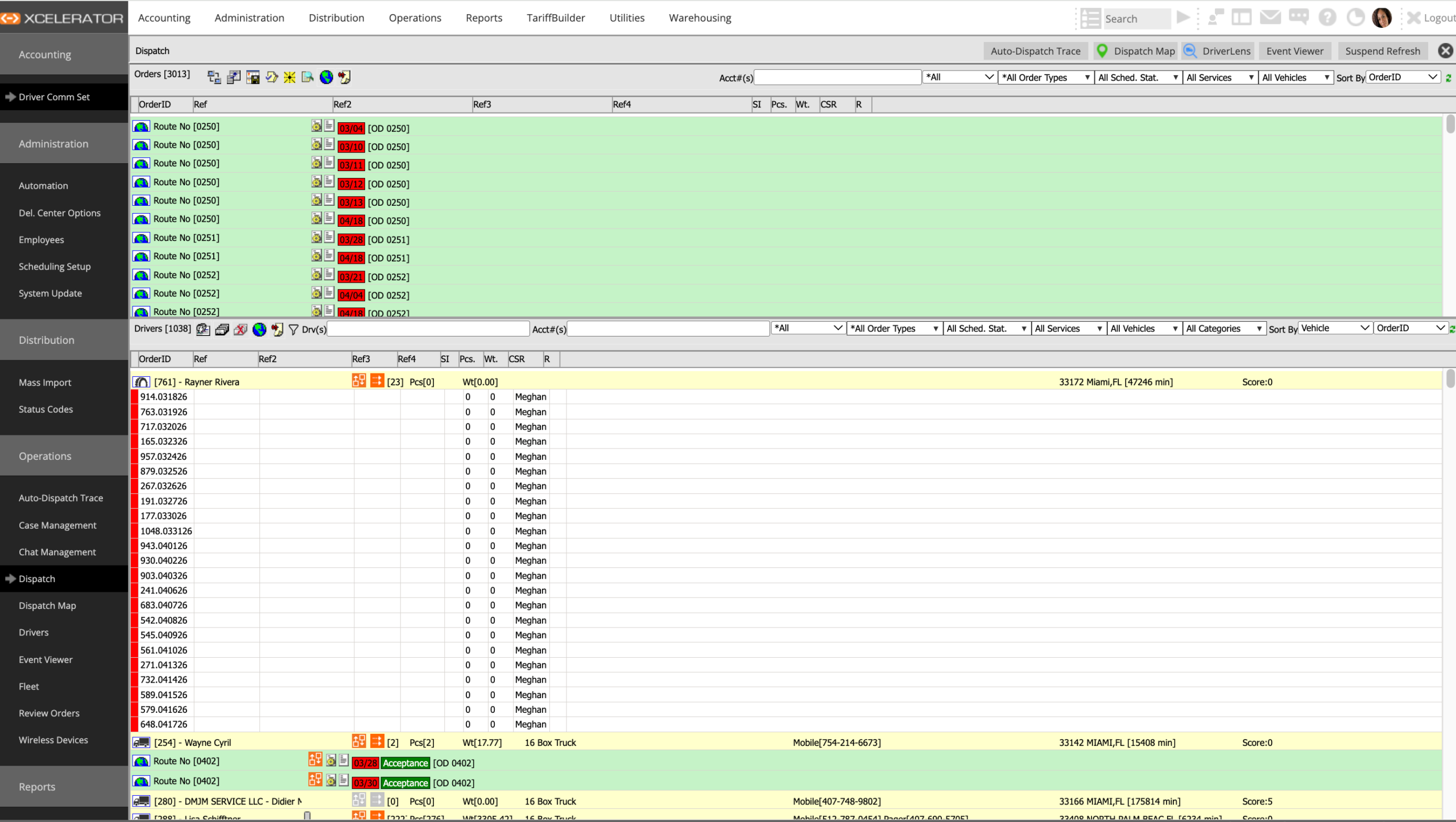
Dispatch screen
This screen shows active orders, routes, and available drivers.
Step 2: Identify Orders That Need Assignment
- Review unassigned orders
- Check delivery location
- Check service type
- Review timing requirements
- Verify special handling needs
Important:
Do not assign randomly. Dispatch decisions directly affect delivery performance and customer experience.
Do not assign randomly. Dispatch decisions directly affect delivery performance and customer experience.
Step 3: Select the Order
Click the order row you want to assign.
- Verify the correct order number
- Verify the destination area
- Confirm the order is ready for dispatch
Step 4: Right Click to Send Dispatch
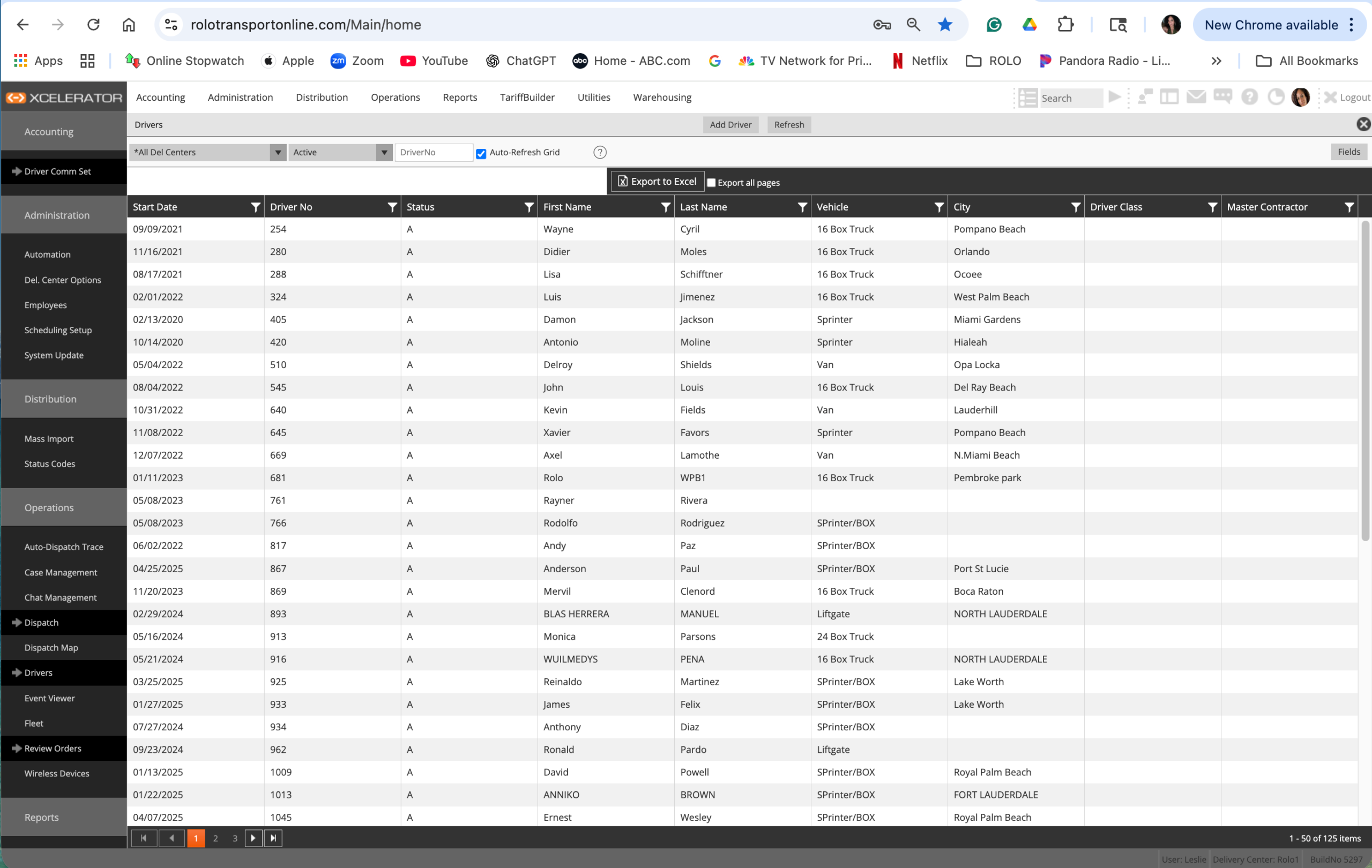
Right-click dispatch menu
- Right-click the selected order
- Select Send Dispatch
- Open the driver assignment window
Step 5: Select the Correct Driver
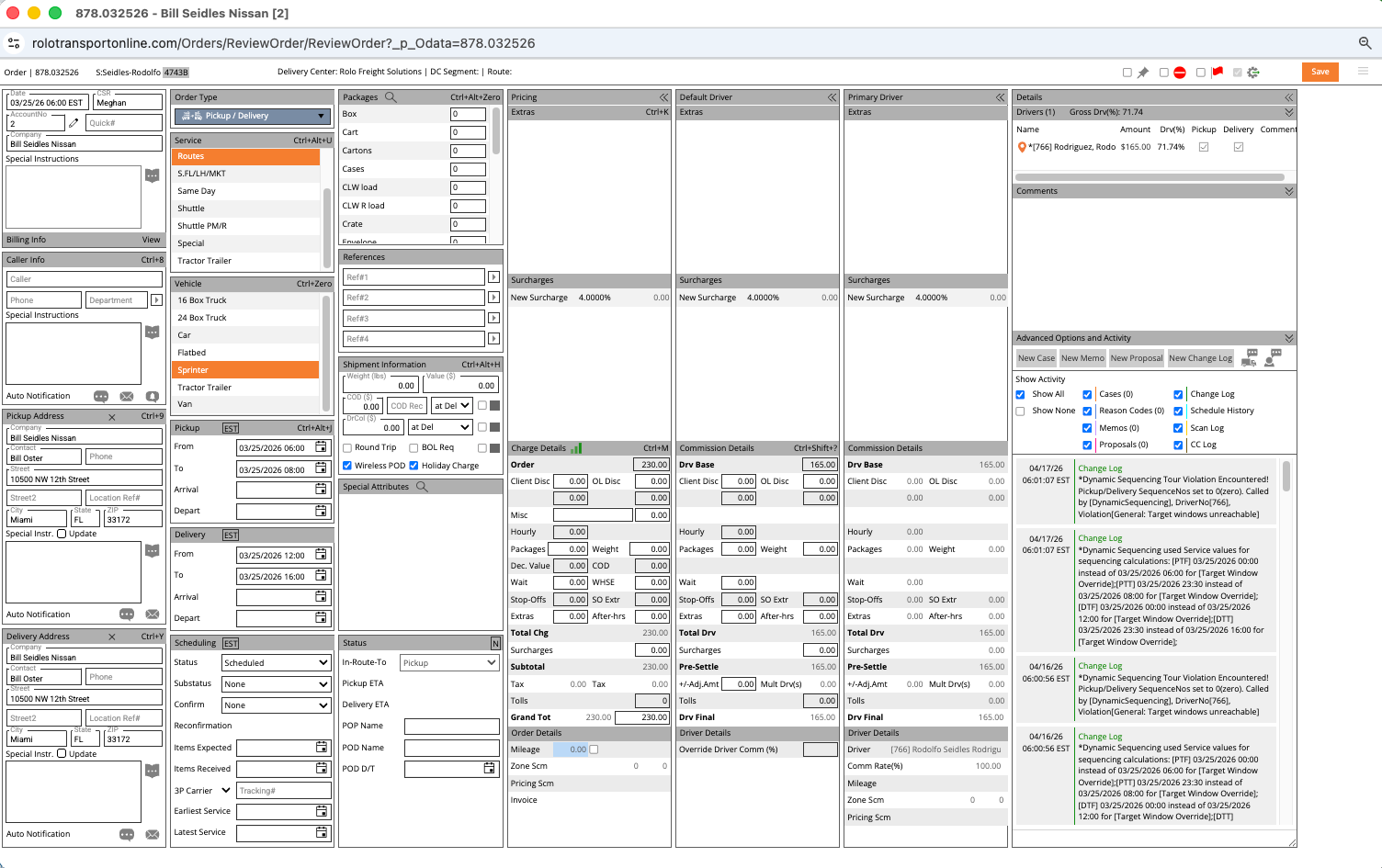
Driver assignment screen
- Select the correct driver
- Match the driver to the delivery area
- Confirm the driver has capacity
- Verify the vehicle type fits the job
- Click Save
Step 6: Confirm the Assignment
- Verify the driver name appears on the order
- Verify the order moves under the route
- Confirm the driver receives the route in MobileTek
- Check for sync or dispatch errors
Watch This Example: Assigning Orders / Assign Scan
Watch this walkthrough showing how dispatch assigns work and manages assignment flow inside Xcelerator.
Best Practices
- Assign by geographic area
- Keep stops close together
- Match vehicle type to service type
- Balance workload across drivers
- Maintain route consistency whenever possible
Common Mistakes
- Random assignments
- Ignoring geography
- Overloading drivers
- Assigning the wrong vehicle type
- Not confirming MobileTek sync
- Dispatching work without reviewing route impact
Do It Now: Assign one test order to a driver and confirm the route appears correctly in MobileTek.
Success Check
You should now be able to:
- Find unassigned orders
- Select and dispatch work correctly
- Assign the correct driver
- Confirm MobileTek route delivery
- Understand how assignments affect operations
Every assignment affects service quality, route performance, and customer trust.
Continue to Lesson 3.5 →