
ROLO Dispatch Training • Lesson 6
Lesson 6: Route Builder — Creating & Managing Routes
Learn how to create routes and organize deliveries before dispatch.
Routes organize work before it is assigned. Clean routes create faster deliveries, fewer problems, better driver performance, and stronger customer service.
Open Route Builder → Review Routes → Create Route → Assign Area/Driver → Save → Use for Dispatch
Step 1: Open Route Builder
Top Menu → Distribution → Route Builder (Routes)
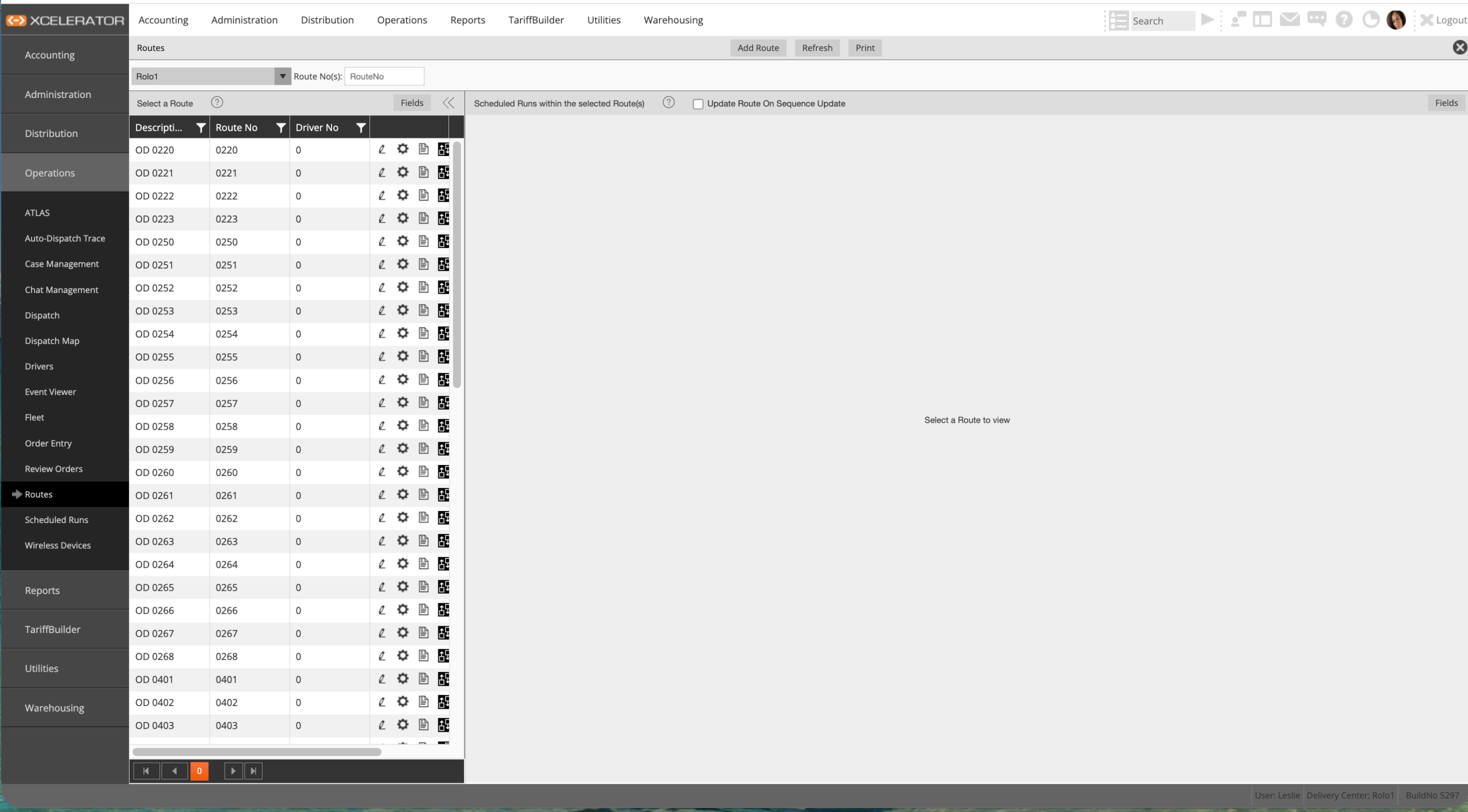
Route Builder – Routes screen
This screen shows all routes in the system.
- Each row represents one route
- Routes can be reused for daily operations
- Routes can be assigned to drivers
- Routes should support geographic efficiency
Step 2: Understand the Route List
- Route No: Unique route ID
- Description: Route name, area, or lane
- Driver No: Assigned driver if already set
- Actions: Edit, configure, or open route details
ROLO Standard:
Route names should be clear enough that dispatch can understand the area or purpose without guessing.
Route names should be clear enough that dispatch can understand the area or purpose without guessing.
Step 3: Create a New Route
Click Add Route at the top.
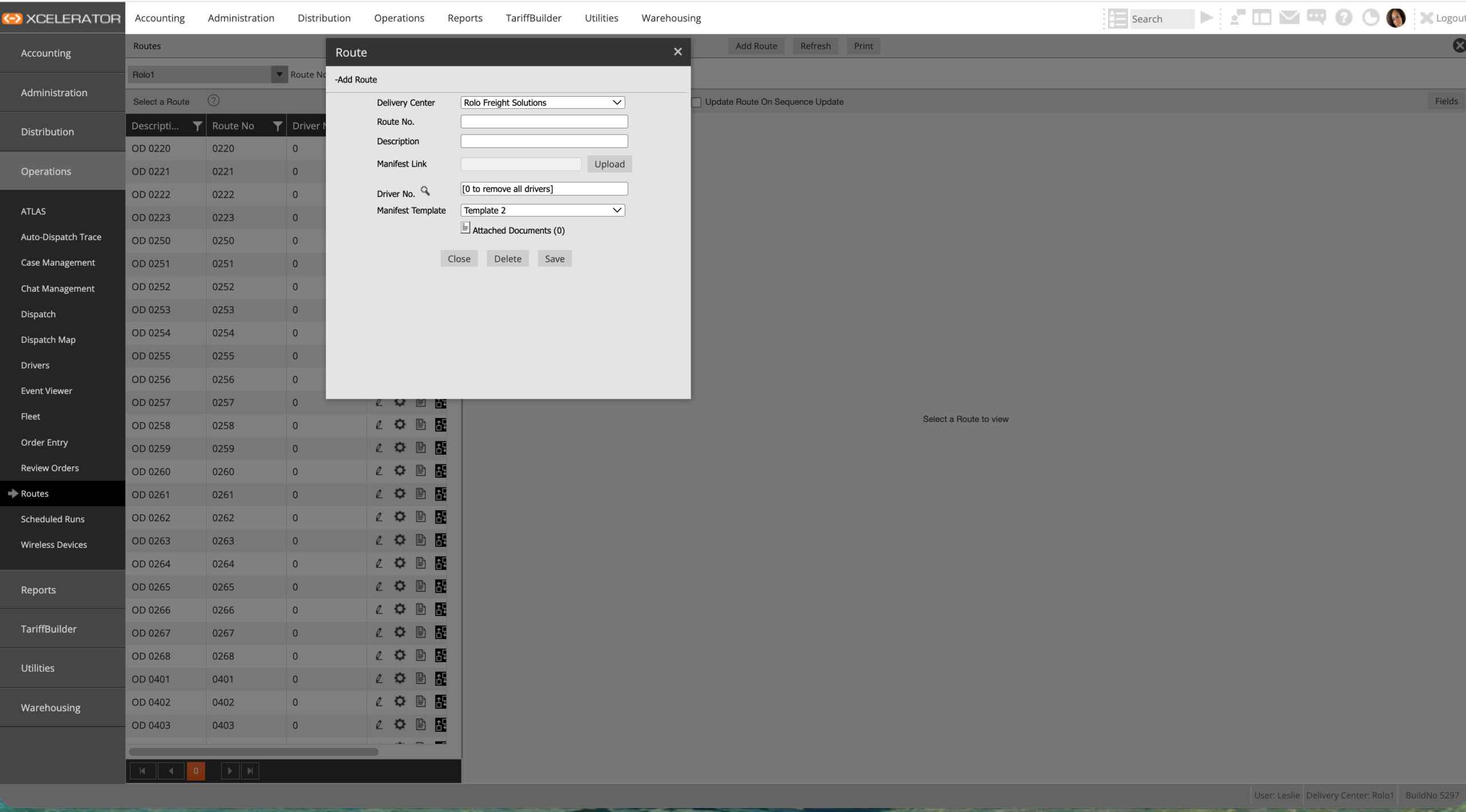
Add Route screen
- Select the correct Delivery Center
- Enter the Route Number
- Add a clear Description
- Use a real area name when possible, such as “West Palm Route”
- Assign a driver if the route already has a dedicated driver
Step 4: Save the Route
- Review the route information before saving
- Click Save
- Confirm the route appears in the route list
- The route is now available for dispatch use
- The route may be reused for repeatable daily work
Step 5: Use Routes Correctly
- Group deliveries by geographic area
- Keep stops close together when possible
- Assign consistent routes to drivers when operationally appropriate
- Avoid mixing far locations into one route
- Use route structure to reduce backtracking and wasted miles
- Protect time-sensitive, medical, white glove, and customer-sensitive deliveries
Important:
Routes should follow geographic logic. Random routes create wasted time, late deliveries, driver frustration, and unnecessary dispatch cleanup.
Routes should follow geographic logic. Random routes create wasted time, late deliveries, driver frustration, and unnecessary dispatch cleanup.
Best Practices
- Use simple route names that match real service areas
- Keep dense local/regional work together
- Build routes around repeatable service patterns
- Review route efficiency before assigning drivers
- Use routes to support visibility, accountability, and faster dispatch decisions
Common Mistakes
- Not using routes consistently
- Creating too many random routes
- Using vague route descriptions
- Not assigning drivers consistently when routes are repeatable
- Ignoring geography
- Mixing far stops into one inefficient route
What Happens If You Don’t:
Poor route structure causes extra miles, late deliveries, driver confusion, weaker visibility, customer complaints, and avoidable operational waste.
Poor route structure causes extra miles, late deliveries, driver confusion, weaker visibility, customer complaints, and avoidable operational waste.
Do it now: Create one test route and name it based on a real ROLO delivery area.
Success Check
- Open Route Builder without help
- Explain what the Route No, Description, and Driver No fields mean
- Create a new route
- Save the route correctly
- Use geographic logic when building routes
- Explain why clean routing improves operations
Routes are the foundation of efficient dispatch. Build them clean, and everything runs smoother.