
ROLO Dispatch Training • Lesson 3 of 12
Lesson 3: Assigning Orders to Drivers
Follow these steps to assign deliveries to the correct driver.
Order assignment is one of the most important dispatcher tasks. Every assignment affects delivery timing, customer experience, driver workload, and route efficiency.
Why This Matters
ROLO dispatch should assign work based on location, service needs, driver availability, vehicle requirements, and route efficiency. Random assignments create delays, confusion, missed expectations, and poor service visibility.
Step 1: Open the Dispatch Screen
Navigation → Dispatch
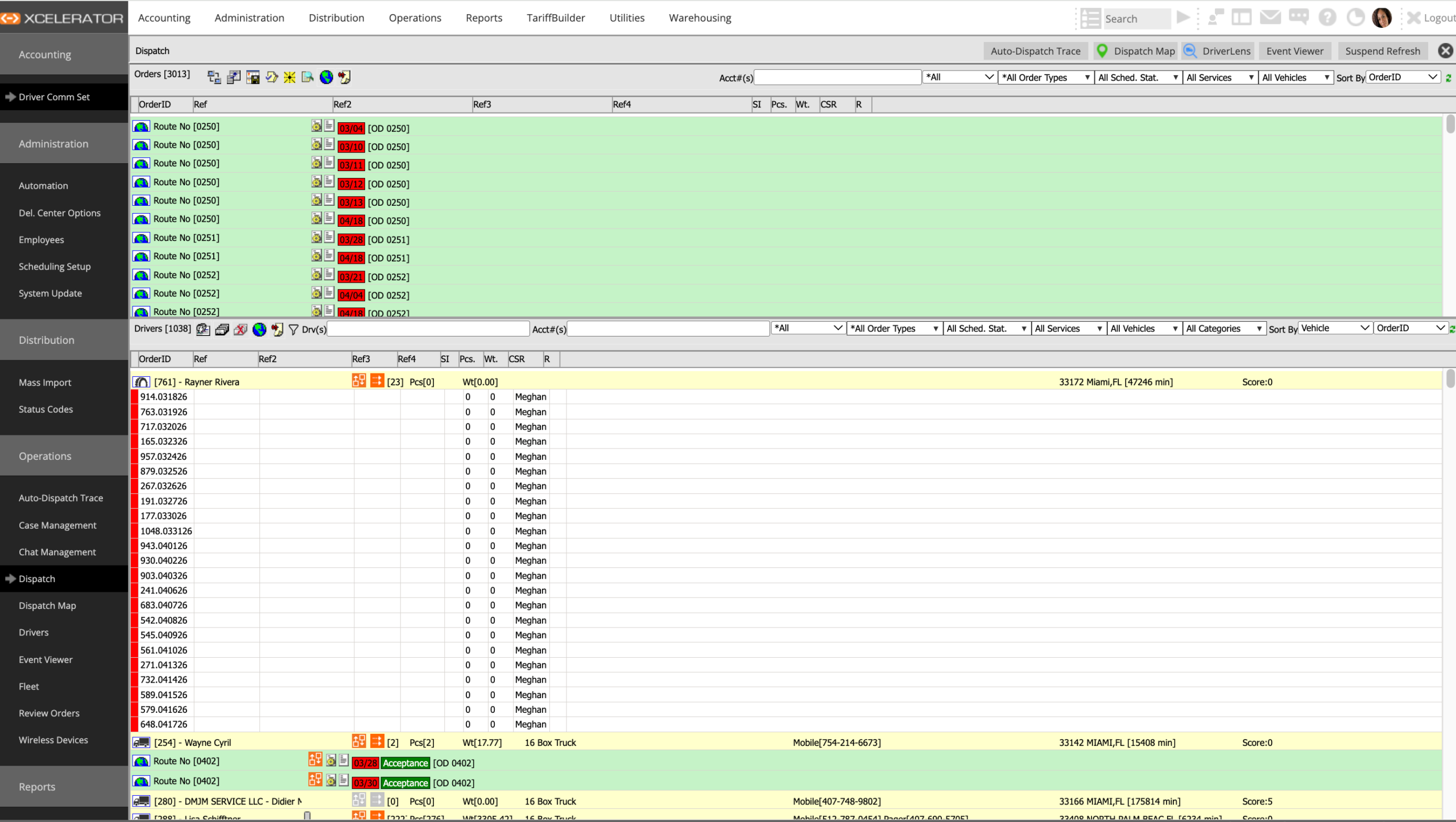
Dispatch screen
The Dispatch screen is where dispatch reviews available orders, driver workload, and assignment status.
Step 2: Identify Orders That Need Assignment
- Look for unassigned orders
- Check pickup and delivery location
- Review service type and customer requirements
- Confirm timing or scheduled delivery expectations
- Check vehicle or equipment requirements before assigning
ROLO Standard:
Do not assign based only on who is available. Assign based on the best operational fit.
Do not assign based only on who is available. Assign based on the best operational fit.
Step 3: Select the Order
Click the order row you want to assign. Before assigning, confirm the order details are correct and the driver can realistically complete the work.
Step 4: Right-Click and Send Dispatch
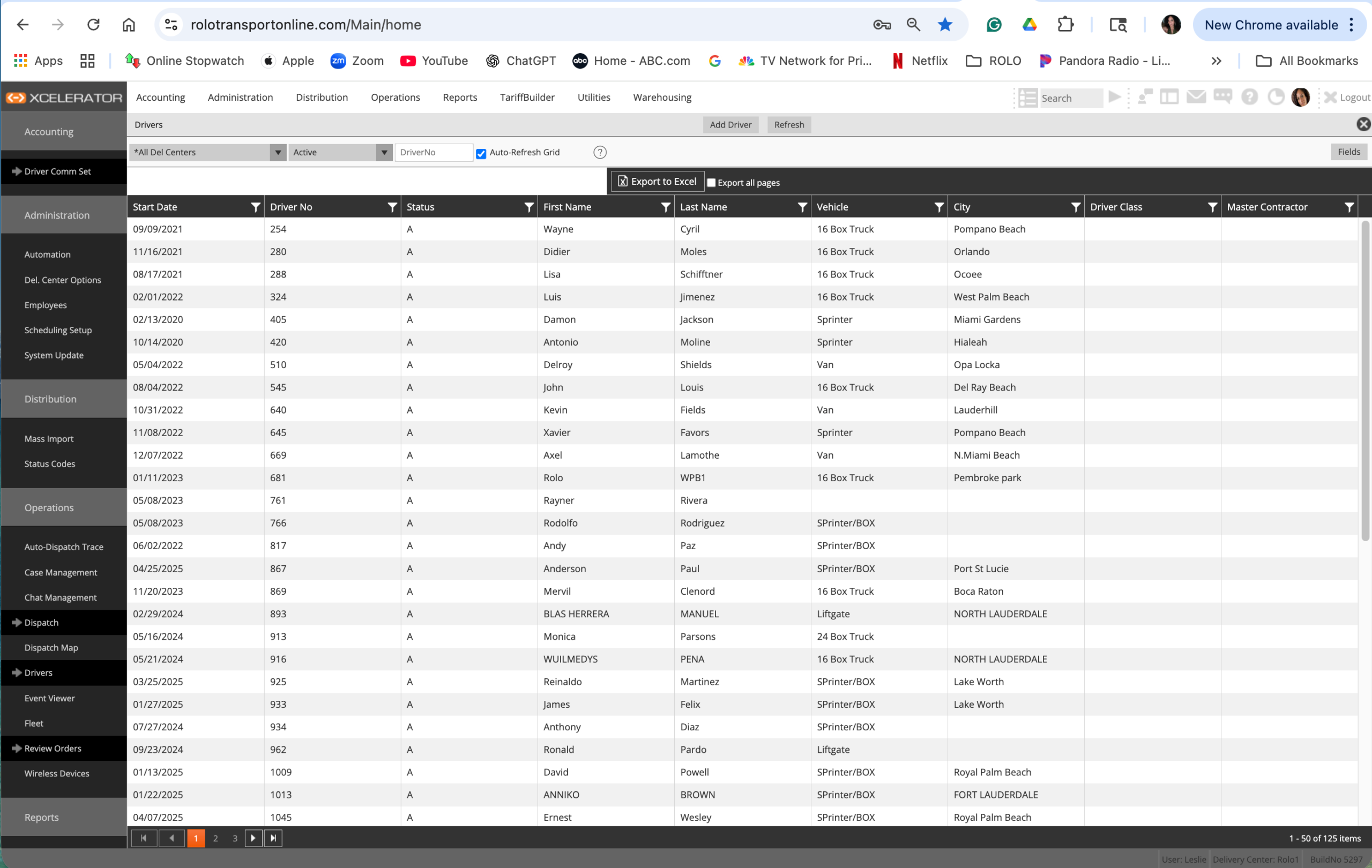
Right-click menu / dispatch action
- Right-click the order.
- Select Send Dispatch.
- Review the driver assignment option.
Step 5: Assign the Correct Driver
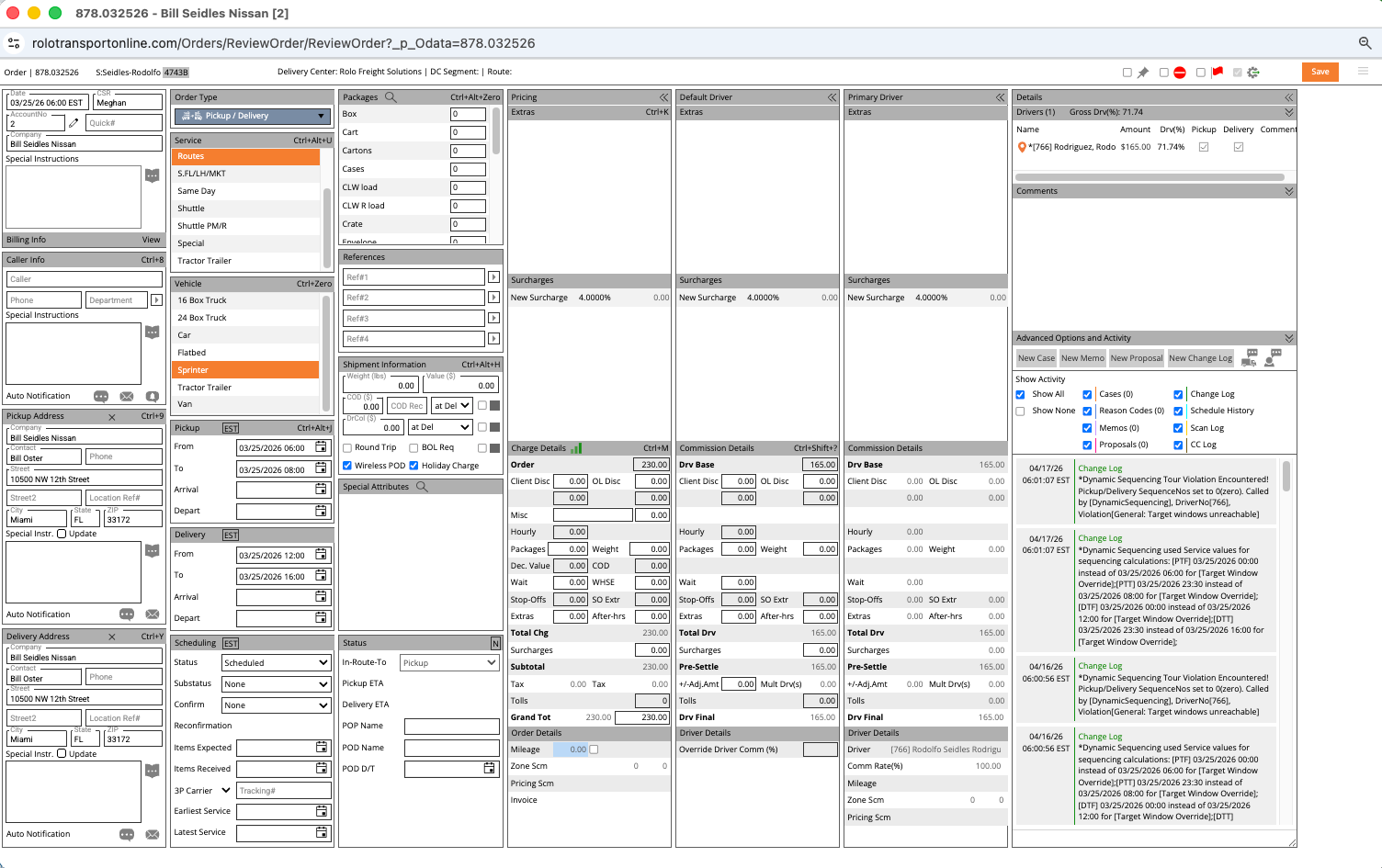
Driver selection screen
- Select the correct driver.
- Confirm the driver is available.
- Confirm the driver is in the correct service area.
- Confirm the driver has the correct vehicle/equipment for the order.
- Click Save.
Step 6: Confirm the Assignment
- The driver name appears on the order
- The order appears under the driver route/workload
- The order status reflects the assignment correctly
- The driver can see the assignment in MobileTek when applicable
Do It Now: Assign a test or live order, then confirm the driver name and route placement appear correctly.
Best Practices
- Assign by geographic area
- Keep stops close together when possible
- Match vehicle type to delivery requirements
- Balance driver workload
- Protect urgent, medical, white glove, and customer-sensitive deliveries
- Confirm service requirements before assigning
- Use dispatch judgment, not random assignment
Common Mistakes
- Assigning orders randomly
- Ignoring pickup or delivery location
- Overloading one driver while another has capacity
- Assigning the wrong vehicle type
- Not checking equipment requirements
- Not confirming the assignment after saving
- Assuming the driver sees the order without verifying
What Happens If You Don’t:
Poor assignments create late deliveries, unnecessary miles, customer complaints, driver frustration, failed service commitments, and avoidable dispatch cleanup.
Poor assignments create late deliveries, unnecessary miles, customer complaints, driver frustration, failed service commitments, and avoidable dispatch cleanup.
Success Check
You should now be able to:
- Open the Dispatch screen
- Identify unassigned orders
- Review order details before assigning
- Use Send Dispatch
- Select the correct driver
- Confirm the assignment was saved correctly
Need Help?
If you are unsure which driver should receive an order, pause and ask a supervisor before assigning. Do not guess on high-value, time-sensitive, medical, white glove, or equipment-specific deliveries.
If you are unsure which driver should receive an order, pause and ask a supervisor before assigning. Do not guess on high-value, time-sensitive, medical, white glove, or equipment-specific deliveries.
Every assignment affects delivery time, customer trust, driver performance, and ROLO’s service quality.
Continue to Next Lesson →