DRIVER GUIDE
THE COLLECTION
MobileTek Core · Your workday, step by step
RFS.
ROLO FREIGHT SOLUTIONS
Reference: Pickup Steps
SCREEN SEQUENCE
1. Scheduled Orders2. ARRIVE/SCAN3. Pickup timestamp4. DEPART5. Confirm next stop
Button diagram; this is not an interactive MobileTek screen.
- Park safely at the actual pickup location. Open Scheduled Orders. Tap the card showing your assigned order number to expand it and reveal the action buttons. Then tap ARRIVE/SCAN.
- If the Pkgs screen says “There are currently no packages for this leg”, do not add invented packages. In the pilot’s route-record workflow, tap OK. For The Collection, do not scan parts in MobileTek; follow the separate customer scanning process.
View real screen
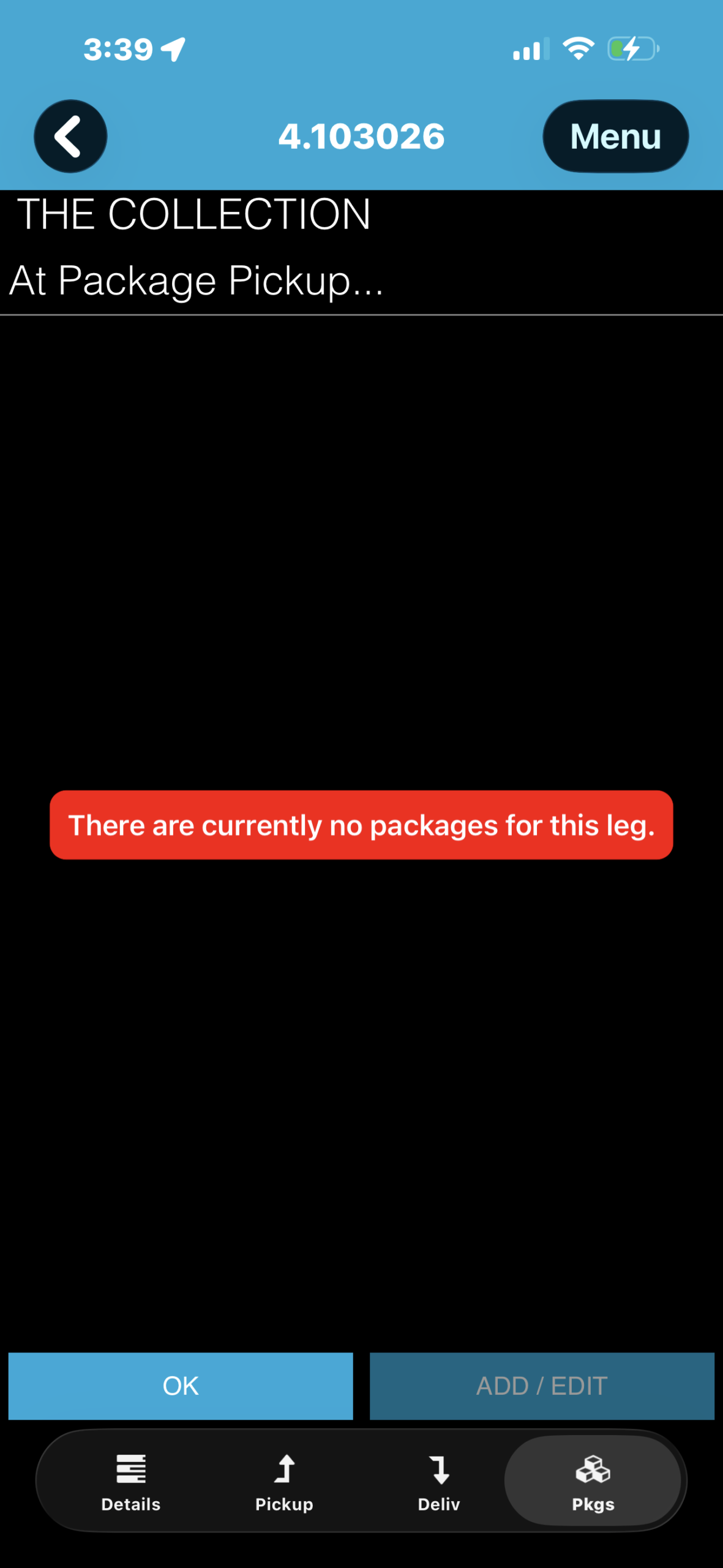
Practice package message: the order has no packages. Use OK for the configured daily route record; no MobileTek package scan was tested. - Select Pickup at the bottom. Verify the company and address. The left button should show your arrival date/time; Pickup From / Pickup To are planned windows.
View real screen
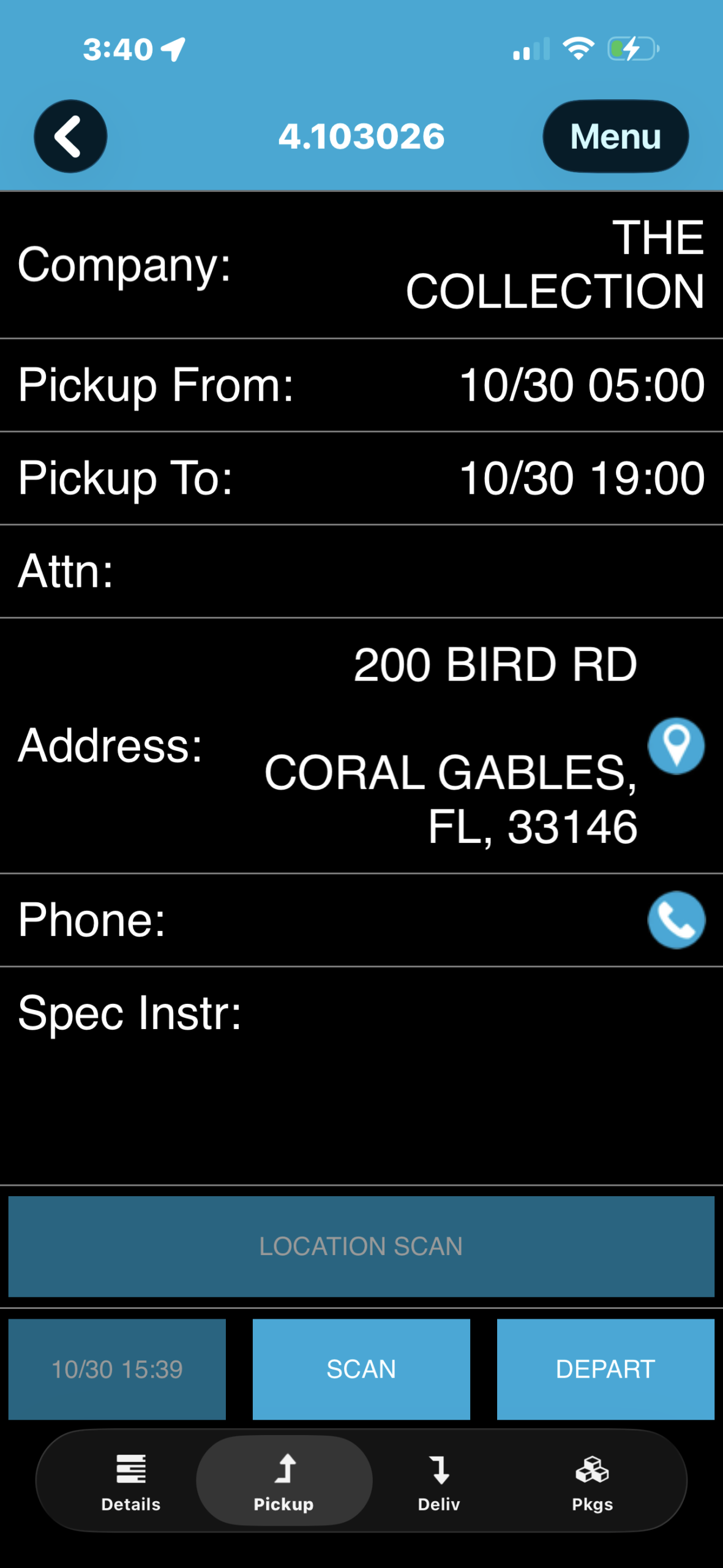
Pickup arrival is already recorded at the bottom left; DEPART is still available at the bottom right. The timestamp is arrival, not departure. - Complete the actual pickup and customer-required scans in the designated system. An empty MobileTek package list does not remove the customer’s scanning requirements.
- When pickup is finished and you are ready to leave, tap DEPART on the lower right.
- If “Please confirm this is your NextStop” appears, check the order number, Delivery label and address. Tap Confirm only if correct. If wrong, tap Dismiss and contact dispatch.
RememberARRIVE means you reached the stop. DEPART means the pickup work is finished and you are leaving. Record both at the actual event time.
Before you continuePickup arrival and departure are recorded in the correct order.