DRIVER GUIDE
THE COLLECTION
MobileTek Core · Your workday, step by step
RFS.
ROLO FREIGHT SOLUTIONS
Lesson 3 of 3
3. Close Your Workday
- After completing your route, park safely at your assigned home endpoint. Open Scheduled Orders. Tap your order card to reveal the buttons. Tap ARRIVE/SCAN.
- If this daily record has no packages, tap OK in Pkgs. Tap Deliv. Check your home address and arrival timestamp at bottom left. Delivery From / Delivery To are planned times.
- Tap DEPART at bottom right to open the closeout screens. You do not need to leave home again.
- In Customer Review, sign your own signature in the white area. Tap SUBMIT. Use CLEAR only to redo your signature.
View real screen
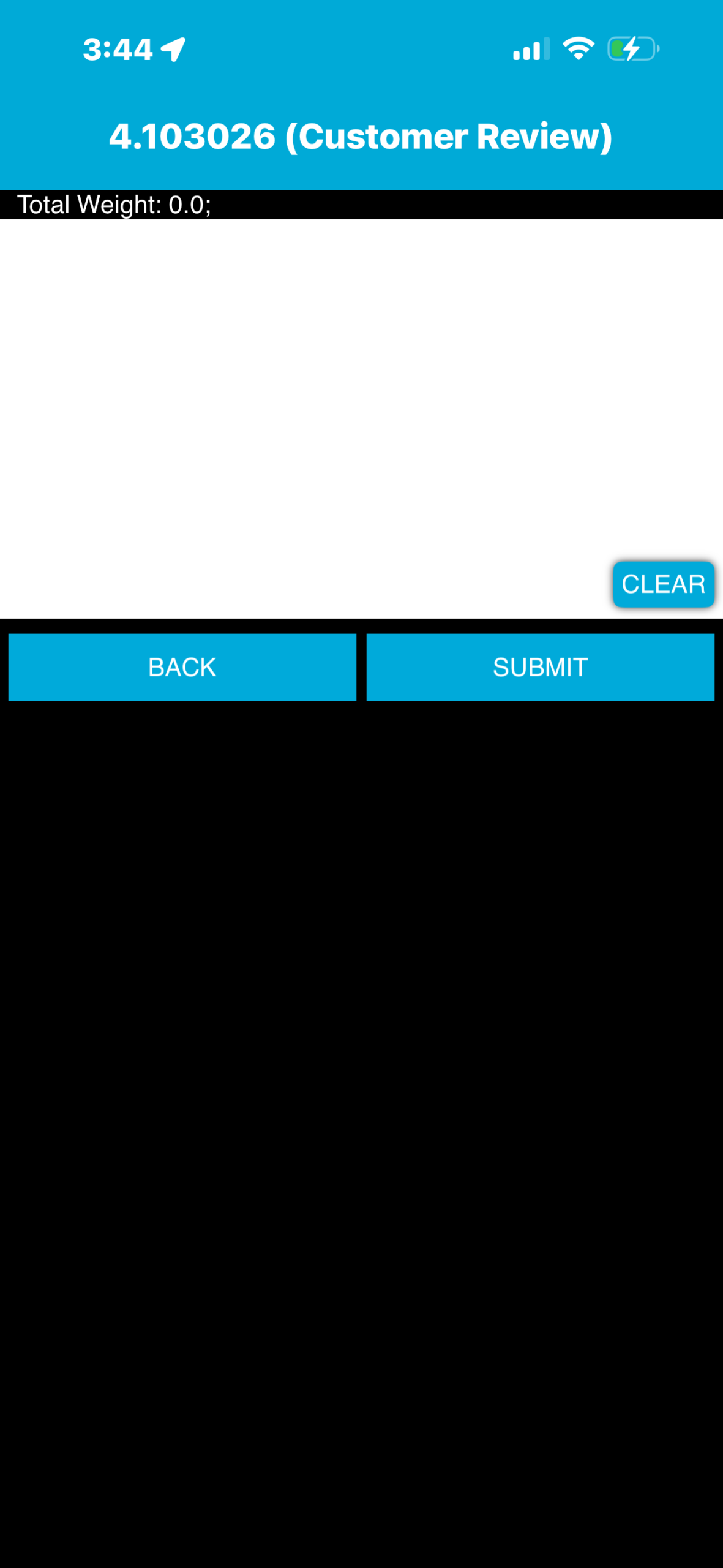
Customer Review is the app’s label. For this home-endpoint closure, the driver signs their own signature and taps SUBMIT. - If Signature Confirmation appears, tap Done to accept, or Cancel to correct. Done does not close the order.
View real screen
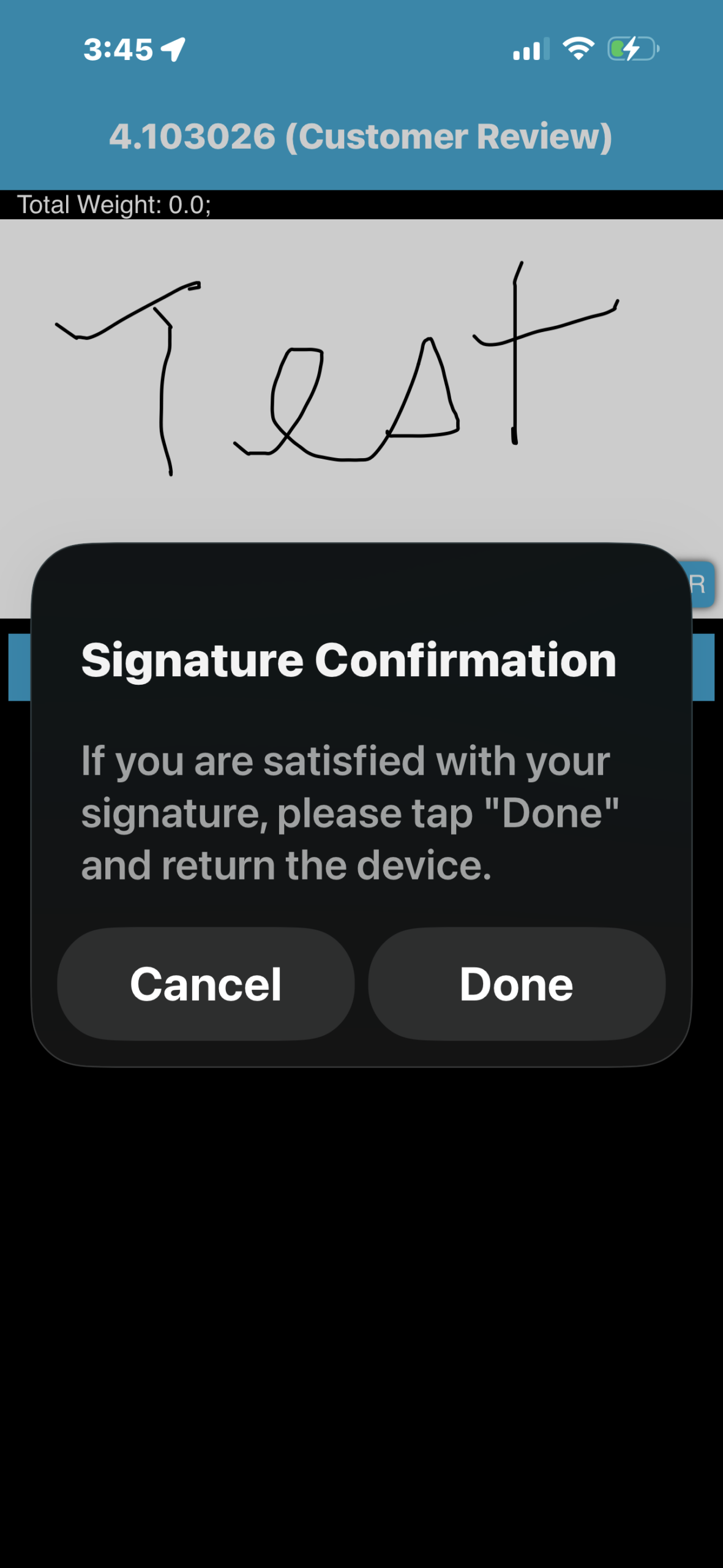
Done accepts the signature; Cancel allows correction. The word Test belongs only to the practice order. The order is not closed yet. - In Delivery Sig, enter your own full name in Name. Leave Email and SMS (phone) blank. They are not required for daily closeout.
View real screen
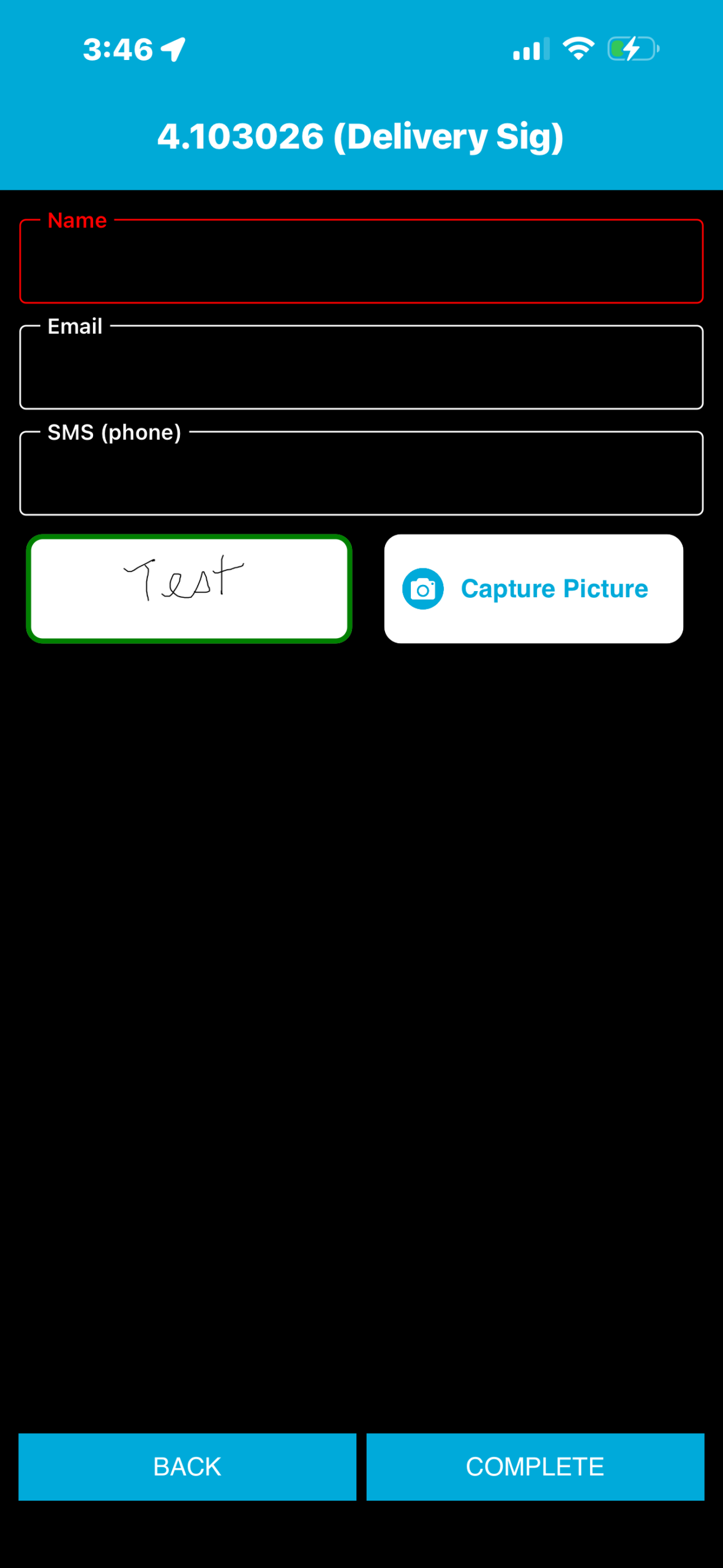
Delivery Sig: enter your full name in Name, verify your signature, then tap COMPLETE. Email and SMS (phone) are not required for daily closeout. - Check your name and signature. Tap COMPLETE to close the order. Use Capture Picture only if your approved job instructions require it.
- Open Closed Orders and find this exact order number. Check Sync Items Remaining: 0 on the home screen. A signature alone does not confirm closure.
View real screen
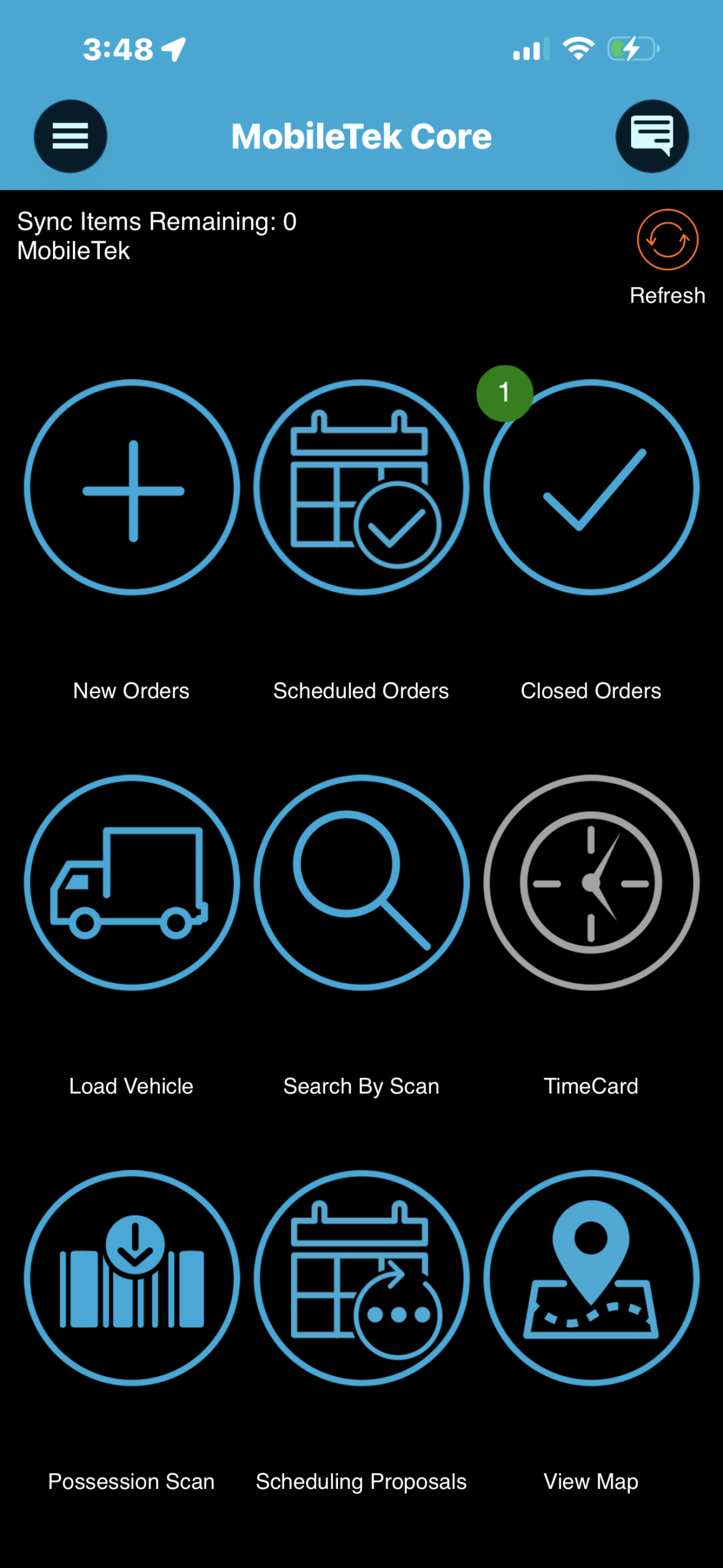
Practice result: Closed Orders shows 1 and Sync Items Remaining shows 0. Confirm your own exact order and current synchronization status.
Sync greater than 0? Keep MobileTek open with a data connection, tap Refresh and check again. If it remains pending or COMPLETE gives an error, contact ROLO. Do not delete or reset app data. Ask dispatch to verify your first supervised practice. “Test” in the photos is a practice signature. Use your own signature and name. This closes your daily work record at home; customer scans/POD remain in The Collection’s approved workflow.