DRIVER GUIDE
THE COLLECTION
MobileTek Core · Your workday, step by step
RFS.
ROLO FREIGHT SOLUTIONS
Reference: Closed Orders and Sync
SCREEN SEQUENCE
1. COMPLETE2. Closed Orders3. Correct order4. Sync Items Remaining: 0
Button diagram; this is not an interactive MobileTek screen.
- Return to the MobileTek home screen after tapping COMPLETE.
- Open Closed Orders. Find the exact order number you just finished. A count of 1 alone does not identify which order closed.
- Check Scheduled Orders for work that remains. An order should not be treated as finished merely because you captured a signature.
- Check Sync Items Remaining. If it is above 0, keep the app open with a working data connection, tap Refresh and check again.
View real screen
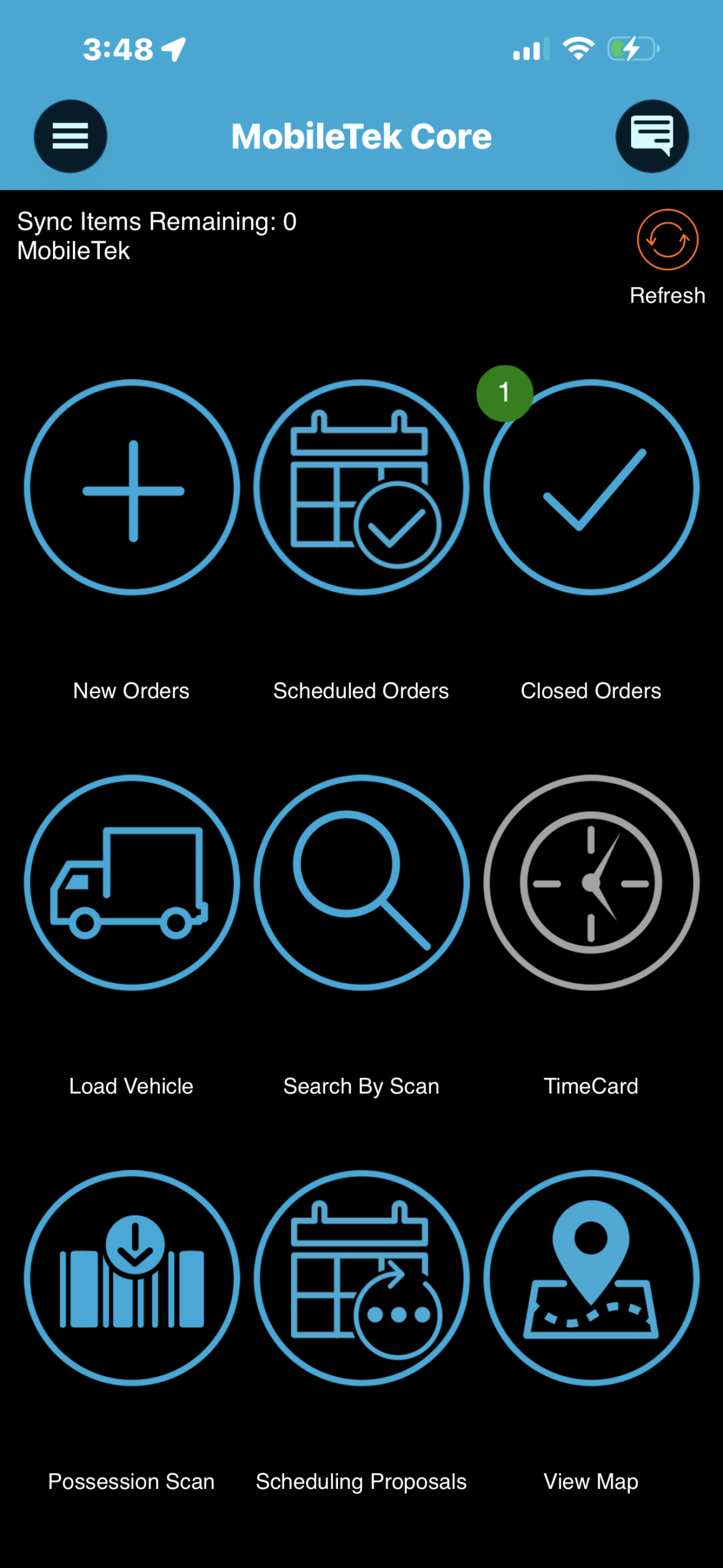
Practice result: Closed Orders shows 1 and Sync Items Remaining shows 0. Confirm your own exact order and current synchronization status. - If sync will not clear, tell dispatch the order number, the exact error and when the event occurred. Do not delete the app, clear its data or reinitialize while unsynced work remains unless support directs you.
- For your first supervised practice, ask dispatch to verify pickup arrival/departure, delivery arrival/departure, your own name and signature in Xcelerator. Closeout is complete only after any unresolved work is reviewed with dispatch.
RememberZero pending sync items means the app has nothing waiting to upload. Dispatch verification confirms the saved record. It does not prove that GPS, scanning or automated dispatch has been fully tested.
Before you continueThe correct order is under Closed Orders, Sync Items Remaining is 0, and dispatch confirms your first practice.