DRIVER GUIDE
THE COLLECTION
MobileTek Core · Your workday, step by step
RFS.
ROLO FREIGHT SOLUTIONS
Lesson 2 of 3
2. Start Your Workday
Use MobileTek to view and accept your route and record your workday. Do not scan parts in MobileTek: customer scanning and proof of delivery continue in the separate customer process. Close out at the assigned home endpoint of the driver performing the route. Do not return to 200 Bird Road. If the address does not match, contact ROLO before continuing.
- Report at your usual start time and location; your reporting schedule is unchanged. Park safely. Open MobileTek and tap Refresh, then New Orders.
- Tap the card showing your assigned order number to reveal ACCEPT and DETAILS. Scroll down if needed.
- Check the order, route, pickup and final home endpoint against your assignment. Tap ACCEPT, then Yes when asked “Accept [order number]?”. Open Scheduled / Scheduled Orders and find that order.
View real screen
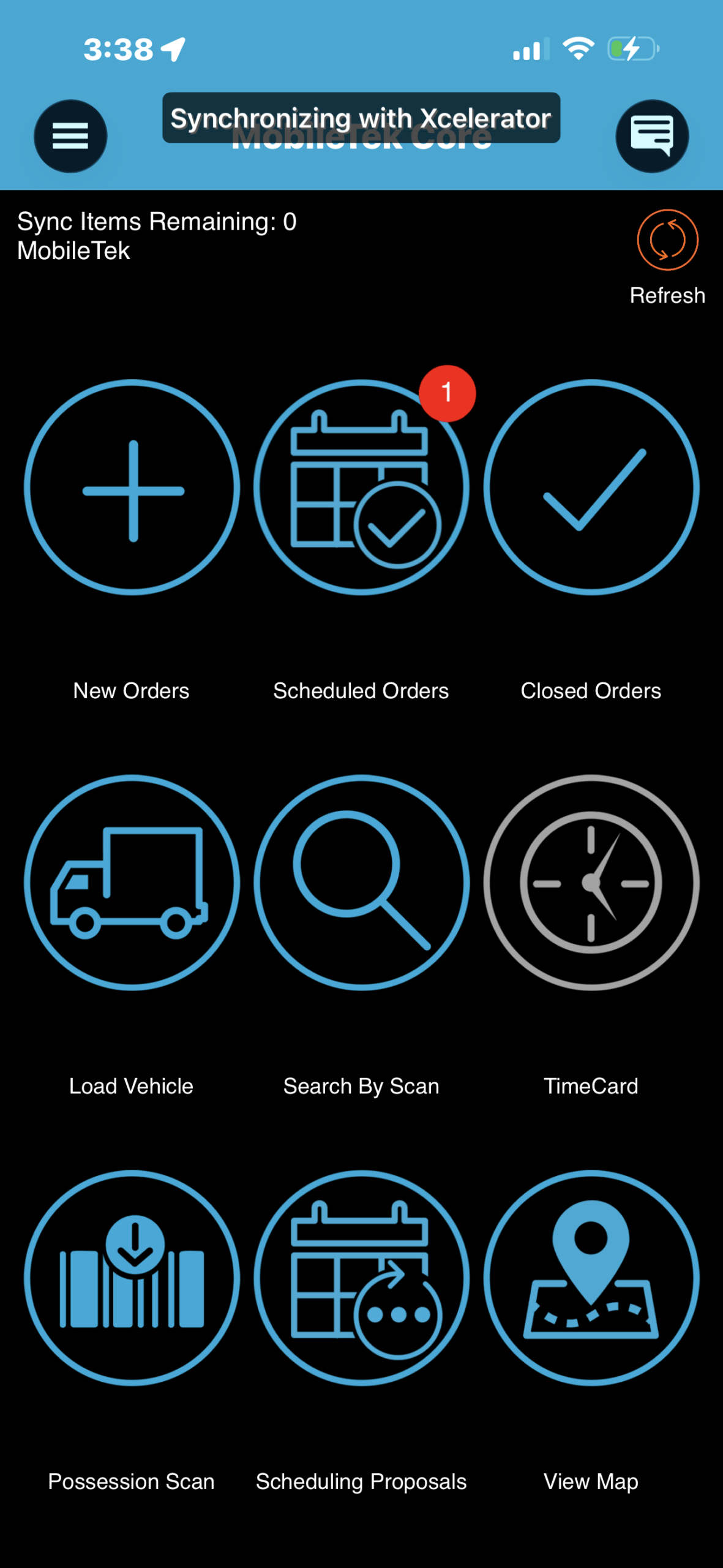
After acceptance, the Scheduled Orders badge shows one order in this practice. Open Scheduled Orders to check your own assignment. - At the pickup location, open Scheduled Orders. Tap your order card to reveal the buttons. Tap ARRIVE/SCAN when you arrive.
- If Pkgs says “There are currently no packages for this leg” for this daily route record, tap OK. Do not add packages or scan parts in MobileTek for this account.
View real screen
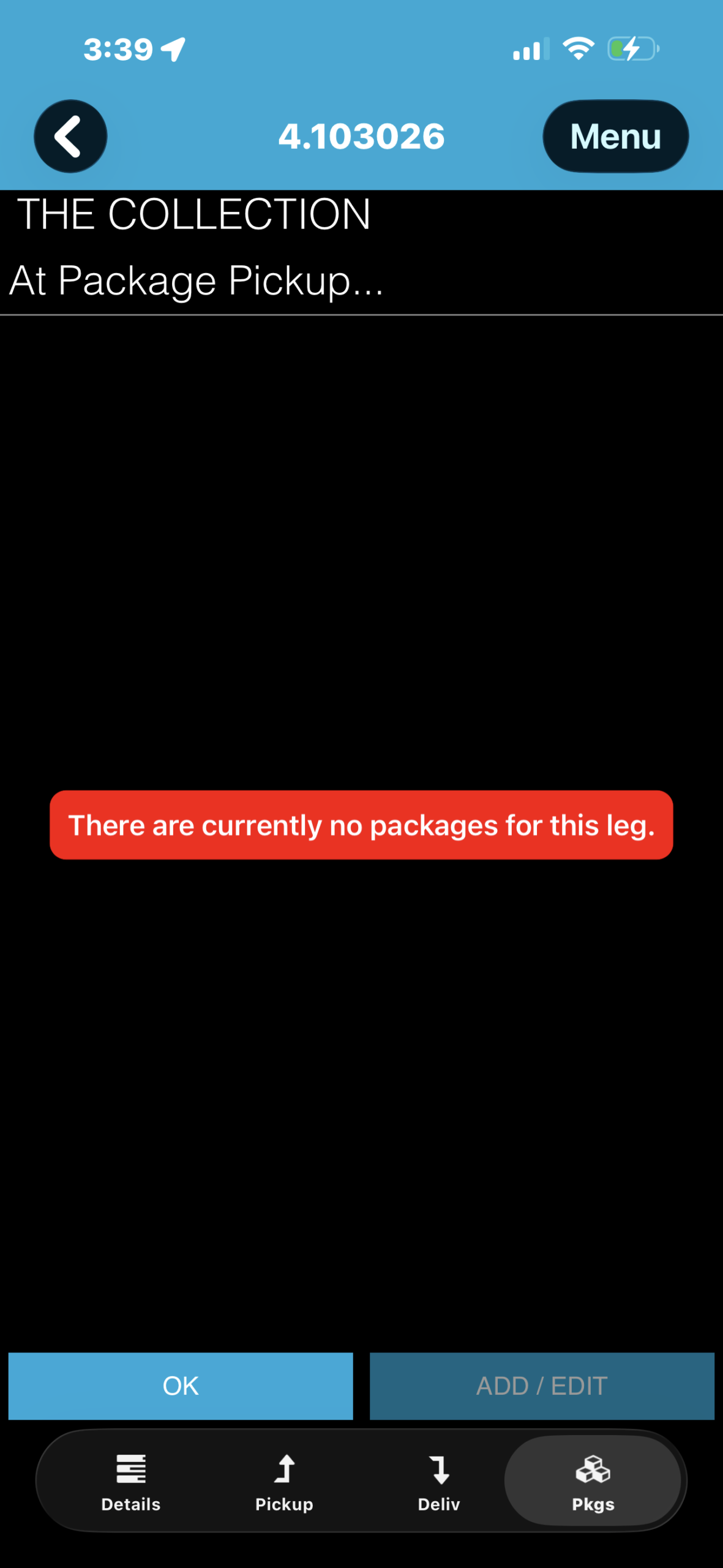
Practice package message: the order has no packages. Use OK for the configured daily route record; no MobileTek package scan was tested. - Tap Pickup. Check the address and your arrival timestamp at bottom left. Pickup From / Pickup To are planned times. Finish the actual pickup and The Collection’s required scans in its designated system.
View real screen
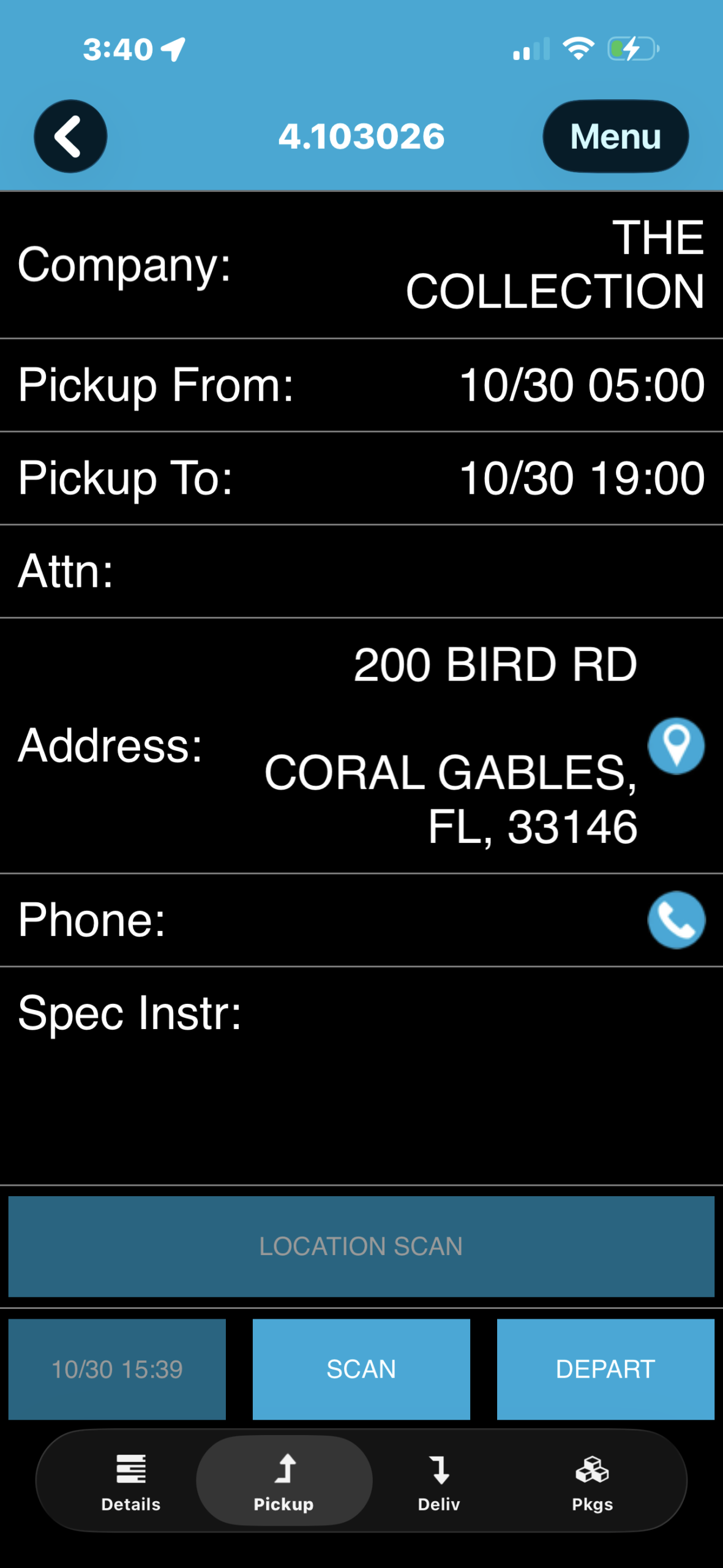
Pickup arrival is already recorded at the bottom left; DEPART is still available at the bottom right. The timestamp is arrival, not departure. - When ready to leave, tap DEPART. If “Please confirm this is your NextStop” appears, check the order and address, then tap Confirm only if correct. Otherwise tap Dismiss and contact dispatch.
No order or wrong address? Tap Refresh and check New Orders and Scheduled Orders. Contact dispatch before proceeding. Do not create an order or travel to a practice address. Continue The Collection’s required OPS / OPSTrax scans and delivery proof.