
ROLO MobileTek Driver Training • Lesson 7 of 9
Lesson 7: Scan the Package
Verify the package before completing the delivery to ensure accurate tracking and stop validation.
Every package must be scanned before the stop is completed.
Why This Matters
Scanning confirms you have the correct package, the correct stop, and creates the official delivery tracking record inside MobileTek.
Open Stop → Tap Scan → Scan Package → Verify Scan → Continue Delivery
Look at This
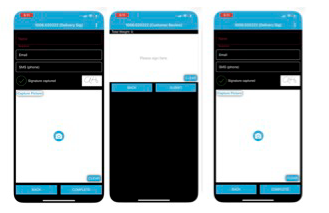
Scan the barcode before completing the stop
ROLO Standard:
Do not complete deliveries without successful package verification and scan confirmation.
Do not complete deliveries without successful package verification and scan confirmation.
Do These Steps
- Open the stop inside MobileTek.
- Tap Scan.
- Scan the barcode on the package.
- Verify the package matches the stop.
- Confirm the scan was accepted in the app.
- Continue to the POD/completion step only after successful scanning.
Watch This Example: Package Scanning Workflow
Watch this MobileTek walkthrough showing how to properly scan and verify delivery packages.
Focus on:
- How the package is scanned
- How packages are verified inside MobileTek
- How to confirm successful scans
- How packages are added correctly during delivery workflow
Do It Now:
- Open the current stop
- Scan the package barcode
- Verify the scan registers successfully
- Confirm the package matches the stop details
If the Scan Does Not Work
- Check the barcode and try again
- Make sure the camera lens is clean
- Move the phone closer or farther away
- Improve lighting if needed
- Confirm you have the correct package
- Verify the barcode is not damaged
If the scan still fails, contact dispatch before completing the stop.
Best Practices
- Verify labels before scanning
- Double-check multi-package stops
- Scan packages one at a time carefully
- Wait for scan confirmation before continuing
- Keep package labels visible and undamaged
Common Mistakes
- Completing the stop before scanning
- Scanning the wrong package
- Ignoring failed scans
- Not confirming the scan registered in MobileTek
- Delivering packages without verification
- Skipping package validation during busy routes
What Happens If You Don’t:
Missing or incorrect scans can create delivery disputes, tracking failures, customer complaints, missing package investigations, and delivery record problems.
Success Check
You should now:
- Know how to scan packages correctly
- Understand how to verify package scans
- Know how to confirm successful scans inside MobileTek
- Understand how scanning protects delivery accuracy
- Be ready to complete deliveries accurately
Need Help?
If package information looks incorrect or scans continue failing, contact dispatch before completing the stop.
Always scan the package before completing the delivery.
Continue to Lesson 8 →