
ROLO MobileTek Driver Training • Lesson 1 of 9
Lesson 1: Initialize & Log In to MobileTek
Set up MobileTek correctly before beginning deliveries or receiving route assignments.
You cannot receive routes, scan packages, complete deliveries, or communicate delivery status updates until MobileTek is initialized and fully connected.
Why This Matters
MobileTek is the primary delivery application used for:
- Receiving assigned routes
- Viewing stop details and delivery instructions
- Scanning packages
- Capturing Proof of Delivery (POD)
- Updating delivery statuses
- Communicating delivery progress to dispatch
- Tracking completed deliveries
ROLO Operational Standard:
Drivers are responsible for verifying MobileTek is fully working BEFORE leaving the warehouse.
Drivers are responsible for verifying MobileTek is fully working BEFORE leaving the warehouse.
Before You Start
Before opening MobileTek, verify the following:
- Phone battery is charged
- Mobile data is turned ON
- Camera permissions are enabled
- Location services are enabled
- Notifications are allowed
- MobileTek is installed and updated
- Your internet connection is stable
Step 1: Initialize MobileTek
Initialization connects your device to the ROLO MobileTek environment.
- Open the MobileTek app.
- Enter Client ID: 471
- Enter Security Code: 466761
- Tap Initialize.
- Wait for the login screen to appear completely.
Watch This Example: Initialize MobileTek
This walkthrough shows how to initialize MobileTek before first-time login or device setup.
Step 2: Log In
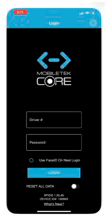
MobileTek login screen
- Enter your assigned Driver ID.
- Enter your assigned Password.
- Tap Login.
- Wait for MobileTek to fully load.
- Verify the Dashboard/Home Screen appears correctly.
- Confirm the app is responsive and connected.
Do NOT leave the warehouse until:
- Your route appears correctly
- Stops are loading properly
- The app responds normally
- Scanning works correctly
If MobileTek Is Not Working Correctly
Sometimes MobileTek may require reinitialization due to:
- Sync failures
- Login issues
- Missing routes
- Connection errors
- App loading problems
- Device replacement
Important:
Only reinitialize MobileTek if instructed by dispatch/supervisor or if troubleshooting requires it.
Only reinitialize MobileTek if instructed by dispatch/supervisor or if troubleshooting requires it.
Watch This Example: Reinitialize MobileTek on Android
Use this walkthrough if you are using an Android device and MobileTek must be reinitialized.
Watch This Example: Reinitialize MobileTek on iPhone
Use this walkthrough if you are using an iPhone and MobileTek must be reinitialized.
Do It Now:
- Initialize MobileTek if needed
- Log into the app
- Verify the Dashboard loads correctly
- Confirm your device is fully connected before beginning work
Common Mistakes
- Entering the wrong Client ID
- Entering the wrong Security Code
- Using another driver’s login credentials
- Ignoring permission requests
- Leaving before routes fully sync
- Using weak or unstable internet
- Starting deliveries before verifying stop visibility
What Happens If You Don’t:
If MobileTek is not initialized or functioning properly, drivers may miss stops, fail deliveries, lose tracking visibility, create POD issues, or cause dispatch delays.
If MobileTek is not initialized or functioning properly, drivers may miss stops, fail deliveries, lose tracking visibility, create POD issues, or cause dispatch delays.
Success Check
You should now:
- Have MobileTek initialized correctly
- Be logged into your driver account
- See the MobileTek Dashboard/Home Screen
- Understand when reinitialization is needed
- Be ready to receive route assignments
Need Help?
If initialization, login, syncing, or route visibility fails, contact dispatch or your supervisor BEFORE leaving the warehouse.
Initialize correctly. Log in correctly. Verify your route before leaving.
Continue to Lesson 2 →