DRIVER GUIDE
THE COLLECTION
MobileTek Core · Your workday, step by step
RFS.
ROLO FREIGHT SOLUTIONS
Lesson 1 of 3
1. Set Up MobileTek
Login sequence: download MobileTek Core → Client ID / Security Code → INITIALIZE → Driver ID / Password → LOGIN. Use all four values from your private ROLO email. If Driver ID already appears, continue with your personal login. For The Collection, use MobileTek to view and accept your route and record daily closeout. Do not scan parts in MobileTek; follow the separate customer scanning process.
- Install MobileTek Core from App Store (iPhone) or Google Play (Android), then open it.
View real screen
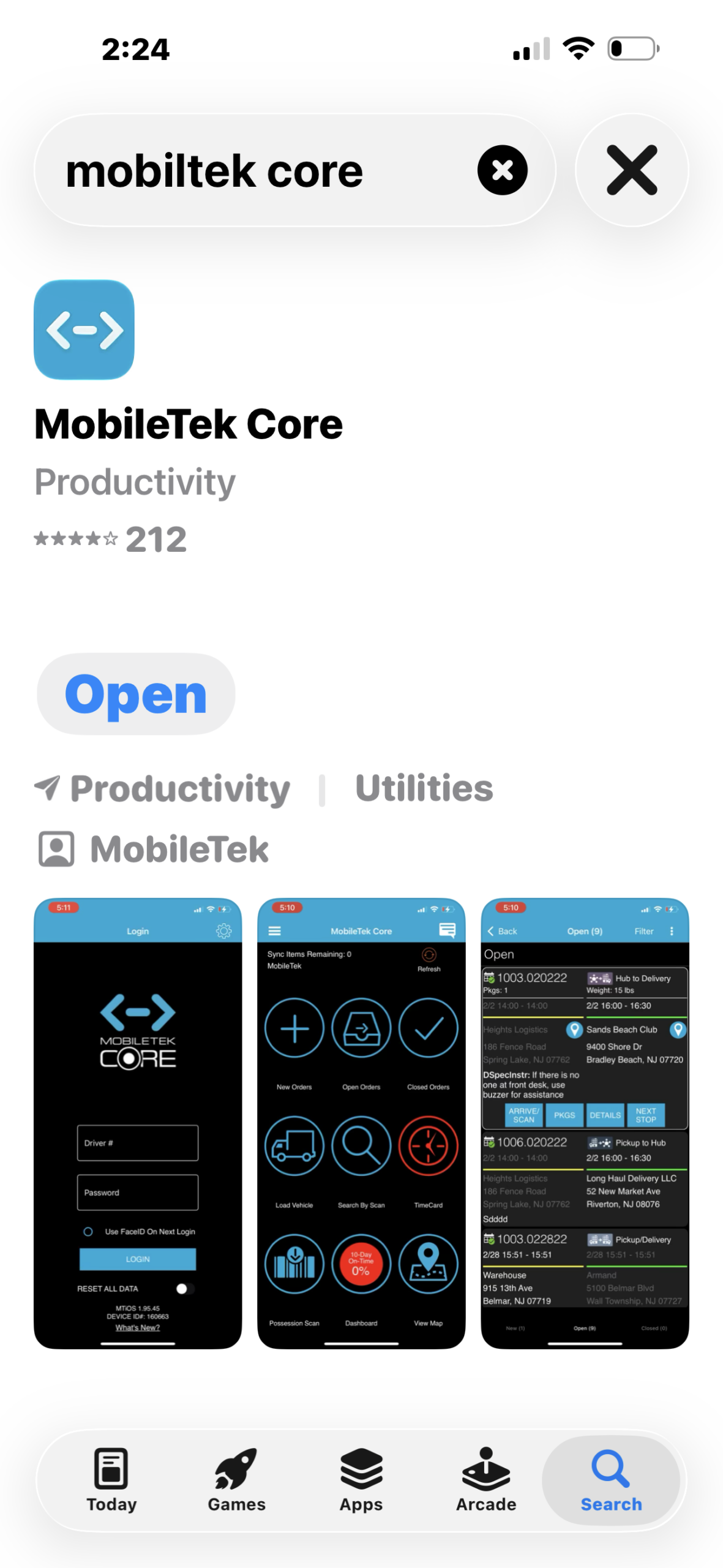
Find MobileTek Core in the App Store. This is the iPhone download example; Android uses Google Play. - Open your private ROLO email for your company Client ID, company Security Code, personal Driver ID and password. Check spam/junk if missing; contact ROLO if you cannot find it.
- On the company setup screen, enter the emailed Client ID in Client # and the company code in Security Code. Tap INITIALIZE. If you already see Driver ID, skip this step.
View real screen
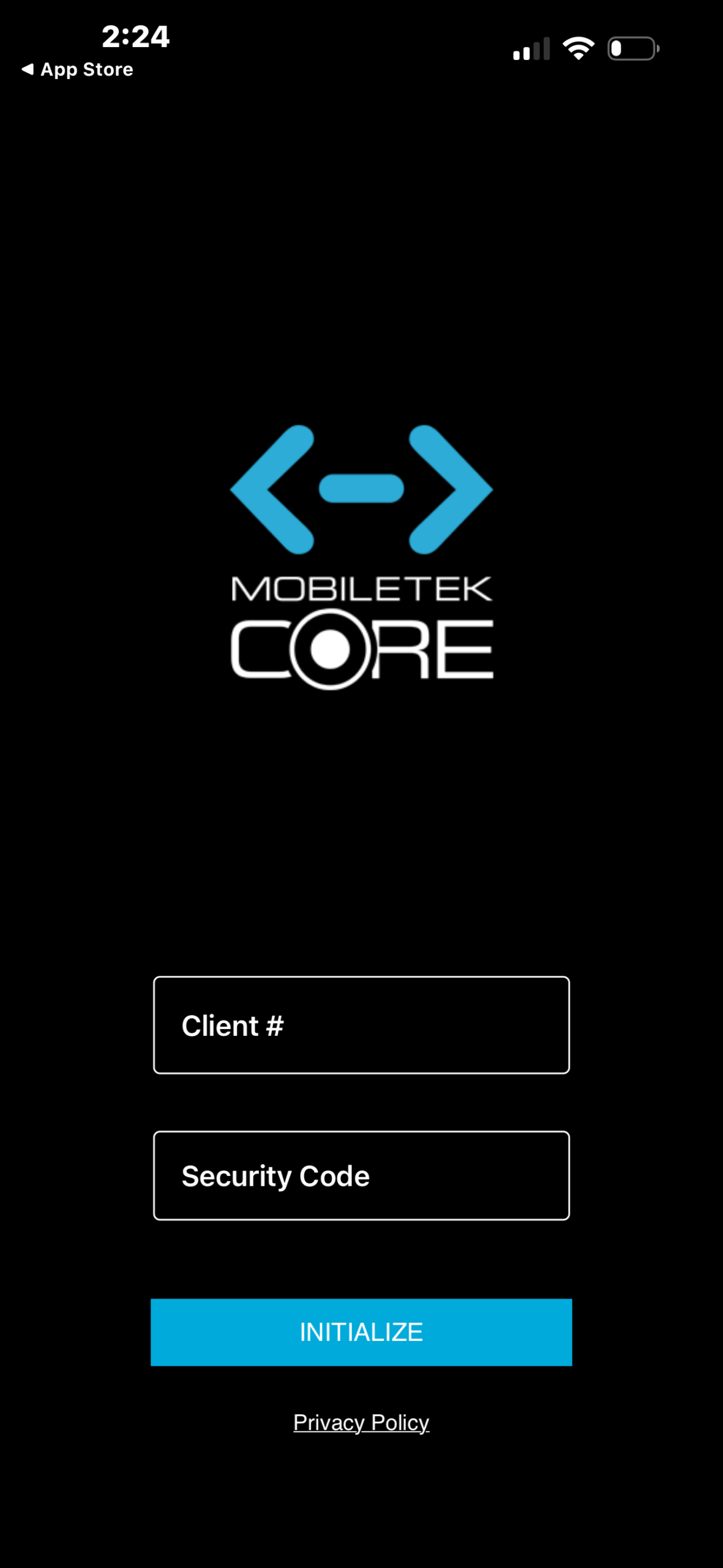
Company initialization: use the private Client # and Security Code from your ROLO email, then INITIALIZE. The example fields are blank. - Enter your personal Driver ID / Driver # and Password exactly as emailed. Tap LOGIN. Keep these details private.
- Allow camera, location and notifications when requested for your work. For “Are you using a Bluetooth/Handheld scanner?”, tap NO when using your phone’s camera; use YES only for a separate approved scanner.
View real screen
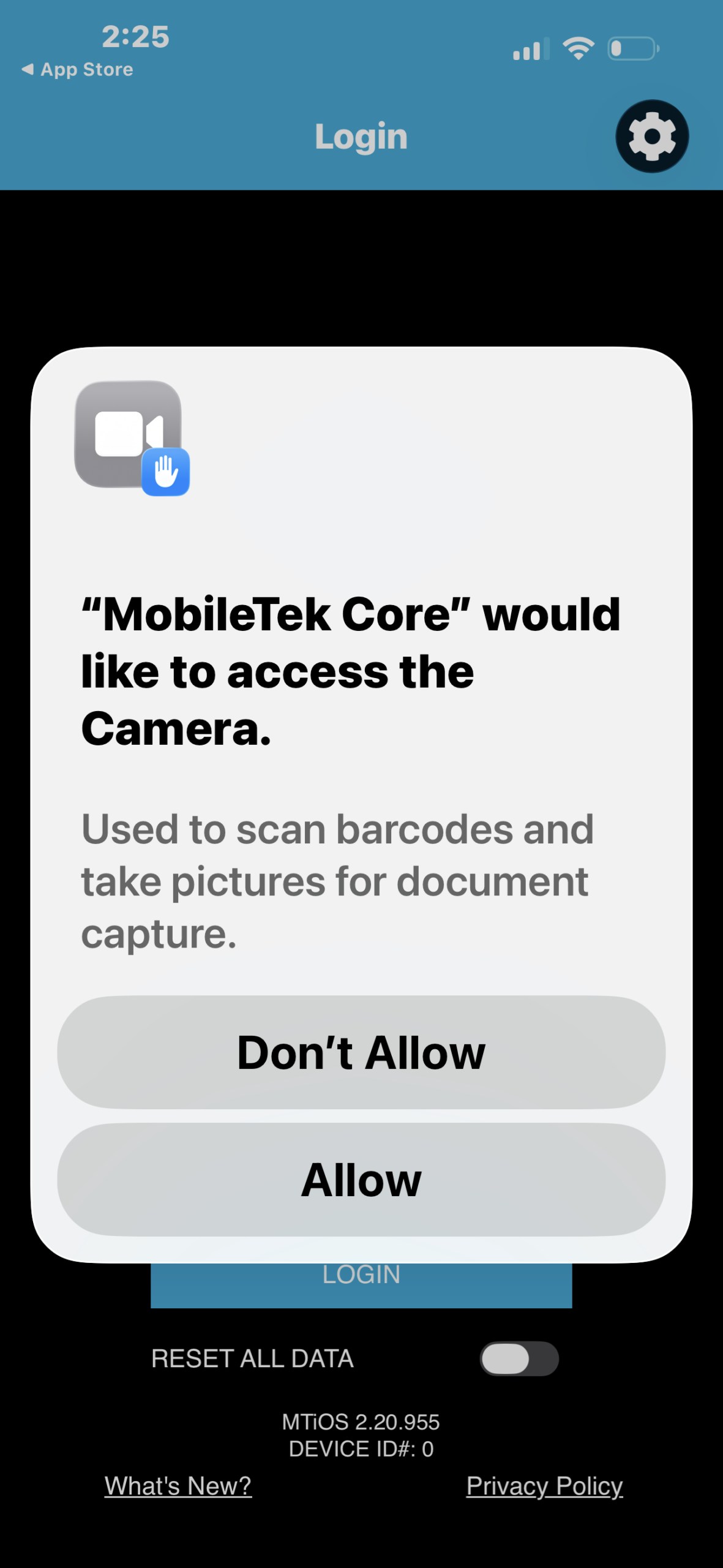
Camera permission: allow camera access when prompted during setup. View real screen
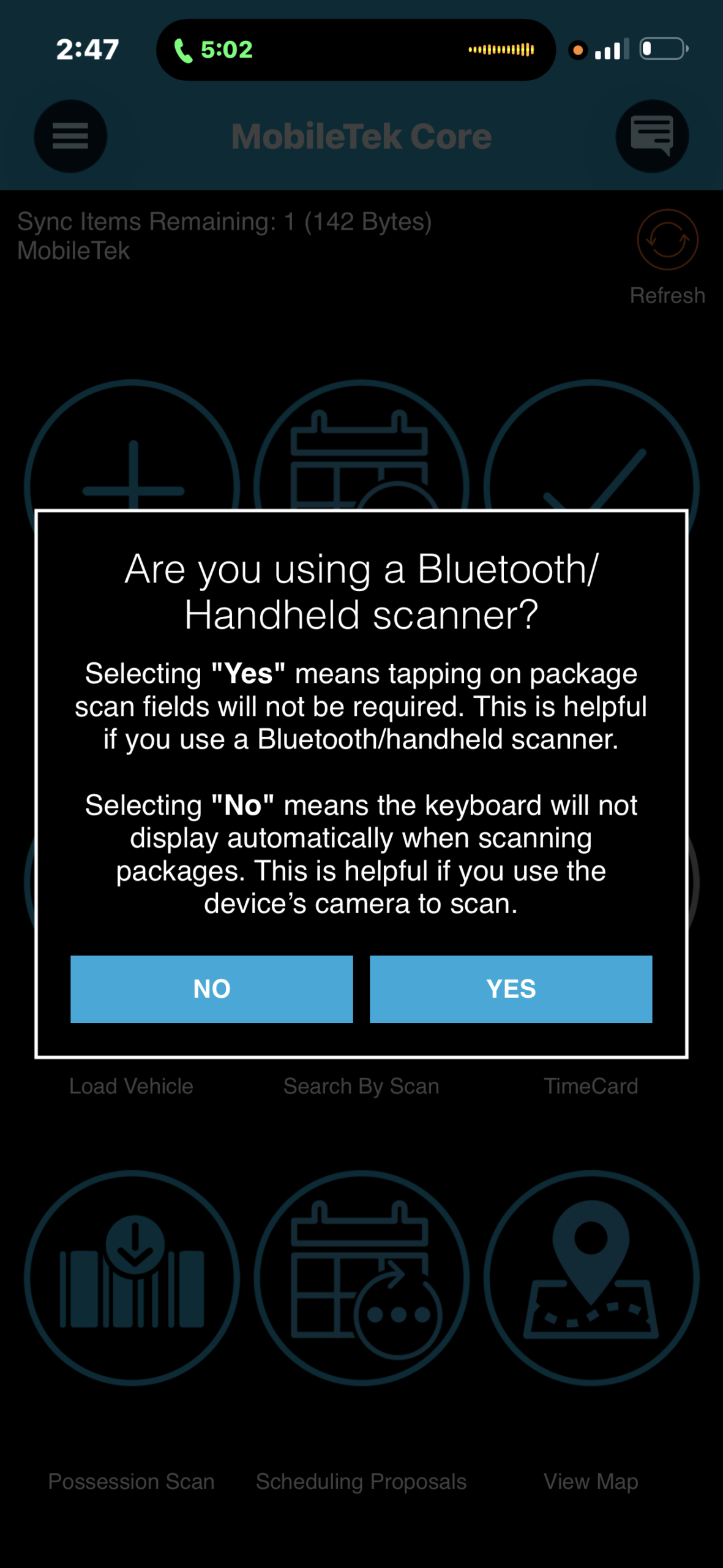
Bluetooth/Handheld scanner prompt: choose NO when using the phone camera without a separate scanner. - Save Password? is optional on your own secure phone. Keep RESET ALL DATA off.
View real screen
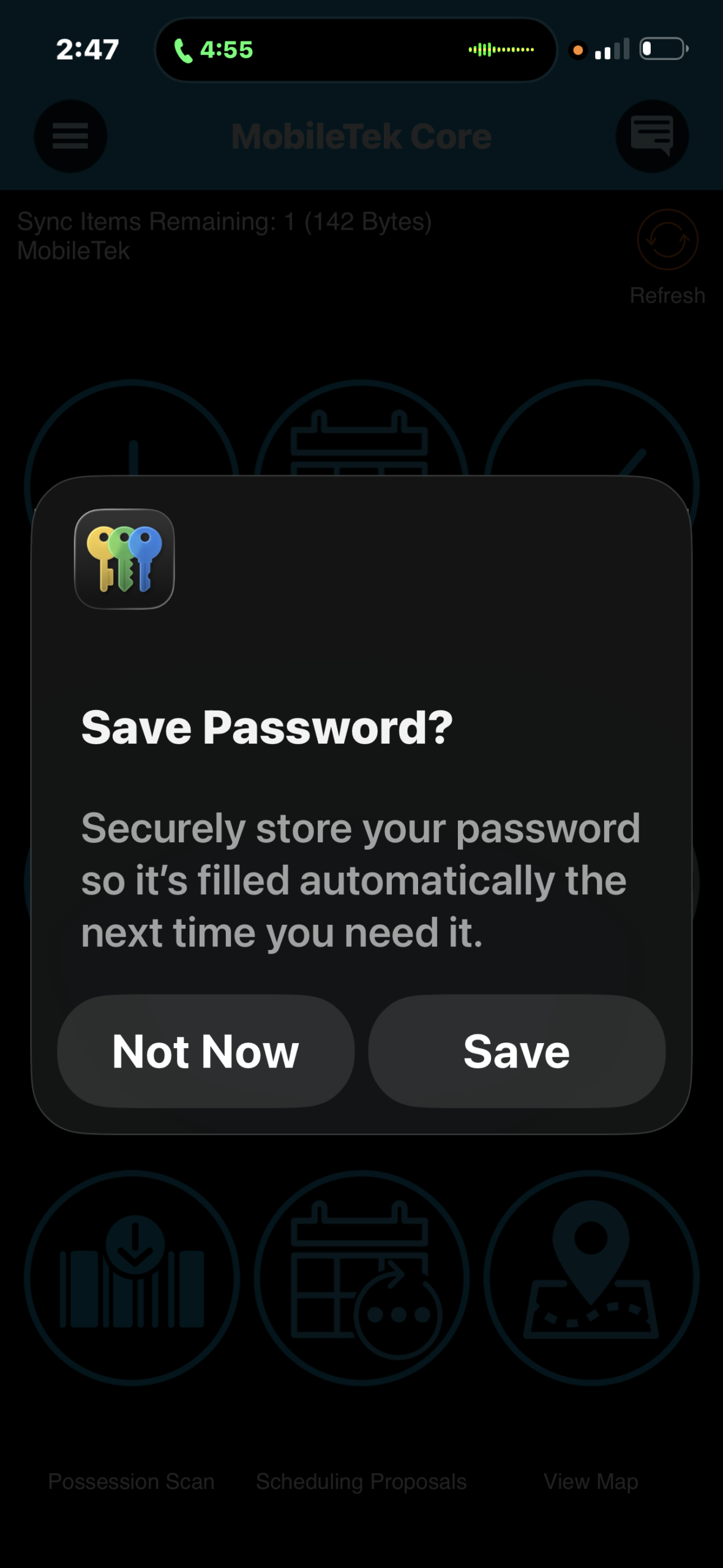
Save Password? is optional on your own secure phone. Choose Save or Not Now; this screen does not activate your account. - Check that the home screen shows New Orders, Scheduled Orders and Closed Orders. Keep mobile data on and your phone charged.
View real screen
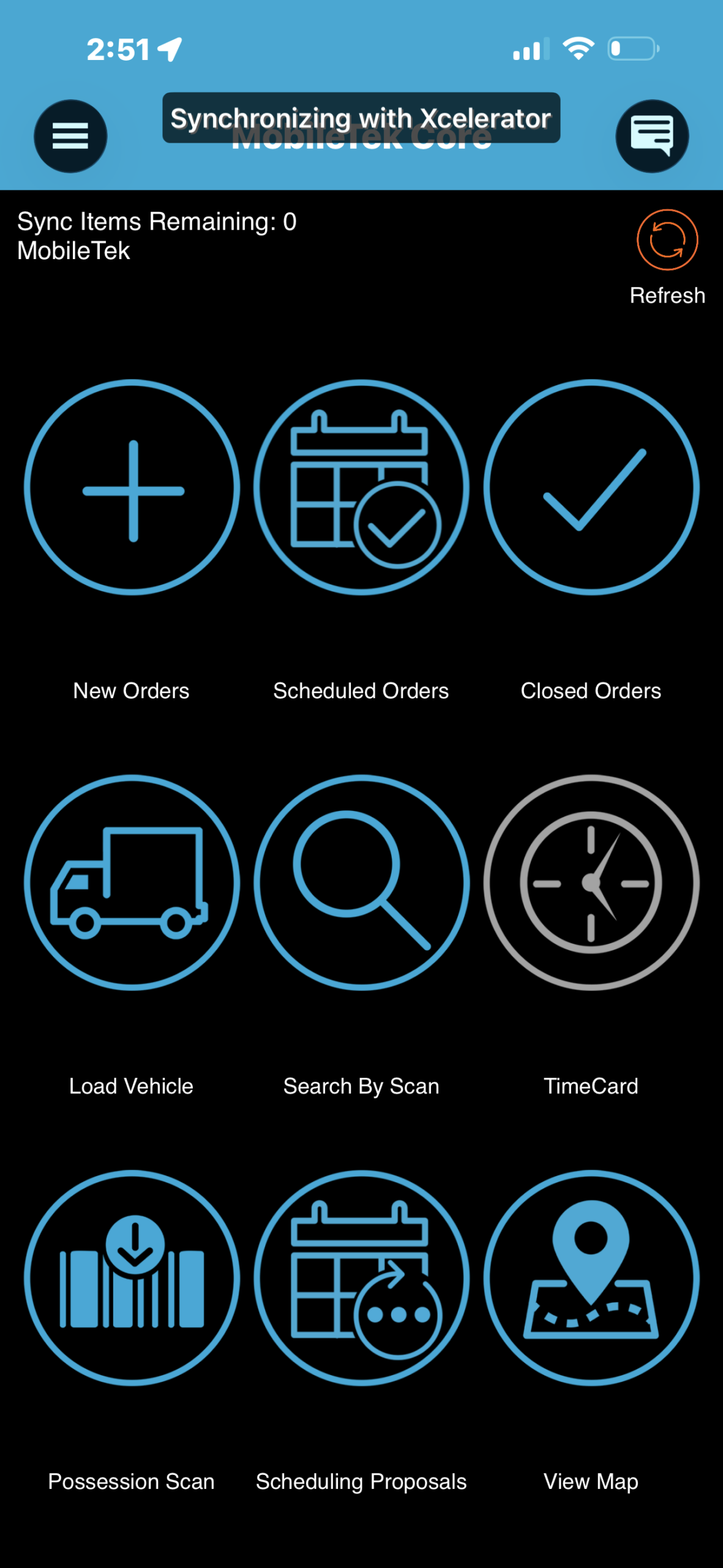
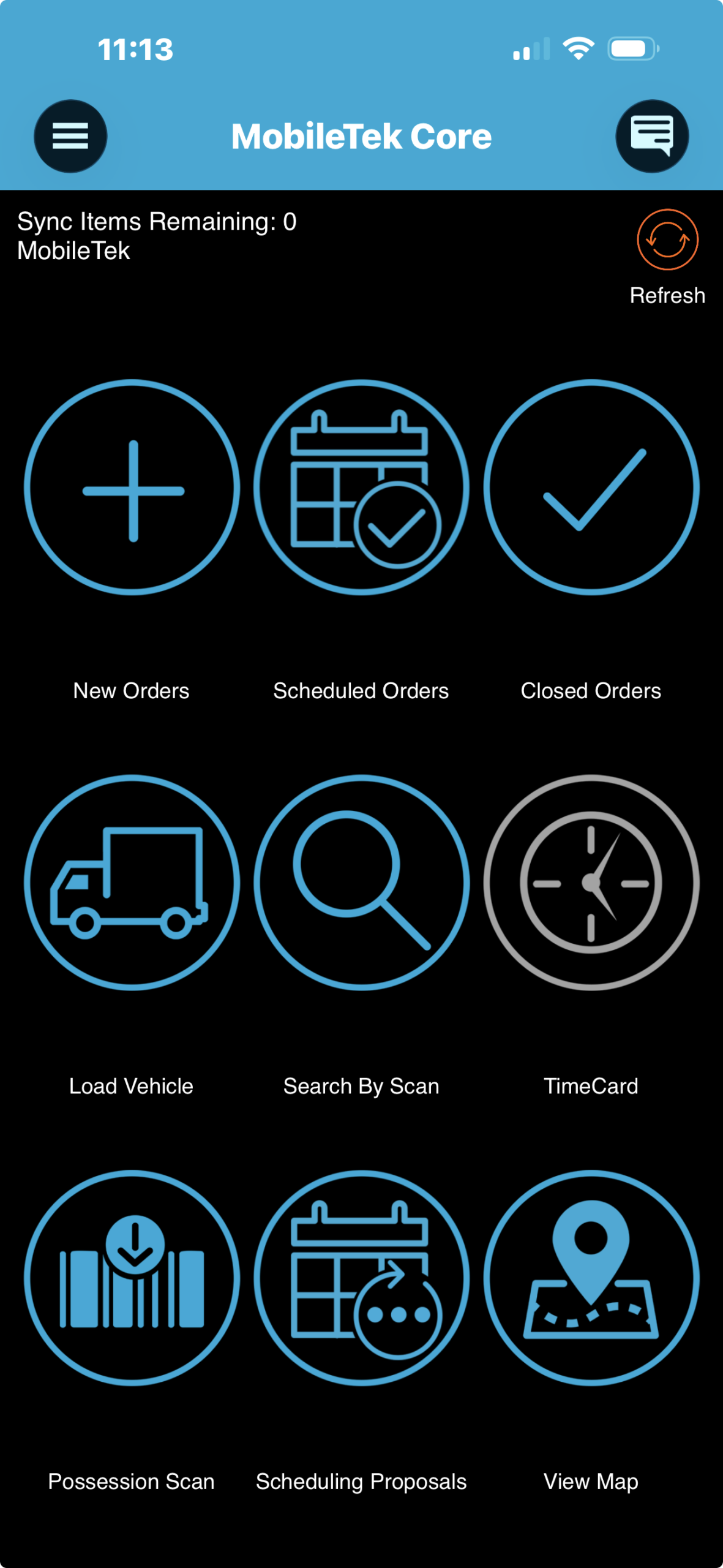
MobileTek home: New Orders, Scheduled Orders and Closed Orders. Your counts can differ from this practice screen.
Optional: Face ID / fingerprint login
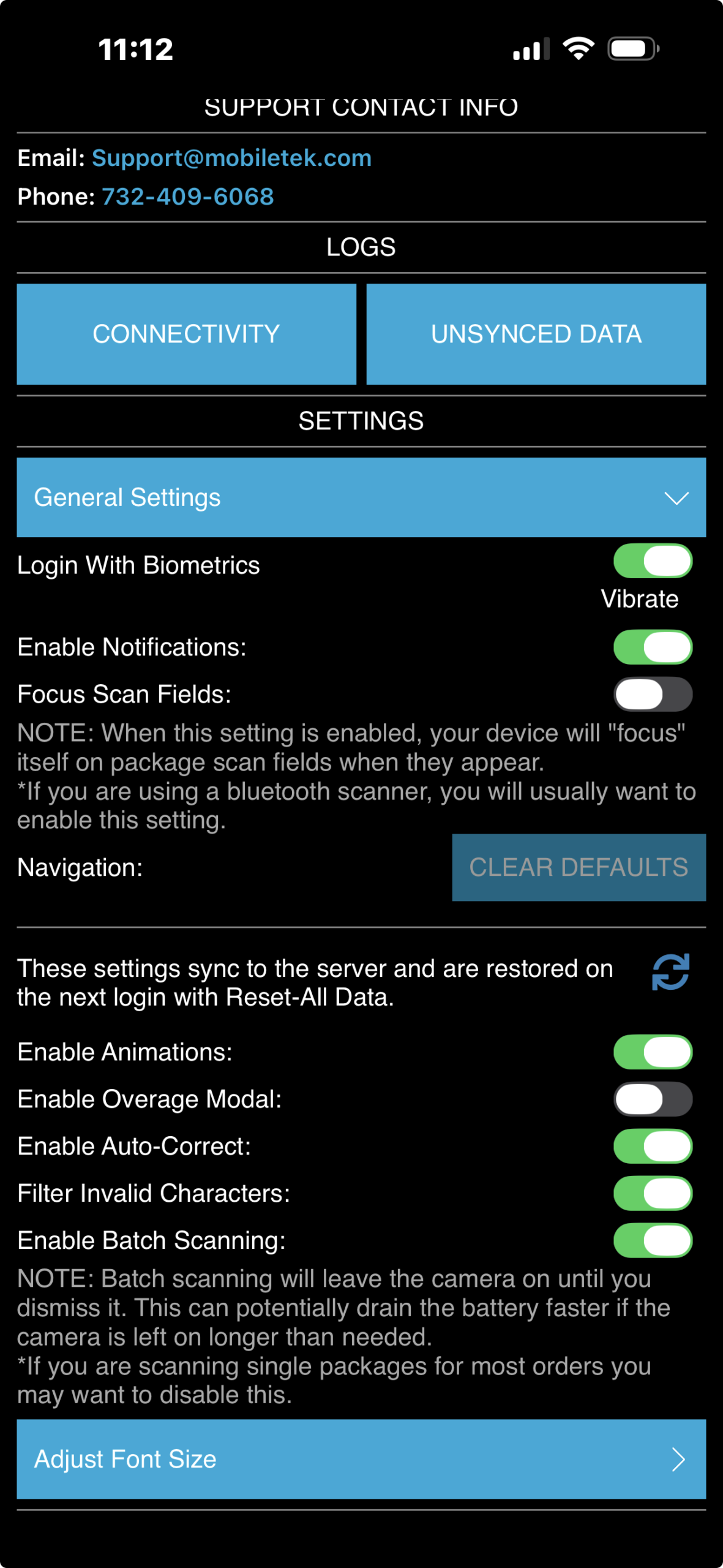
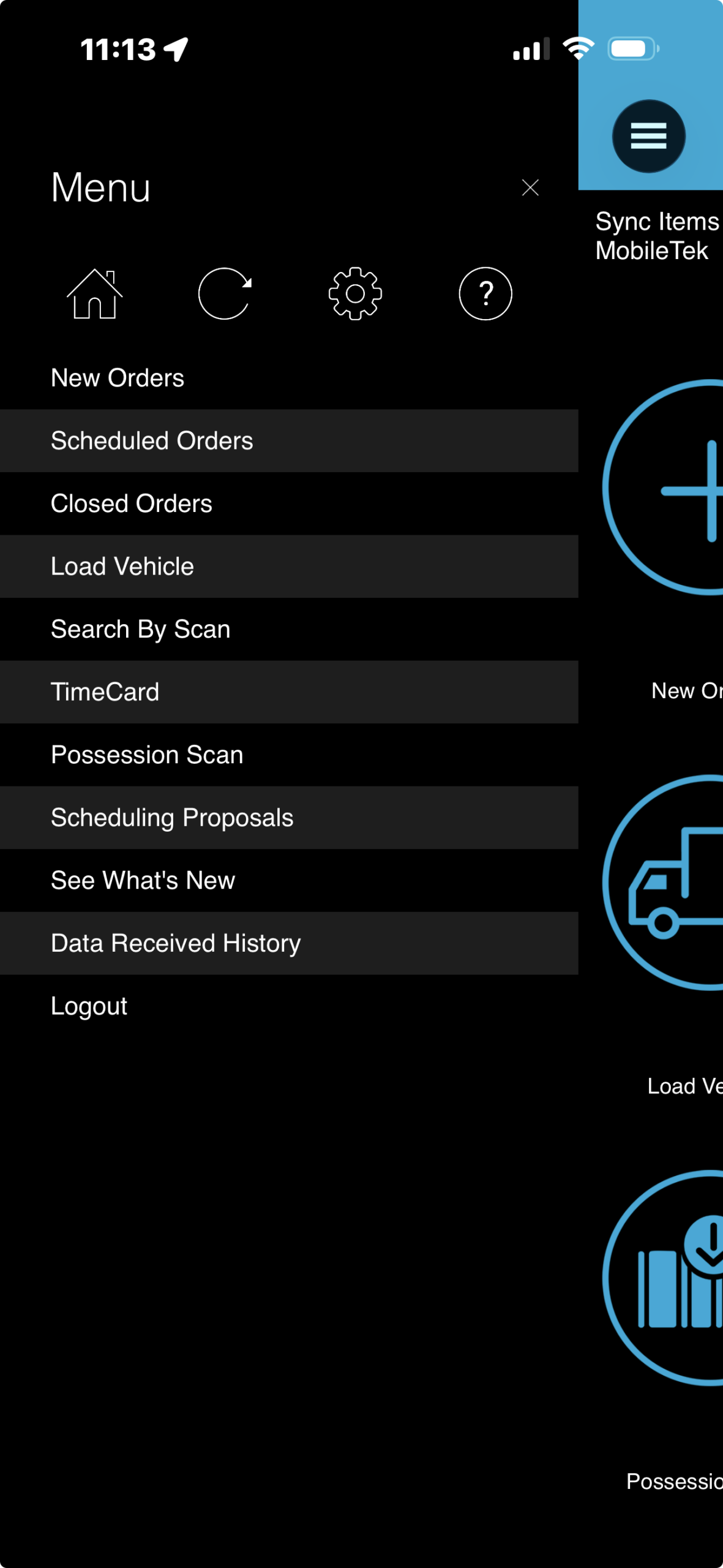
After your first successful password login: home ☰ → settings gear → General Settings → turn Login With Biometrics green. Approve your phone’s prompt if shown. Use your password if biometrics is unavailable.
View real screen
View real screen
View real screen