
ROLO Contractor Handbook
Driver Handbook & MobileTek Operations Guide
Fort Lauderdale • West Palm Beach
ROLO is a premium final mile logistics provider focused on speed, service quality, visibility, and reliability. MobileTek Core is ROLO’s primary field application for managing, scanning, tracking, and completing deliveries in real time. Drivers are expected to follow route sequence, scan every package, update status in real time, and capture clean proof of delivery.
1. Terminal Locations & Contacts
4132 NW 10th Ave
Oakland Park, FL 33309
Terminal Manager: Miguel Class
miguel.class@rolotransport.com
1500 Florida Mango Rd
West Palm Beach, FL 33404
Terminal Manager: John Hubbert
561-320-2934 / 754-755-0308
john.hubbert@rolotransport.com
Lisa Schifftner
Sr. Director of Operations
lisa.schifftner@rolotransport.com
747-755-0303
HR / Recruiting / Onboarding
recruiting@rolotransport.com
2. ROLO Standards
- Show up ready to work
- Follow the assigned route
- Complete each stop correctly
- Maintain professional customer behavior
- Communicate problems early
- Move with urgency
3. Before Your First Day
- Save all contact information
- Confirm your arrival time
- Bring your phone, charger, license, and proper attire
- Arrive with your vehicle and a dolly
- Install MobileTek and confirm your login works before arrival
4. Day 1 Activation System
ROLO uses a structured Day 1 process to validate readiness and reduce unnecessary hand-holding.
- Observation: Watch dispatch, routing, and load-out
- Self-Service Compliance: Upload documents, install apps, review training, complete checklist
- Structured Activation: Admin verifies checklist and dispatcher confirms readiness
- Performance Test: Driver is assigned overflow stops
- Route Decision: Assign route, keep in overflow, or remove
5. MobileTek Setup (First Time Use)
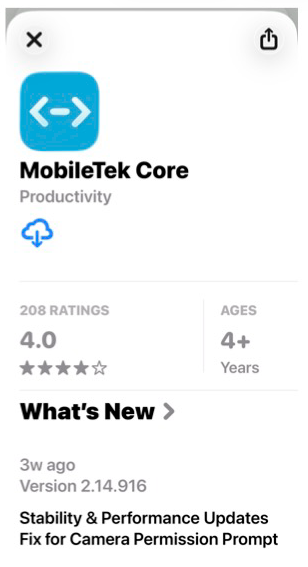
- Open the App Store on your iPhone
- Search for MobileTek Core
- Download and install the application
- Open the app and enter Client ID 471
- Enter Security Code 466761
- Tap Initialize
Allow Permissions
- Camera is required for scanning packages
- Location is required for route tracking and job updates
- Allow all required permissions before you begin work
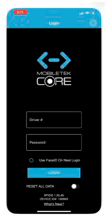
- Open MobileTek Core
- Enter your Driver Number
- Enter your password exactly as provided
- Optionally enable Face ID
- Tap Login
6. Start of Day Workflow
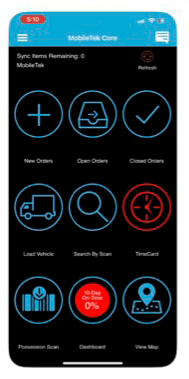
- Review system status
- Confirm the device is fully synced
- Tap New Orders
- Tap Refresh if needed
- Tap Accept or Accept All
- Open Open Orders to begin your route
Prepare for Route
- Review all assigned jobs
- Check addresses and instructions
- Load all packages into the vehicle in stop order
- Do not leave the terminal until your route is visible and organized
7. Open Orders and Job Start
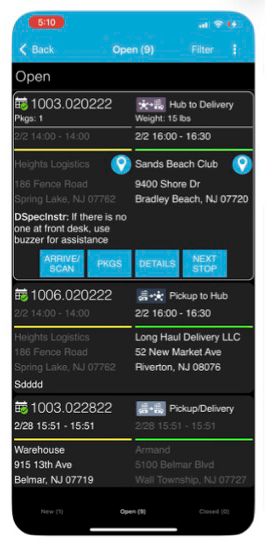
- Select the assigned job from Open Orders
- Review delivery details and instructions
- Proceed to the designated stop location
- Upon arrival, tap ARRIVE / SCAN to begin the job process
8. Delivery Package Scanning
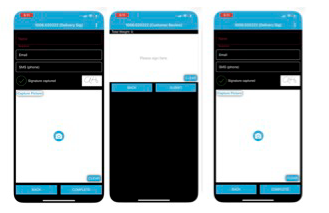
- Open the active order from Open Orders
- Tap ARRIVE / SCAN
- Tap Scan to open the camera
- Align the barcode and scan each package
- Confirm all packages show as scanned
9. Signature Capture and Delivery Close
- Present the device to the customer when signature is required
- Capture the signature clearly and submit
- Verify all packages are scanned
- Take required photo if needed
- Tap Complete
- Confirm the job moves to Closed Orders
10. HERE Routing and Navigation
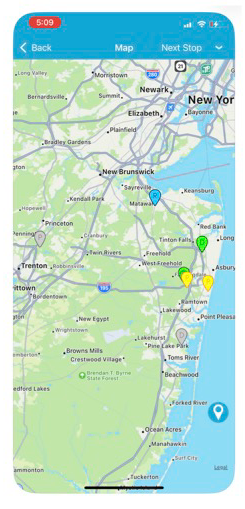
HERE mapping supports route planning, dynamic sequencing, address verification, and route optimization. Use the map to stay organized, not to redesign the route.
- Tap Map or View Map from the dashboard
- Identify current location, next stop, and remaining stops
- Tap the address to open GPS navigation
- Follow directions to the destination
- Follow stop order unless dispatch directs otherwise
- Keep GPS, data, and charging active
11. Contractor Tools, Deductions, and Working Requirements
Uniform Shirts
Uniform shirts are deducted at $20 per shirt. Contractors choose the quantity and must tell admin how many shirts to purchase.
Dolly Use
A dolly is strongly recommended to the point that it is nearly essential for successful route work. Operating without a dolly usually leads to poor efficiency, physical strain, and frustration.
HERE Monthly Deduction
HERE-related routing support carries a $5 monthly deduction. This supports route organization, visibility, and execution quality.
12. Driver Expectations
- Be responsive
- Follow instructions
- Communicate clearly
- Move with urgency
- Update the app in real time
- Report issues immediately
13. 90-Day Performance Bonus
- One-time $300 bonus after 90 days
- At least 95% delivery completion rate required
- Consistent daily attendance expected
- Late arrivals reduce the chance of hitting the standard
- If 95% is not met, the bonus is not awarded