Lesson 4: Use the Route Map & Navigation
Follow the planned route correctly and use navigation the right way throughout the day.
Why This Matters
MobileTek organizes stops to reduce wasted drive time, avoid backtracking, improve delivery timing, and help drivers complete routes more efficiently.
Look at This
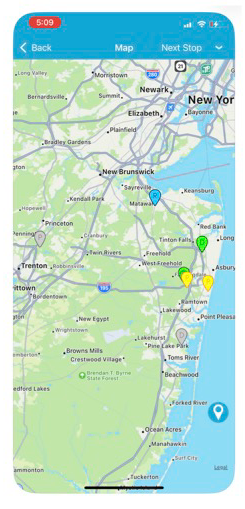
Current Navigation System
ROLO currently uses the standard phone navigation system connected to MobileTek. Drivers may use:
- Google Maps
- Apple Maps
- The phone’s default navigation app
Even when using your phone’s navigation app, you must still follow the stop order shown in MobileTek.
Future Upgrade: HERE Navigation
ROLO plans to upgrade to HERE Navigation inside MobileTek in the future. HERE is designed specifically for delivery operations and route management.
- More delivery-focused navigation
- Better stop-to-stop routing
- Improved route guidance
- Less manual app switching
- Better route optimization
- Cleaner delivery workflow integration
Why This System Helps Drivers
- Less wasted driving
- Less confusion between stops
- Reduced backtracking
- Better on-time performance
- Faster route completion
- Cleaner route organization
- Better customer experience
Do These Steps
- Open your Scheduled Orders inside MobileTek.
- Open the route map.
- Review the stop order before driving.
- Select the next stop in sequence.
- Use the navigation button connected to the stop.
- Follow the stops in the order shown.
- Complete the current stop before moving to the next stop.
- Review upcoming stops throughout the route.
Watch This Example: Using the Route Map & Navigation
Watch this walkthrough showing how drivers use the MobileTek route map, review stop order, launch navigation, and follow stops in the correct sequence throughout the route.
Pay Attention To:
- How stops are sequenced inside MobileTek
- How to review upcoming stops
- How to launch navigation
- How to follow the route in order
- How MobileTek guides drivers throughout the route
Watch This Example: Android Navigation Setup
Watch this walkthrough showing how to set your default navigation app on Android.
Watch This Example: iPhone Navigation Setup
Watch this walkthrough showing how to set your default navigation app on iPhone.
- Open your Scheduled Orders
- Open the route map
- Review your next 2 stops
- Launch navigation from MobileTek
- Verify your navigation app opens correctly
- Follow the stop sequence shown in MobileTek
Common Mistakes
- Skipping ahead to different stops
- Changing the route order without approval
- Ignoring the MobileTek stop sequence
- Using personal routing instead of the planned route
- Driving before reviewing the next stop
- Not checking navigation before leaving the stop
- Starting navigation from outside the assigned stop workflow
Changing the planned route can create delays, missed deliveries, extra driving, route confusion, customer complaints, and wasted fuel.
Success Check
- Know how to open the route map
- Understand how to follow stops in order
- Know how to launch navigation from MobileTek
- Understand ROLO’s current navigation workflow
- Understand the future HERE Navigation upgrade
- Be ready to navigate routes efficiently
If the route looks incorrect, stops appear out of order, or navigation is not working correctly, contact dispatch before changing the route yourself.