

ROLO Transport
Service-First Logistics Operations
Lesson 1: Teams Channels
Where Team Updates Belong
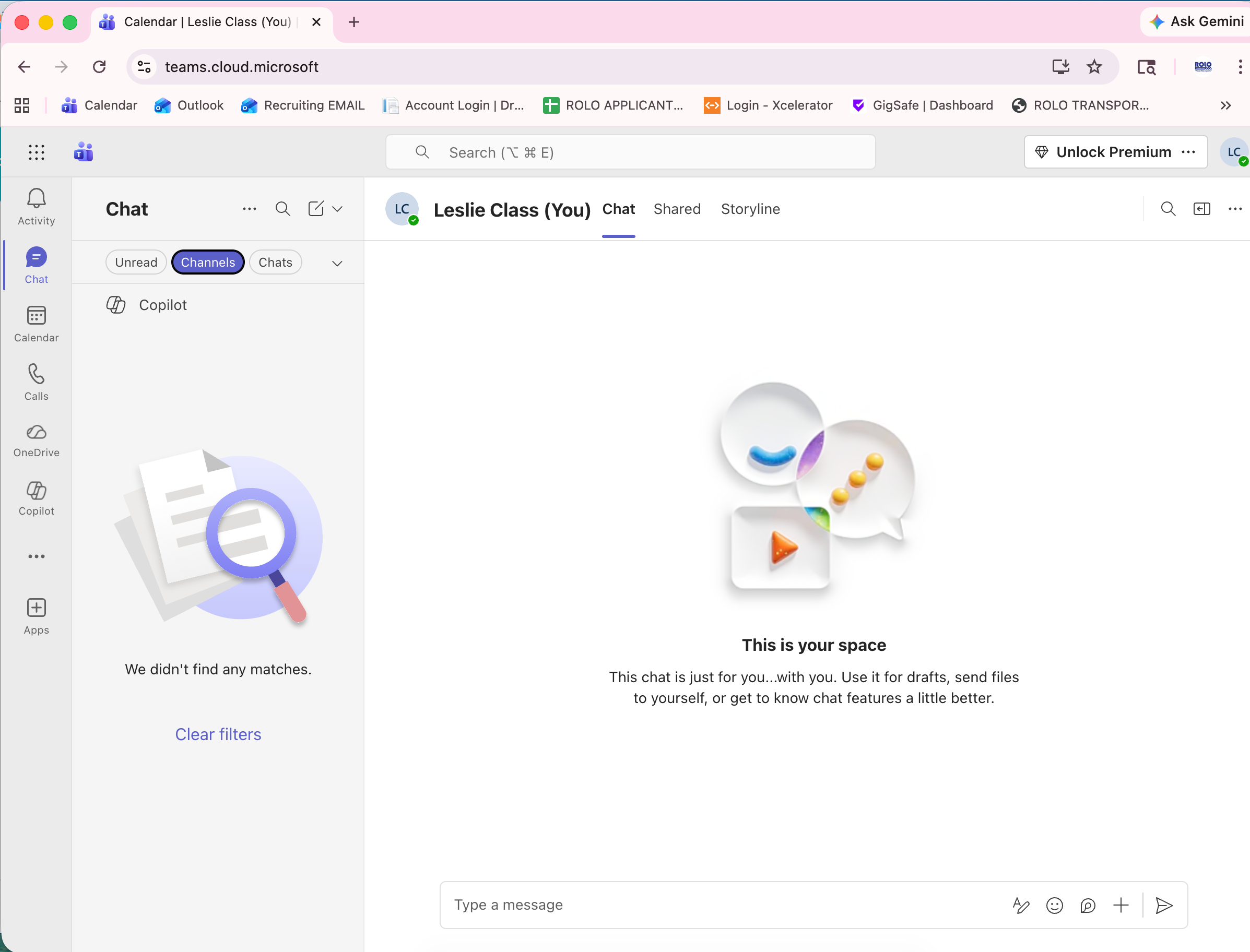
Step 1: Access Microsoft Teams (Windows)
- Click the Start Menu (Windows icon)
- Search for Microsoft Teams
- Click to open the application
- Log in using your company email if prompted
Alternative Option:
- Open a browser (Chrome or Edge)
- Go to office.com
- Sign in and select Teams
Purpose
Channels are used for team-wide communication. They keep updates visible, organized, and accessible to the right people.
ROLO Channel Structure
- There is a main ROLO team channel that includes all team members
- This is used for company-wide visibility and important updates
- Additional channels may exist for dispatch, operations, or admin
Use Channels For
- Dispatch updates
- Operations communication
- Team-wide visibility
- Anything multiple people need to see
How to Navigate Channels
- Open Microsoft Teams
- Select Teams from the left menu
- Choose the correct team (ROLO)
- Select the appropriate channel
- Review recent messages before posting
ROLO Standard: If the update impacts operations, customers, or team coordination, it must be posted in a visible channel — not hidden in chat.